

Embarking on the Journey: Resetting Your Insignia TV Without a Remote 🎬
Picture this: you're settling in for a riveting movie night, the popcorn's hot, the lights are dimmed, and your Insignia TV decides to play coy. Or, worse yet, the remote has decided to play hide and seek just when you need it the most. Fret not! We're here to turn your tech troubles into a triumphant tale of triumph. Welcome to our guide on how to reset Insignia TV without the aid of a remote.
While the remote control is a handy tool, it's not the only way to tango with your Insignia TV. There are times when your TV might throw a curveball in the form of unresponsive apps, frozen screens, or even forgotten parental control passwords. In such cases, a hard reset can be your knight in shining armor, restoring your TV to its factory settings and resolving those pesky Insignia TV common tech issues.
In this step-by-step Insignia TV reset guide, we'll navigate this journey together, leaving no stone unturned. From when to consider a hard reset to the actual reset process, we've got you covered. So, ready to become the master of your Insignia TV? Let's dive in!
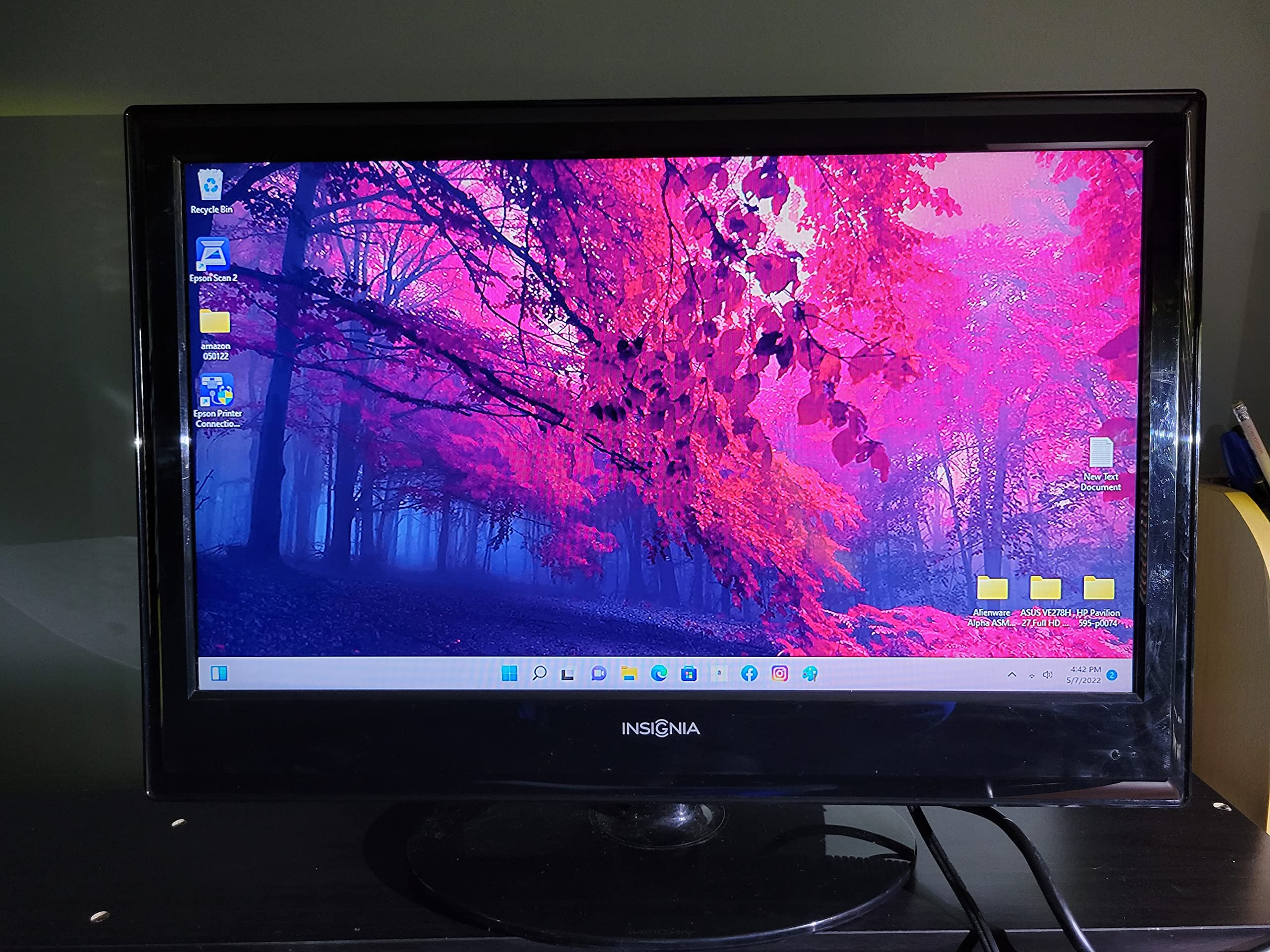
Is it Time for a Hard Reset? Recognizing the Signs 🕰️
Ever found yourself in the throes of an entertainment emergency? Your favorite show is about to start, but your Insignia TV is throwing a tantrum. The screen is frozen, the audio is out of sync, or worse, the TV is locked behind an unknown password. Panic not, brave tech warrior! This is where knowing how to reset Insignia TV without a remote can be your saving grace.
Imagine this: you're hosting a movie night, and right as the climax approaches, your TV decides to play the villain. It freezes. Or perhaps, your little one thought it'd be fun to change the TV password and promptly forgot it. Maybe you've inherited a second-hand Insignia TV sans remote, and you need to wipe off the previous settings. These are just a few examples where mastering the art of a hard reset can be your knight in shining armor.
And let's not forget the times when your Insignia TV starts behaving like a moody teenager, refusing to connect to WiFi or constantly crashing apps. Just like resetting your LG TV or troubleshooting your Samsung Smart TV, a hard reset can often be the magic wand that resolves these common tech issues.
So, ready to learn how to hard reset Insignia Fire TV or any other Insignia model? Let's dive right into this step-by-step Insignia TV reset guide.
Pre-Reset Checklist: What You Need to Know Before Diving In 📝
Before embarking on the journey of a hard reset, it's crucial to understand the implications. Here's a bit of a reality check: a hard reset on your Insignia TV will erase all data. Yes, you read that right. All your personalized settings, favorite channels, and saved passwords will vanish into thin air. It's like a clean slate, a fresh start, a digital detox of sorts.
But, fret not! This is not necessarily a bad thing. In fact, it could be the perfect opportunity to declutter your viewing experience. However, it does mean that you'll have to reconfigure your settings, re-enter passwords, and rediscover your favorite channels. So, before you dive in, ensure you have all necessary information at hand.
While the thought of resetting might be daunting, remember that it's a common troubleshooting method for resolving Insignia TV common tech issues. And hey, if you've previously navigated the waters of a reset on an iPad, or wrestled with a Roku TV reset, you're already ahead of the game. So, are you ready for this digital adventure? Let's proceed, shall we?
Your Roadmap to Reset: A Step-by-Step Guide to Hard Reset Your Insignia TV 🗺️
So, you're ready to dive into the process of resetting your Insignia TV without a remote? Let's get started. The first step is to locate the control buttons on the TV. These are typically found on the side or bottom of the unit. Once you've found them, press and hold the power button. A menu should appear on your screen.
Now, here's where things get a little tricky. You'll need to navigate the reset options using only the buttons on the television. Don't worry, it's not as daunting as it sounds. Simply use the volume buttons to move up and down through the options, and the channel buttons to select. You're looking for an option that says 'Factory Reset' or 'Hard Reset'.
Once you've found it, select it and confirm your choice. Your TV will then proceed with the reset. Remember, this will erase all your settings, so be sure you're ready for this step.
Encountering any snags along the way? Check out our guide on how to reset a Samsung TV for some general troubleshooting tips that might help. Or, if you're considering a switch to a different brand, you might find our Roku TV reset guide useful.
And there you have it! With patience and a little perseverance, you've just performed a hard reset on your Insignia TV without a remote. Remember, technology is a wild beast, but with the right knowledge, you can tame it. Ready to conquer the next tech challenge?

Step 1: The Hunt for Control Buttons 🕹️
With a sense of adventure, let's embark on a treasure hunt right on your Insignia TV. Your mission, should you choose to accept, is to locate the control buttons. But where could they be hiding? Fear not, for they are usually nestled subtly on the side or bottom edge of your TV, camouflaged within the sleek design. They are your secret weapons in this quest of how to reset Insignia TV without a remote.
Usually, you'll find a cluster of buttons including power, volume, and channel controls. Among these, the one you're most interested in is the power button. It's the key to unlocking the secret realm of the Insignia TV hard reset guide. Akin to the power wielded by the Firestick remote reset or the Apple TV remote reset, this humble button holds the power to resolve many Insignia TV common tech issues.
So, are you ready to take control? Remember, this is just the first step in your journey. After this, you'll be navigating the treacherous terrain of reset options, but rest assured, we'll guide you every step of the way, just like we do in our Chromecast reset guide. Let's move forward, shall we?
Step 2: Power Button Press - The Reset Initiation ⏯️
Now that you've located the control buttons on your Insignia TV, it's time to initiate the hard reset. For this, you'll need to press and hold the power button. However, this isn't a simple tap and release. You'll need to hold it for a few seconds, similar to how you'd coax a stubborn elevator button into action. Picture it as a tech handshake between you and your TV, a silent agreement that it's time for a fresh start.
As you press and hold, you might wonder, "Will this affect my TV's settings?" or "What if my TV doesn't respond?" Well, that's where our troubleshooting Insignia TV guide comes in handy. It's packed with solutions to common tech issues that might arise during this process.
Remember, the goal here is to reset your Insignia TV without a remote. So, while this step may seem simple, it's a crucial part of the Insignia TV hard reset guide. So, press, hold, and prepare for the next step. You're one step closer to resolving your Insignia TV issues.
Step 3: Navigating the Maze of Reset Options 🔍
Now that you've found the control buttons and initiated the reset process, you're ready to navigate the labyrinth of reset options on your Insignia TV. Think of it as a treasure hunt, except the treasure is a fresh, factory reset TV, ready to serve you with no lingering issues.
With the power button still held down, use the volume and channel buttons to maneuver through the options. The volume buttons will move your selection up and down, while the channel buttons will serve to confirm your choices. It might feel a bit like playing a video game, but remember, the stakes are higher. You're not just aiming for a high score; you're aiming to reset your Insignia TV successfully.
Keep an eye out for the option that says 'Factory Reset' or 'Full Reset.' This is your golden ticket, the key to resolving the common tech issues you've been facing. Select it, and you're one step closer to a smooth, trouble-free viewing experience.
Wondering if this process is similar to that of other devices? The answer is yes! The reset process for devices like DirecTV or Apple TV remotes is quite similar. So, once you've mastered this, you're well on your way to becoming a reset guru!
Step 4: The Final Countdown - Confirm and Execute Reset 🚀
Alright, here we are at the finish line of our Insignia TV hard reset guide. You've navigated the labyrinth of reset options, and now it's time to confirm and execute the reset. But, wait a minute! Do you feel a bit like you're standing on the edge of a tech cliff, about to leap into the unknown? Don't worry, we've got you covered.
First, make sure you're ready to say goodbye to your current settings, because once you hit that reset button, there's no turning back. This is the point of no return in your streaming control reset adventure.
Next, take a deep breath and press the 'OK' button on your Insignia TV. You'll see a confirmation message. Confirm your choice, and voila! You've just completed a hard reset of your Insignia TV without a remote. Congratulations, you tech wizard, you!
But what if your TV doesn’t restart automatically? Or what if it's still acting up? Don't fret! Check out our FAQ on troubleshooting common tech issues. Remember, every problem has a solution, and we're here to help you find it.
Stumbling Blocks: Troubleshooting Common Reset Hurdles 🚧
Embarking on a mission to perform a hard reset on your Insignia TV without a remote can feel like a journey into the unknown. But fear not, tech adventurers, for we've got you covered. Some common issues you might encounter during the reset process are a frozen screen, unresponsive buttons, or even a TV that refuses to power on. So, what's the plan of action when these tech gremlins show up?
Firstly, ensure your TV is properly connected to a power source. If the screen freezes during the reset, unplug the TV, wait for a few seconds, then plug it back in. Unresponsive buttons? They might just need a good clean. Use a soft, dry cloth to gently wipe the control panel. If your TV still refuses to power on, it might need a more thorough troubleshooting.
Remember, you're not alone in this tech wilderness. We're here to guide you through every step of the Insignia TV hard reset process. Ready to continue?
Wrapping Up: Your Insignia TV Reset Adventure Recap 🎁
And there you have it, fellow tech adventurers! We've traversed the intricate steps of the Insignia TV hard reset guide, proving once again that no remote is no problem. It's essential to remember that each step, from locating the control buttons to confirming the reset, demands our careful attention.
After all, don't we often find that in both life and tech, it's the smallest overlooked detail that trips us up? Resetting a password or remotely factory resetting a lost phone can seem like a daunting mission, but remember, every tech titan started where you are.
Perhaps you're wondering, "What's next?" Well, why not dive into how to reset an Amazon Fire Stick? Or maybe explore how to factory reset a phone without access? There's a world of tech out there waiting for you!
Remember, every reset button pushed, every password changed, every troubleshooting hurdle jumped, you're expanding your tech prowess. So, next time you're faced with a similar issue, be it an Insignia TV password reset, or resolving other common tech issues, you'll feel right at home. Until our next tech adventure, keep pushing those buttons and living the reset life!
Now that we've covered all the steps in detail, let's take a look at a video tutorial that will guide you through the process visually. This can be particularly helpful if you're more of a visual learner.
The video above should have given you a clear visual guide on how to perform a hard reset on your Insignia TV without a remote. Remember, if you encounter any issues, refer back to our troubleshooting section. As always, approach this process with caution to avoid any unnecessary complications. Happy troubleshooting!




No comments yet. Be the first to share your thoughts!