
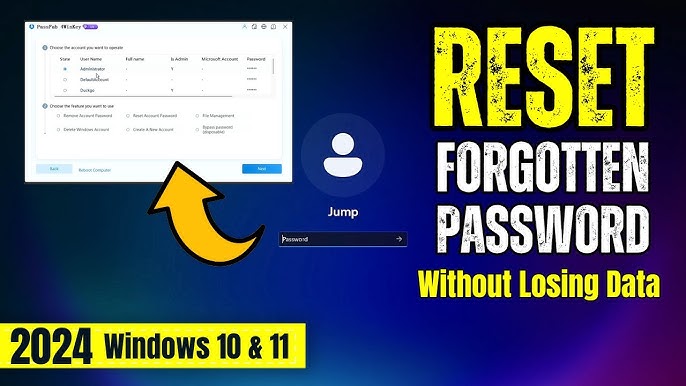
Understanding Windows 11 Password Reset Options
Forgetting your Windows 11 password can be frustrating, but the good news is that you don't have to lose your precious data in the process. Windows 11 offers several built-in methods to regain access to your system while preserving all your files, applications, and settings. The key is understanding which method works best for your specific situation.
Before diving into the reset procedures, it's crucial to identify what type of account you're using. Windows 11 supports two primary account types: Microsoft accounts (linked to your email) and local accounts (stored only on your device). Each type requires a different approach for password recovery, and knowing which one you have will determine the most effective reset method.

Microsoft Account vs Local Account: What's the Difference?
A Microsoft account is connected to an email address and syncs across multiple devices. If you see an email address on your login screen, you're using a Microsoft account. These accounts offer cloud-based password recovery, making the reset process straightforward even without prior preparation.
Local accounts, on the other hand, are created and stored entirely on your computer. They don't sync with Microsoft's servers and typically display just a username without an email address. While local accounts offer more privacy, they require different recovery methods that may need advance preparation.
Preparation: The Foundation of Successful Password Recovery
The most effective password recovery strategies begin before you actually forget your password. Windows 11 provides several proactive tools that can save you significant time and frustration later. Understanding these options now can prevent data loss scenarios in the future.
For Microsoft accounts, the recovery process is largely automated through Microsoft's online services. However, ensuring your recovery information is up-to-date is essential. This includes having access to your recovery email, phone number, and any authenticator apps you've configured.
Local account users have different preparation requirements. The password reset disk remains one of the most reliable methods, but it must be created while you still have access to your account. Additionally, enabling the built-in Administrator account or setting up alternative user accounts can provide backup access routes.
Safety First: Protecting Your Data During Password Reset
One of the primary concerns when resetting a Windows password is data preservation. Fortunately, most legitimate password reset methods for Windows 11 are designed to maintain your files and settings. However, understanding the risks and taking appropriate precautions ensures your data remains safe throughout the process.
The methods we'll explore in this guide focus specifically on techniques that preserve your existing data. We'll avoid discussing potentially destructive approaches like complete system resets or third-party tools that might compromise your files or system security.
It's worth noting that while your personal files will remain intact during these procedures, you may need to reconfigure some application settings or re-enter saved passwords in browsers and other programs. This is normal and doesn't indicate data loss.
What You'll Need Before Starting
Depending on your account type and chosen reset method, you may need different tools and information. For Microsoft accounts, having access to your recovery email or phone number is typically sufficient. You might also need your authenticator app if two-factor authentication is enabled.
Local account recovery may require physical tools like a password reset disk or installation media. In some cases, you'll need access to another administrator account on the same computer. We'll cover how to determine what you need based on your specific situation.
The upcoming sections will walk you through each method step-by-step, ensuring you can regain access to your Windows 11 system quickly and safely. Whether you're dealing with a Microsoft account or local account, there's a solution that will work for your situation without compromising your valuable data.
Step-by-Step Password Reset Methods
Now that you understand the available options, let's dive into the detailed procedures for resetting your Windows 11 password without losing data. Each method is designed to preserve your files, settings, and installed applications while regaining access to your system.
Method 1: Microsoft Account Password Reset (Online)
This is the most straightforward method if you're using a Microsoft account to sign into Windows 11. Since your password is stored in Microsoft's cloud servers, you can reset it from any device with internet access.
The online reset method is particularly effective because it doesn't require physical access to your locked computer. Once you've successfully reset your Microsoft account password, the change will automatically sync to your Windows 11 device the next time it connects to the internet.
Method 2: Using Security Questions (Local Accounts)
For local accounts created in Windows 11, security questions provide a built-in recovery mechanism. This method only works if you previously set up security questions during account creation or through Windows Settings.
To access this option, simply enter an incorrect password at the login screen. After a few failed attempts, Windows 11 will display a "Reset password" link below the password field. Click this link to access your security questions.
Answer all three security questions correctly, and Windows will allow you to create a new password immediately. This method maintains all your data integrity since it's an official Windows recovery feature.
Method 3: Password Reset Disk Method
If you had the foresight to create a password reset disk before forgetting your password, this method offers the most reliable solution for local accounts.
The password reset disk method is particularly valuable because it works regardless of how many times you've changed your password since creating the disk. Windows stores a unique key on the disk that remains valid throughout the account's lifetime.
Method 4: Safe Mode Command Prompt Technique
For users comfortable with command-line operations, the Safe Mode approach provides another avenue for password recovery. This method involves accessing Windows 11's Safe Mode and using administrative commands to reset user passwords.
To enter Safe Mode, restart your computer and repeatedly press F8 during startup, or use the "Shift + Restart" combination from the login screen to access Advanced Startup Options. Navigate to Troubleshoot > Advanced Options > Startup Settings, then select "Enable Safe Mode with Command Prompt."
Once in Safe Mode with Command Prompt, you can use the "net user" command to reset passwords for local accounts. This method requires some technical knowledge but is highly effective when other options aren't available.
Method 5: Windows Installation Media Recovery
When other methods fail, using Windows installation media provides a comprehensive solution. This approach involves creating a bootable Windows 11 USB drive or DVD from another computer and using it to access recovery tools.
Boot your locked computer from the installation media and select "Repair your computer" instead of installing Windows. Navigate to Troubleshoot > Advanced Options > Command Prompt to access powerful recovery commands.
From the command prompt, you can replace system files temporarily to enable the built-in Administrator account, which then allows you to reset passwords for other user accounts. This method requires careful execution but doesn't affect your personal data.
Important Considerations Before Starting
Before attempting any password reset method, ensure your computer is connected to a reliable power source. Interruptions during the reset process could potentially cause system instability.
Additionally, if you're using BitLocker encryption, you'll need your recovery key before proceeding with most methods. The recovery key is typically saved to your Microsoft account, printed during setup, or stored in Active Directory for domain-joined computers.
Remember that these methods are designed specifically to preserve your data while regaining access. Unlike a complete system reset, these procedures maintain your installed programs, personal files, and system settings, making them the preferred approach for password recovery.
Advanced Recovery Methods and Prevention
When standard password reset methods fail, Windows 11 offers additional recovery options that can help you regain access without data loss. These advanced techniques require careful execution but provide reliable alternatives for password recovery.
Using Windows Recovery Environment (WinRE)
The Windows Recovery Environment provides a powerful platform for password recovery when other methods are unavailable. This approach leverages built-in Windows tools to reset passwords through the command line interface.
This method works by replacing the accessibility features with command prompt access, allowing you to reset passwords directly from the login screen. The process requires no additional software and maintains all user data integrity.
Third-Party Password Reset Tools
Several reputable third-party tools can assist with Windows 11 password reset when built-in methods prove insufficient. These tools create bootable media that can bypass Windows security while preserving your data.
Popular options include Ophcrack, PCUnlocker, and Lazesoft Recover My Password. These tools work by creating a bootable USB or DVD that loads before Windows starts, allowing direct access to the password database. Always download such tools from official sources and scan them for malware before use.
When using third-party tools, ensure you follow the manufacturer's instructions precisely. Most tools require creating bootable media on a separate computer, then booting the locked machine from this media to perform the reset.
Professional Data Recovery Services
For critical business systems or when dealing with encrypted drives, professional data recovery services offer the safest approach to password recovery. These services employ specialized tools and techniques that minimize data loss risks while ensuring complete access restoration.
Preventing Future Password Issues
Prevention remains the best strategy for avoiding password-related lockouts. Implementing proper password management practices can save significant time and frustration in the future.
Windows 11 offers multiple security options that work together to provide robust account protection while maintaining recovery accessibility. Setting up these features before you need them ensures smooth password recovery when issues arise.
Creating Multiple Recovery Options
Diversifying your recovery methods provides multiple pathways back into your system. Consider setting up PIN authentication, Windows Hello biometric login, and security keys as alternatives to traditional passwords. These methods often prove more convenient while maintaining security standards.
Regular backup of your password reset disk and keeping recovery information current ensures these methods remain effective. Store physical reset disks in secure but accessible locations, and update recovery email addresses and phone numbers promptly when they change.
Troubleshooting Common Issues
Password reset processes sometimes encounter obstacles that require additional troubleshooting. Understanding these common issues and their solutions helps ensure successful recovery.
Network connectivity problems can prevent Microsoft account password resets from completing. Ensure stable internet connection and try resetting from different devices if necessary. Local account resets may fail if user account control settings prevent administrative access through recovery methods.
BitLocker encryption can complicate password reset procedures. If your drive uses BitLocker, ensure you have the recovery key before attempting password resets. Some methods may trigger BitLocker recovery mode, requiring the key to access your data.
Conclusion
Resetting your Windows 11 password without losing data requires understanding the available methods and choosing the approach that best fits your situation. Whether using Microsoft account recovery, local account reset procedures, or advanced recovery techniques, the key lies in following procedures carefully and maintaining proper recovery preparations.
Remember that password security and recovery preparation work hand in hand. By implementing comprehensive recovery options and maintaining good password practices, you can ensure both security and accessibility for your Windows 11 system. Regular review and updating of your recovery methods keeps them effective and ready when needed.
No comments yet. Be the first to share your thoughts!