
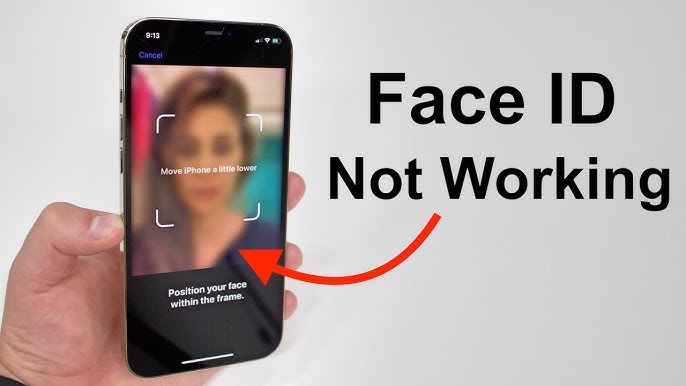

Understanding iPhone 15 Face ID Issues and Password Reset Options
When your iPhone 15's Face ID stops working, it can leave you locked out of your device and unable to access your important data. This comprehensive guide will walk you through multiple methods to regain access to your iPhone 15, from simple troubleshooting steps to complete password resets.
Common Causes of Face ID Failures
Before diving into password reset procedures, it's important to understand why Face ID might stop working on your iPhone 15. Several factors can contribute to Face ID malfunctions:
- Physical obstructions: Dirt, moisture, or screen protectors covering the TrueDepth camera system
- Lighting conditions: Extremely bright or dim environments that interfere with facial recognition
- Appearance changes: Significant changes to your facial features, new glasses, or facial hair
- Software glitches: iOS bugs or corrupted Face ID data
- Hardware damage: Physical damage to the TrueDepth camera or related components
Initial Troubleshooting Steps
Before resorting to a complete password reset, try these preliminary troubleshooting methods that might resolve your Face ID issues without data loss:
If these basic troubleshooting steps don't resolve the issue, you'll need to proceed with more advanced recovery methods. The severity of your situation will determine which approach is most appropriate for your specific case.
Password Reset Methods Overview
When Face ID fails and you cannot access your iPhone 15, you have several password reset options available. Each method has different requirements and consequences:
- Recovery Mode Reset: Completely erases your device and requires restoration from backup
- iTunes/Finder Restore: Similar to recovery mode but initiated through computer software
- iCloud Erase: Remote device wipe using Find My iPhone feature
- DFU Mode Restore: Deep-level firmware restoration for severe software issues
The choice between these methods depends on your backup status, computer access, and the specific nature of your Face ID problem. In most cases, Recovery Mode provides the most reliable solution for iPhone 15 password reset scenarios.
Pre-Reset Preparation Checklist
Before proceeding with any password reset method, ensure you're properly prepared to minimize data loss and streamline the recovery process:
Method 1: Recovery Mode Reset for iPhone 15
Recovery Mode represents the most straightforward approach to resetting your iPhone 15 password when Face ID stops working. This method completely erases your device, including the problematic passcode, and allows you to start fresh with a clean iOS installation.
Important Warning: Recovery Mode will permanently erase all data on your iPhone 15. This includes photos, messages, apps, settings, and any other personal information stored locally on the device. Only proceed if you have a recent backup or can afford to lose this data.
Understanding the Recovery Process
The Recovery Mode process involves several distinct phases that you should understand before beginning:
- Device Recognition: Your computer must successfully detect the iPhone 15 in recovery mode
- iOS Download: The latest iOS version will be downloaded to your computer
- Device Restoration: Your iPhone will be completely wiped and restored with fresh iOS
- Initial Setup: You'll configure your device as new or restore from backup
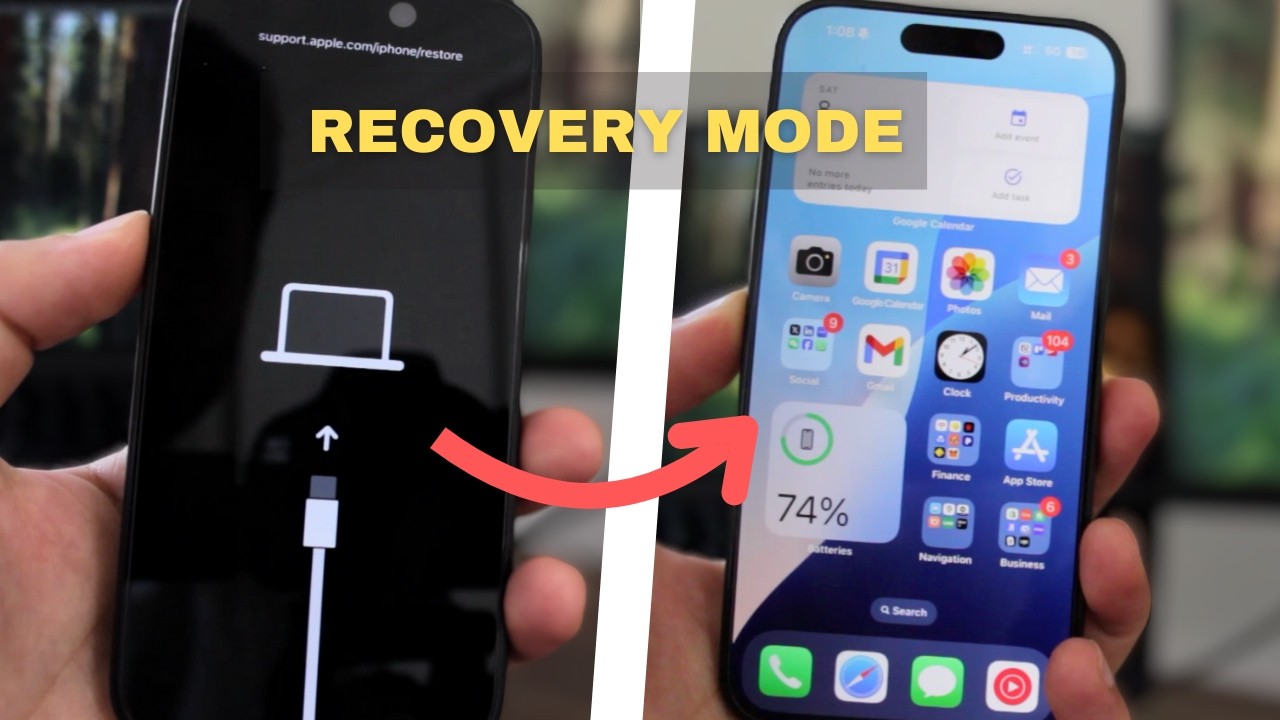
The entire process typically takes 30-60 minutes depending on your internet connection speed and computer performance. During this time, it's crucial not to disconnect your iPhone 15 from the computer or interrupt the restoration process.
Alternative Methods for iPhone 15 Password Recovery
If Recovery Mode isn't suitable for your situation, several alternative methods can help you regain access to your iPhone 15 when Face ID fails. These approaches offer different levels of data preservation and complexity.
Method 1: Using Find My iPhone
If you have Find My iPhone enabled and remember your Apple ID credentials, you can remotely erase your device and reset the password without connecting to a computer.
- Visit icloud.com/find on any web browser
- Sign in with your Apple ID and password
- Select your iPhone 15 from the device list
- Click "Erase iPhone" to remove the passcode
- Set up your device as new or restore from backup
Method 2: Using iTunes/Finder Backup Restore
If you have a recent iTunes or Finder backup, you can restore your iPhone 15 while preserving most of your data. This method requires that you previously synced your device with the computer.
Connect your iPhone to the trusted computer, select your device in iTunes or Finder, and choose "Restore Backup." Select the most recent backup that was created before the Face ID issues began. This process maintains your data while removing the problematic passcode.
Troubleshooting Face ID After Password Reset
Once you've successfully reset your iPhone 15 password, addressing the underlying Face ID issues prevents future lockouts. Face ID problems often stem from hardware malfunctions, software conflicts, or environmental factors.
Re-enabling Face ID Functionality
After resetting your password, follow these steps to restore Face ID functionality:
- Navigate to Settings > Face ID & Passcode
- Enter your new passcode
- Select "Set Up Face ID" or "Reset Face ID" if the option appears
- Position your face within the camera frame and slowly move your head in a circle
- Complete the second Face ID scan for improved accuracy
- Test Face ID functionality with screen unlock and app authentication
Common Face ID Issues and Solutions
Several factors can cause Face ID to malfunction on iPhone 15 devices. Camera obstruction from dirt, screen protectors, or cases frequently interferes with facial recognition. Clean the TrueDepth camera system gently with a soft, lint-free cloth.
Software conflicts may also disrupt Face ID functionality. Ensure your iPhone runs the latest iOS version by checking Settings > General > Software Update. Restart your device by holding the Side button and Volume button simultaneously until the power slider appears.
Environmental conditions significantly impact Face ID performance. Extreme lighting conditions, wearing masks or sunglasses, or significant changes in appearance can prevent successful authentication. Face ID learns and adapts to gradual changes in your appearance, but dramatic alterations may require re-enrollment.
Preventing Future Password and Face ID Issues
Implementing preventive measures reduces the likelihood of experiencing similar problems with your iPhone 15. Regular maintenance and proper setup practices ensure reliable device access.
Best Practices for Face ID Maintenance
Maintain optimal Face ID performance by keeping the TrueDepth camera clean and unobstructed. Remove screen protectors that cover the camera area, and ensure your phone case doesn't interfere with the sensor array. Regularly update your Face ID data by going to Settings > Face ID & Passcode > Reset Face ID and setting it up again every few months.
Create multiple backup authentication methods to prevent complete lockouts. Enable both Face ID and a strong alphanumeric passcode. Consider setting up an alternate appearance in Face ID settings if you frequently wear glasses, masks, or other accessories that might affect recognition.
Backup and Security Considerations
Regular backups ensure data protection during password reset procedures. Enable automatic iCloud backups in Settings > [Your Name] > iCloud > iCloud Backup, or create manual iTunes/Finder backups weekly. Store backup encryption passwords securely, as encrypted backups preserve more data including passwords and Health information.
Document your Apple ID credentials and store them securely. Consider using a reputable password manager to maintain secure access to your Apple ID account. Enable two-factor authentication for additional security while ensuring you have access to trusted devices or phone numbers.
No comments yet. Be the first to share your thoughts!