
Start the reset process
To reset your Apple ID password, you must first determine your current access level. The entry point changes depending on whether you are already signed into your device or completely locked out.
If you are currently logged in
If your iPhone or Mac is still signed in, you can change your password directly from your settings. This is the fastest method because your device already trusts your identity.
- Open Settings (iPhone) or System Settings (Mac).
- Tap your name at the top to open your Apple ID profile.
- Select Sign-In and Security (or Password & Security on older macOS).
- Tap Change Password.
- Enter your device passcode when prompted, then create your new password.
If you are locked out
If you cannot access your account, you must use the password recovery flow. This process verifies your identity through a trusted device or phone number.
- Go to iforgot.apple.com on any web browser or use the Lock Screen on your iPhone.
- Enter your Apple ID email address.
- Follow the on-screen instructions to verify your identity. You may receive a code via text message or email.
- Once verified, create a new password.
If you have two-factor authentication enabled, you will need access to one of your trusted devices or phone numbers to receive the verification code. Without these, the reset process will stall at the verification step.
Verify your identity securely
Apple requires Two-Factor Authentication (2FA) to prove you are the account owner before allowing a password reset. This step protects your personal data from unauthorized access. When you initiate a password change, Apple sends a verification code to your trusted devices or phone numbers.
If you have another Apple device signed in with the same Apple ID, a prompt appears on that device asking if you want to allow the password change. Tap Allow and enter the six-digit code shown on the screen into your iPhone or Mac. If you do not have access to another Apple device, the code is sent via text message or phone call to your trusted phone number.
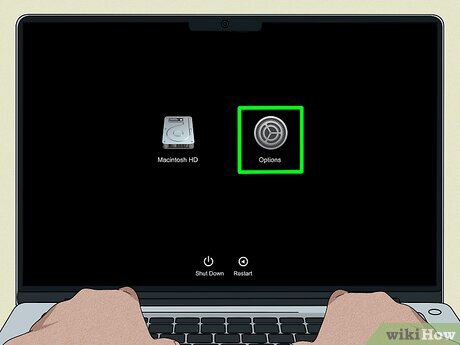
For Mac users, the process often involves entering the verification code directly into the system preferences window. The interface guides you through entering the code sent to your iPhone or iPad. If you cannot receive the code, you can request it to be sent to your trusted phone number instead.
If you do not receive the verification code, check that your device has an active internet connection. You can also tap Didn't receive the code? to resend it or choose an alternative method. Ensure that your trusted phone number is not blocked or filtered by your carrier.
Create a strong new password
Apple requires a minimum of eight characters, but length is your best defense against brute-force attacks. A longer password increases the number of possible combinations exponentially, making it computationally expensive for attackers to guess.
To meet Apple’s security standards and protect your account effectively, follow these criteria:
- Use at least eight characters. This is the absolute minimum. Aim for twelve or more if possible.
- Include a mix of character types. Combine uppercase letters, lowercase letters, numbers, and special symbols (like !, @, #, $).
- Avoid common substitutions. Replacing ‘e’ with ‘3’ or ‘a’ with ‘@’ is predictable and easily cracked by modern password-cracking tools. Do not use dictionary words, even with slight modifications.
- Ensure uniqueness. Never reuse a password from another service. If one site is breached, attackers will try those credentials on your Apple ID immediately.
A strong password acts like a unique key for every door in your digital house. Using the same key everywhere means that if one lock is picked, all doors are open. By creating a distinct, complex password for your Apple ID, you isolate your account from breaches elsewhere.
Before you submit the new password, verify it meets these requirements. If you struggle to remember a complex string, consider using a password manager to generate and store it securely.
-
At least 8 characters long
-
Contains uppercase and lowercase letters
-
Includes numbers and special symbols
-
Not a previously used password
-
Not a common word or phrase
Sign in on your other devices
When you reset your Apple ID password, the change propagates across your Apple ID account group. This means every device and app linked to that account will immediately require the new credentials. If you do not update these devices, you will lose access to iCloud services, the App Store, and synced data.
Think of your Apple ID password as a master key. Changing it in one room locks the other doors until you turn the new key in each lock. You must actively sign in again on each device to restore access.
Update your iPhone or iPad
Go to Settings and tap your name at the top. If you see a prompt to enter your new password, type it in and tap Done. If no prompt appears, tap Sign in at the bottom of the Apple ID banner and enter your new password.
You may also need to update your password in specific apps. Open the App Store, tap your profile icon, and sign in if prompted. Do the same for iCloud Drive and Photos if you notice sync errors.
Update your Mac
On your Mac, open the System Settings (or System Preferences on older macOS versions). Click your name in the sidebar, then click Sign in if the new password is required. You might also need to update your password in Keychain Access if you encounter login prompts for Wi-Fi or websites.
Update your PC or Windows device
If you use iCloud for Windows, open the iCloud app from your system tray or start menu. Sign out and then sign back in with your Apple ID and new password. This ensures your Photos, Files, and Bookmarks sync correctly on Windows.
Update web browsers
Your Apple ID password is also used for iCloud.com. Open Safari, Chrome, or Firefox and go to iCloud.com. Sign out if you are still logged in with the old password, then sign back in. This refreshes your session and confirms the reset worked globally.
Common recovery issues and fixes
Stuck while trying to reset your Apple ID password? Most failures come down to two problems: the verification code never arrives, or the trusted phone number on file is no longer accessible. Here is how to troubleshoot each scenario.
Code not arriving
If you are not receiving the six-digit code via text or call, verify your device connectivity first. Ensure your iPhone or Mac has an active internet connection and that Airplane Mode is off. If you are using a trusted device, check that it is signed into the same Apple ID and has not been set to "Do Not Disturb," which may suppress the notification banner.
For text message delivery, check your carrier for blocked short-code numbers or spam filters. If the issue persists, wait 30 seconds and tap "Resend Code." If you still receive nothing, try the "Call Me" option instead. This switches the delivery method to an automated voice call, which often bypasses SMS filtering issues.
Forgotten trusted phone number
Apple requires a verified trusted number to confirm your identity during a password reset. If you cannot access the number on file, you cannot complete the standard recovery flow. In this case, you must use the Apple ID account recovery process. This initiates a mandatory waiting period where Apple verifies your identity through alternative means, such as email or security questions.
To start this process, go to iforgot.apple.com and enter your Apple ID. When prompted for a trusted number, select "I don't have access to this number." Follow the on-screen instructions to begin the formal account recovery. This method is slower but is the only official path when all trusted devices and numbers are unavailable.
Using a recovery key
If you previously enabled a Recovery Key, you can use it to bypass trusted numbers entirely. A Recovery Key is a 28-character code generated when you set up two-factor authentication. If you have this key written down or stored securely, select "Use Recovery Key" on the iforgot.apple.com page. Enter the code to verify your identity and proceed to create a new password immediately, skipping the waiting period.
Contact Apple Support
If none of the above steps work, your account may require manual verification. Contact Apple Support directly through the Apple Support app or via their official website. Have your device serial number and proof of purchase ready. Apple Support can verify your identity and guide you through unlocking your account if automated recovery fails.
Frequently asked: what to check next
Work through Your Apple ID Password

No comments yet. Be the first to share your thoughts!