

Lost access? AI account recovery options
It happens to the best of us: you’re locked out of your AI assistant account. Whether you’ve forgotten your password, suspect a compromised account, or your access has been deactivated, regaining entry can be frustrating. The process for getting back in varies considerably depending on the provider – OpenAI (ChatGPT), Anthropic (Claude), and Google (Gemini) each have their own procedures.
Security protocols for OpenAI, Anthropic, and Google change frequently. A method that worked a few months ago might be obsolete now. Here is how to handle lockouts for the three major platforms based on their current 2026 requirements.
Account deactivation, while less common, can occur due to violations of a service’s terms of use. If this happens, recovery isn’t always guaranteed, and you may need to appeal the decision directly with the provider. Preparing for this possibility by understanding the terms of service is a good preventative measure. But for the majority of lockouts, a password reset is the first line of defense.
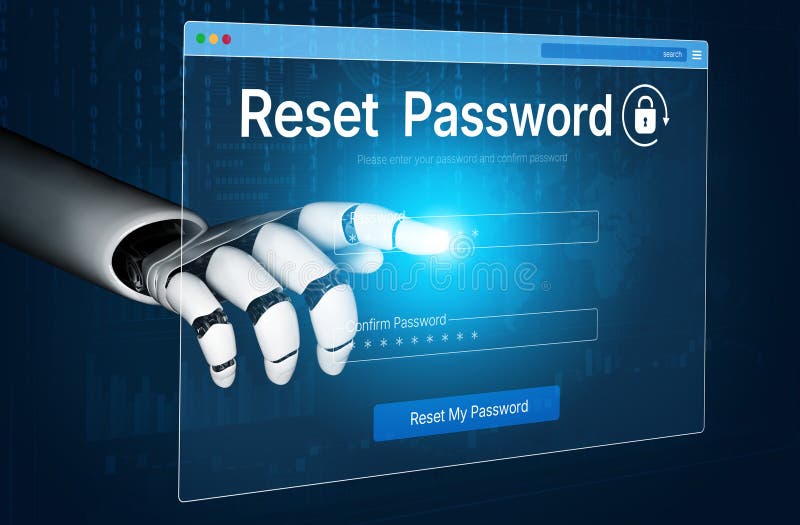
Resetting your ChatGPT password
OpenAI provides a fairly straightforward process for resetting your ChatGPT password. The first step, and one OpenAI specifically recommends, is to log out of your account or open a private or incognito browser window. This prevents cached data from interfering with the reset process. You can find the “Forgot password” link directly on the ChatGPT login page.
Clicking this link will prompt you to enter the email address associated with your ChatGPT account. OpenAI will then send a verification email to that address. Be sure to check your spam or junk folder if you don’t see it in your inbox within a few minutes. The email contains a link to a password reset page.
On the password reset page, you’ll be asked to create a new, strong password. Follow OpenAI’s password requirements – typically a minimum length and a combination of uppercase and lowercase letters, numbers, and symbols. Once you’ve entered your new password and confirmed it, you should be able to log in to ChatGPT.
What if the recovery email isn’t arriving? First, double-check that you entered the correct email address. Then, thoroughly check your spam and junk folders. If it’s still missing, consider adding 'no-reply@openai.com' to your safe sender list. If none of these steps work, you’ll need to contact OpenAI support directly through their help center.
OpenAI’s help center (help.openai.com) has detailed instructions and troubleshooting tips. They also offer guidance on account recovery if you suspect your account has been compromised. Be prepared to provide information to verify your identity, such as your account details and previous activity.
Claude recovery requires manual support
Recovering access to your Claude account, provided by Anthropic, appears to differ from the self-service password reset offered by OpenAI. Anthropic doesn’t currently offer a direct "forgot password" link. Instead, the primary method for account recovery is to contact their support team directly.
Anthropic handles recovery through their official support portal. You'll need to provide your account email and details about your recent prompts or billing history to prove ownership. Because a human reviews these requests, expect a wait of at least 24 to 48 hours.
Anthropic’s security measures seem to prioritize direct verification to prevent unauthorized access. This means the recovery process might take longer than with ChatGPT, as it involves manual review by a support agent. It’s also important to note that Anthropic might require additional documentation to confirm your ownership of the account.
Gemini Account Issues: Google's Security Layers
Because Gemini is integrated with Google accounts, recovering access often involves Google’s established account recovery procedures. If you’ve forgotten your password, you’ll start by visiting the Google Account recovery page. This page guides you through a series of steps to verify your identity.
Google heavily relies on 2-factor authentication (2FA) to protect accounts. If you’ve enabled 2FA, you’ll need access to your chosen method – typically a prompt on your phone, a verification code sent via text message, or a backup code. Losing access to your 2FA method can complicate the recovery process.
If you’ve lost access to your recovery phone number or backup codes, Google offers alternative verification methods. These might include answering security questions, providing an alternate email address, or submitting a government-issued ID. The more information you can provide, the better your chances of recovery.
Google also employs account activity monitoring to detect suspicious logins. If Google detects unusual activity, it might prompt you to verify your identity or temporarily lock your account. Regularly reviewing your account activity can help you identify and report any unauthorized access. Google's account recovery process is well-documented and generally reliable, but requires vigilance.
Security habits to prevent lockouts
Account recovery should be a last resort. Proactive security measures are the best way to prevent lockouts and protect your AI assistant accounts. Start with strong, unique passwords for each service. Avoid using the same password across multiple platforms – if one account is compromised, all others are at risk.
Consider using a password manager to generate and store complex passwords securely. Password managers like 1Password, LastPass, and Bitwarden can significantly improve your online security. Be wary of phishing scams, which attempt to trick you into revealing your credentials. Always verify the sender’s address and avoid clicking on suspicious links.
Public Wi-Fi networks are often unsecured, making them vulnerable to hackers. Avoid accessing sensitive accounts, such as your AI assistants, on public Wi-Fi. If you must use public Wi-Fi, use a Virtual Private Network (VPN) to encrypt your internet traffic. Where available, enable biometric authentication – fingerprint or facial recognition – for an extra layer of security.
Regularly review the security settings of your AI assistant accounts. Enable 2-factor authentication whenever possible, and keep your recovery information up to date. A little preventative effort can save you a lot of headaches down the road.
Phishing Red Flags
- Generic Greetings - Emails starting with “Dear User” or similar impersonal addresses are often malicious.
- Urgent Requests - Phishing attempts frequently create a false sense of urgency, demanding immediate action to avoid account suspension.
- Suspicious Links - Be wary of links that don’t match the official domain of OpenAI (ChatGPT), Anthropic (Claude), or Google (Gemini).
- Requests for Personal Information - Legitimate password recovery processes rarely ask for your password directly; avoid providing it via email.
- Poor Grammar & Spelling - Many phishing emails contain noticeable grammatical errors or misspellings.
- Unsolicited Emails - If you didn’t initiate a password reset, an email prompting you to do so is likely a phishing attempt.
- Mismatched Sender Address - Carefully examine the sender’s email address. Phishers often use addresses that slightly resemble the real company’s domain.
AI Assistant Password Recovery Support Options - 2026
| AI Assistant | Support Channels | Estimated Response Time | Documentation Link |
|---|---|---|---|
| ChatGPT | Help Center articles, Account Recovery Form | Varies; typically within 24-72 hours based on volume | https://help.openai.com/en/articles/7736918-resetting-or-changing-your-chatgpt-password |
| Claude | Support Request Form | Response times are not publicly specified, but generally within several business days. | https://ai-pro.org/lost-password/ |
| Gemini | Google Account Recovery process (as Gemini is integrated with Google accounts) | Varies depending on Google Account recovery steps; can range from minutes to several days. | https://support.google.com/accounts/answer/6294825?hl=en |
| ChatGPT | Email Support (for paid subscriptions) | Priority support for paid users, generally faster than standard support | https://help.openai.com/en/articles/7736918-resetting-or-changing-your-chatgpt-password |
| Claude | Community Forum | Response times vary, dependent on community member assistance | https://ai-pro.org/community/ |
| Gemini | Google Help Forums | Community-based support; response times vary | https://support.google.com/gemini/?hl=en#topic=12338495 |
Illustrative comparison based on the article research brief. Verify current pricing, limits, and product details in the official docs before relying on it.
No comments yet. Be the first to share your thoughts!