

First steps for a frozen screen
If your Galaxy S26 screen stops responding, wait a minute before doing anything drastic. Sometimes a background process just needs a moment to catch up. If the screen stays frozen, check the battery. A dead phone won't respond to touch, so plug it in for 20 minutes to rule out a power issue.
Try a soft reset by holding the power button for 20 seconds. This forces the hardware to reboot without touching your data. Don't mash the buttons repeatedly; just hold them firmly until the screen goes black.
A factory reset is a drastic step. It essentially returns your phone to the state it was in when you first took it out of the box. This means all of your personal data – photos, apps, accounts, everything – will be wiped. We’ll get into the details of data loss later, but understand that this should be a last resort.
Force a restart with buttons
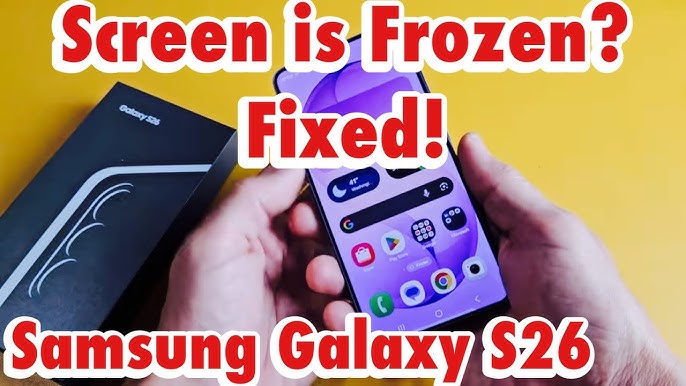
If your screen is frozen but the phone appears to be on, a forced restart using a button combination might help. For the Samsung Galaxy S26, the typical method is to press and hold the Power button and the Volume Down button simultaneously. Keep holding them for about 10-20 seconds. You might see the screen flicker or the phone vibrate.
The goal here is to force the phone to reboot. This isn't a factory reset; it won’t erase your data. It’s more like a hard reboot, similar to restarting a computer. However, it is a necessary step to try before attempting a full factory reset. It can sometimes resolve minor software glitches that are causing the screen to freeze.
Release the buttons when the Samsung logo appears. If the screen stays black after 30 seconds, try the combination one more time. If that fails, the software issue is likely deeper than a simple glitch.
- Hold Power and Volume Down for 20 seconds.
- Hold for 10-20 seconds.
- Release when the Samsung logo appears.
Remote reset with Find My Mobile
If your screen is completely unresponsive, Samsung’s "Find My Mobile’ service is often your best bet. This allows you to remotely control your phone – including performing a factory reset – from a computer. However, this requires you to have already set it up before the problem occurred. You"ll need a Samsung account and location services enabled on your phone for it to work.
To use Find My Mobile, go to the Samsung website: Sign in with the same Samsung account that’s registered on your Galaxy S26. Once logged in, you should see your device listed. If it’s online, you’ll have several options, including "Unlock’ and ‘Erase data."
Select "Erase data’ to initiate a remote factory reset. You may be asked to verify your Samsung account credentials again. Keep in mind that your phone needs to be connected to Wi-Fi or mobile data for this to work, even if the screen is black. If it"s been a while since it was last connected, the process may fail. Also, if the phone is off, the remote reset won't work – it needs to have some battery life remaining.
There's a potential hurdle: Samsung may ask you to verify you own the account. This is to prevent unauthorized resets. Be prepared to answer security questions or provide proof of purchase if prompted. If you've forgotten your Samsung account details, you'll need to go through the account recovery process before you can use Find My Mobile.
Use recovery mode
If Find My Mobile isn’t an option – perhaps you didn’t set it up, or your phone isn’t connected to the internet – you can try accessing Recovery Mode. This is a hidden menu built into the Android operating system that allows you to perform various system-level tasks, including a factory reset. However, it's more complex and requires precise timing.
The process involves pressing a specific button combination during startup. Turn off your phone completely. Then, press and hold the Power button and Volume Up button simultaneously. You might also need to press the Bixby button (if your S26 has one) along with the other two. The timing is critical – you need to release the buttons when the Samsung logo appears, not before or after. If you release too early, the phone will boot normally. If you release too late, you might end up back at the power off screen.
Once in Recovery Mode, you’ll see a text-based menu. Use the Volume Up and Volume Down buttons to navigate through the options. The Power button is used to select an option. Carefully scroll down to "Wipe data/factory reset’ and select it. Be extremely cautious here – incorrect selections can cause further issues. You’ll likely be asked to confirm your decision. Select ‘Yes" to proceed.
The factory reset process will begin, and it may take several minutes to complete. Once finished, select "Reboot system now’ to restart your phone. Keep in mind that Recovery Mode is a more advanced option and carries a slightly higher risk than the other methods. If you’re not comfortable with this process, it"s best to seek professional help.
- Turn off your phone completely.
- Press and hold Power + Volume Up (and Bixby, if applicable).
- Release when the Samsung logo appears.
- Navigate to 'Wipe data/factory reset' using Volume buttons.
- Select with the Power button.
- Confirm your decision.
- Reboot the system.
What gets deleted
Let’s be clear: a factory reset is not just about deleting your apps. It erases everything stored on your phone’s internal storage. This includes your photos, videos, contacts, apps, app data (like game progress or saved settings), accounts, and personalization settings. Think of it as wiping the slate completely clean.
Some data may be recoverable if you’ve been diligent about backups. If you’ve been regularly backing up your photos and videos to Samsung Cloud or Google Photos, you should be able to restore them after the reset. Contacts synced to your Google account will also be restored automatically. However, anything not backed up is likely gone.
Data recovery services exist, but they are expensive and offer no guarantee of success. They involve specialized techniques to attempt to retrieve deleted data from the phone’s storage, but the success rate varies depending on the extent of the data overwrite. It's far more practical – and cheaper – to have a consistent backup strategy before a crisis occurs.
When to Seek Professional Help
Sometimes, a factory reset simply isn’t enough. If your phone has physical damage (a cracked screen, bent frame), water damage, or won’t even power on, a factory reset won’t fix it. Similarly, if the reset process fails repeatedly or gets stuck, it’s a sign of a more serious underlying problem.
If the reset fails or the screen is physically cracked, you'll need a repair shop. Samsung's authorized centers usually charge between $100 and $300 for screen or board replacements. Data recovery services are an option if the files are worth the high cost, but they rarely guarantee results for encrypted mobile storage.

No comments yet. Be the first to share your thoughts!