

Why Vision Pro login fails
If your Vision Pro won't let you in, you aren't alone. Despite the high price tag, Optic ID glitches and forgotten passcodes are common complaints on Apple support forums. Getting locked out of a spatial computer is more than a 'hiccup'—it effectively turns the headset into a paperweight until you verify your identity.
The Vision Pro’s security is built around a few key elements, most notably Optic ID – your iris scan. This is a really secure way to authenticate, but it also means that a forgotten password or a glitch with the biometric scanner can quickly lock you out. Unlike older devices, the Vision Pro relies heavily on this biometric authentication, making traditional password resets a little more involved.
Several things can cause login problems. A forgotten Apple ID password is the most obvious. Account lockouts, often triggered by too many incorrect attempts, are another frequent culprit. And then there are the system glitches – software bugs or temporary server issues – that can throw a wrench into the works. It’s a pain, but thankfully, there are ways to address these issues.
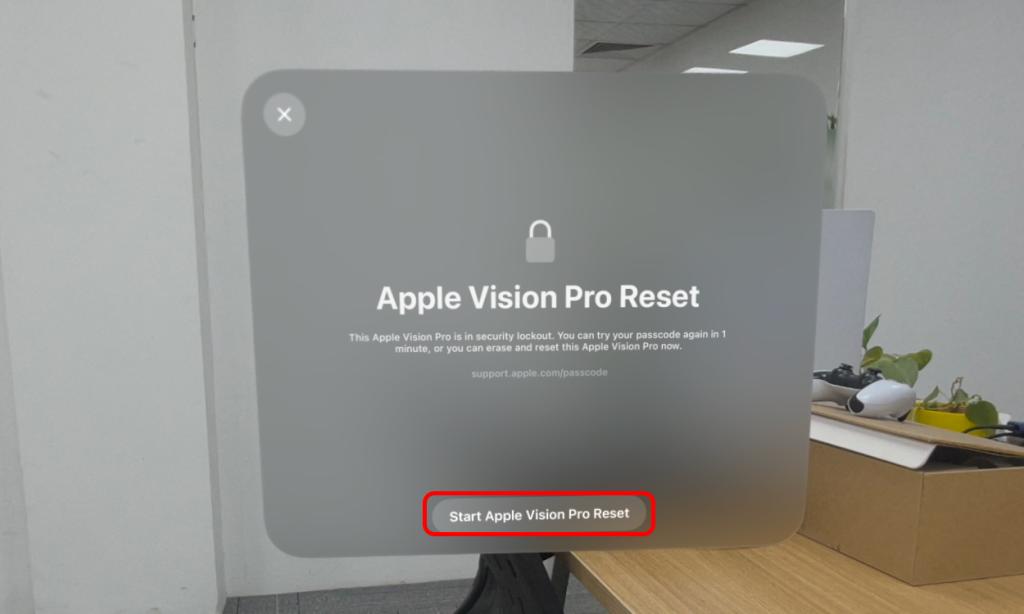
Local reset limitations
Unfortunately, unlike some other devices, the Apple Vision Pro doesn’t offer a direct, on-device password reset option. This is a deliberate security choice by Apple. The reliance on Optic ID and the sensitive data stored on the device necessitate a more secure recovery process. Simply put, a local reset would create too much vulnerability.
You can’t just tap a "forgot password" button on the Vision Pro itself and expect to regain access. While it might seem inconvenient, this design decision protects your data from unauthorized access if the headset were to be lost or stolen. It forces a more rigorous verification process through your Apple ID.
However, you can use a Mac to assist with the process. If your Vision Pro is paired with a Mac, you may be able to manage some account settings through the Mac’s System Settings. This won’t directly reset your password, but it might offer access to account recovery options or allow you to verify your identity with Apple Support more easily.
When to contact Apple support
If you’ve exhausted the self-service password reset options and are still locked out, contacting Apple Support is your next best bet. Be prepared for a potentially lengthy process, as Apple prioritizes security and requires thorough identity verification. This is especially true for a device as personal and data-rich as the Vision Pro.
You can reach Apple Support through their official website: Navigate to the Vision Pro support section and look for the "Account Recovery’ or ‘Password Reset" options. You can initiate a chat, schedule a phone call, or visit an Apple Store (if one is conveniently located).
Apple Support will require substantial information to verify your identity. This typically includes your Apple ID email address, date of birth, security questions (if you set them up), and potentially proof of purchase. Having your original purchase receipt handy is a good idea. They may also ask about recent activity on your account.
Be aware that wait times for Apple Support can vary, especially during peak hours. Account recovery can take several days, as Apple needs to thoroughly investigate your request and ensure that your account isn’t compromised. The more information you can provide upfront, the faster the process will be.
Troubleshooting Optic ID Issues
Sometimes, the problem isn’t your password itself, but with the Optic ID biometric authentication. If your Vision Pro consistently fails to recognize your iris, even after entering the correct password (if a fallback is available), there are a few things you can try. The system is very sensitive, and even minor obstructions can cause issues.
First, ensure that the sensors are clean. Gently wipe them with a microfiber cloth to remove any dust, smudges, or debris. Second, check the fit of the Vision Pro. It needs to be snug but comfortable, and the sensors must be properly aligned with your eyes. Adjust the headbands and facial interface until you achieve a secure and stable fit.
If you wear contact lenses or glasses, try removing them and re-registering your Optic ID. Changes in your vision or the way light refracts through lenses can interfere with the scanner. If none of these steps work, you may need to re-register your Optic ID entirely within the Vision Pro settings. As of early 2026, there isn’t a widely documented fallback password option beyond the Apple ID password.
What if Your Apple Account is Locked?
An Apple Account can be locked for a variety of reasons, most commonly due to too many incorrect password attempts or suspected fraudulent activity. Apple takes account security very seriously, and will automatically lock an account as a protective measure. This can be incredibly frustrating, especially if you believe the lock is in error.
To unlock your account, you’ll generally need to follow the account recovery process outlined earlier. Apple will guide you through a series of verification steps to confirm your identity. There's usually a waiting period involved – often 24-48 hours – to allow the system to reset and to ensure no unauthorized access has occurred.
If you believe your account was locked in error, you can appeal the lock through Apple Support. Be prepared to provide documentation and explain the situation clearly. Apple will investigate your claim and, if appropriate, unlock your account. It’s essential to be patient and cooperative during this process.
Preventing Future Login Problems
Prevention is always better than cure. Taking a few proactive steps can significantly reduce your chances of encountering login problems with your Apple Vision Pro. The foundation of good account security is a strong, unique password. Avoid using easily guessable information, and opt for a combination of uppercase and lowercase letters, numbers, and symbols.
A password manager is an invaluable tool for creating and storing strong passwords. Popular options include 1Password, LastPass, and Apple’s own iCloud Keychain. These tools securely store your credentials and automatically fill them in when you need them. Don’t reuse passwords across multiple accounts.
Enable two-factor authentication (2FA) on your Apple ID. This adds an extra layer of security by requiring a verification code from your trusted devices in addition to your password. Also, keep your Apple ID information up to date – especially your recovery email address and phone number. Consider using Apple’s Advanced Data Protection feature for enhanced security.




No comments yet. Be the first to share your thoughts!