

Start with the right recovery page
When you forget a password, the first and most important step is navigating to the official recovery portal. Using the correct link prevents phishing scams and ensures you are interacting with the legitimate service provider. Both Apple and Microsoft use dedicated, secure pages for this process, so do not search for generic "password reset" tools on third-party sites.
For Apple ID recovery, go directly to the official Apple account management page. This portal handles all password resets, security questions, and two-factor authentication updates. If you are locked out, look for the "Forgot Apple ID or password?" link on the login screen or visit the dedicated recovery site.
For Microsoft accounts, navigate to the Microsoft account sign-in page. Select "Forgot password?" to begin the verification process. Microsoft will then guide you through verifying your identity using a trusted phone number or email address associated with the account.
Using the official channels ensures your personal data remains secure and that the reset process follows the correct verification protocols set by each company.
Reset your Apple ID password
If you’ve forgotten your Apple ID password, you can reset it directly from an Apple device or through a web browser. Both methods require access to your trusted phone number or email address to verify your identity. Choose the option that is most convenient for you.
On an iPhone, iPad, or iPod touch
- Open the Settings app and tap your name at the top of the screen.
- Tap Password & Security, then select Change Password.
- Enter your device passcode when prompted.
- Type your new password twice to confirm it.
This method works even if you aren’t currently signed in to iCloud, as long as you know your device passcode. It is the fastest way to regain access if your device is in your possession.
On a Mac
- Click the Apple menu () and select System Settings (or System Preferences on older macOS versions).
- Click your name in the sidebar, then select iCloud or Internet Accounts.
- Click Account Details or Change Password.
- Follow the prompts to enter your current password or verify your identity via a trusted device or phone number.
Via the Web
If you don’t have an Apple device handy, you can reset your password from any web browser.
- Go to iforgot.apple.com.
- Enter your Apple ID email address.
- Follow the on-screen instructions to verify your identity. You may need to enter the last six digits of a trusted device’s serial number or use a trusted phone number to receive a verification code.
- Create a new password that meets Apple’s security requirements.
Once reset, sign in to your Apple ID on all your devices using the new password. If you have two-factor authentication enabled, you will also need to enter the verification code sent to your trusted devices.
Reset your Microsoft account password
Resetting a Microsoft account password requires verifying your identity before you can set a new one. Microsoft uses this step to ensure the person requesting the change is the account owner. You will need access to the recovery email address or phone number linked to your account.
Go to account.live.com/password/reset and enter your email, phone number, or Skype name. Click Next to proceed to the verification stage.
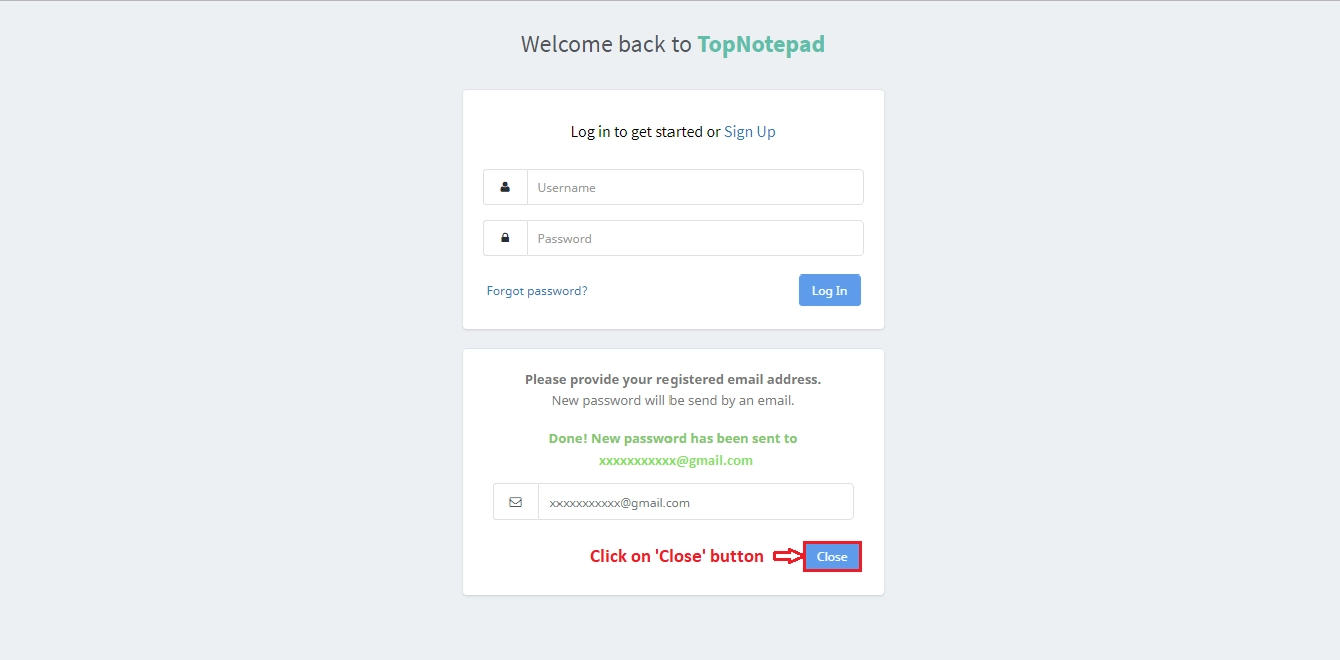
Type the email address, phone number, or Skype name associated with the account you want to recover. If you don't remember which email you used, try the ones you own or check the sign-in page for hints. Click Next to continue to the security verification step.

Microsoft will show you the security options you previously set up. Select the email address or phone number where you want to receive the security code. If you don't see your preferred method, click Show more options to see if there are other recovery methods available. Be careful to select the correct one, as codes are sent instantly.
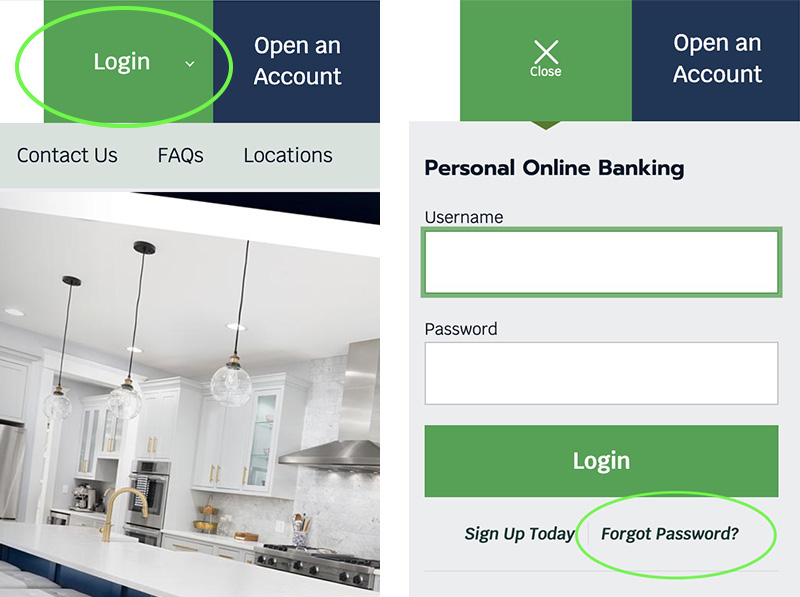
Check your email inbox or text messages for a six-digit code. Enter the code exactly as shown in the box on the screen. The code expires quickly, so enter it promptly. If you don't receive the code, click I don't have any of these to try alternative verification methods or wait for the timer to reset before requesting a new one.
Once verified, you will be prompted to create a new password. Choose a strong password that is at least eight characters long and includes a mix of letters, numbers, and symbols. Enter it twice to confirm. Microsoft will immediately update your account credentials, and you can use the new password to sign in on any device.
After resetting your password, sign in to your account on all your devices. You may need to re-enter the new password on your phone, tablet, or other computers. If you have two-factor authentication enabled, you might also need to re-verify your identity on those devices.
Fix common verification errors
When resetting your Apple ID or Microsoft account password, verification is the most common point of failure. Users often encounter wrong codes, missing emails, or locked-out devices. These errors usually stem from simple oversights rather than account compromise.
Incorrect security codes
If you enter a verification code incorrectly, the system locks you out for a short period. This is a security measure to prevent brute-force attacks. Do not keep guessing. Wait the full cooldown period, usually 15 to 30 minutes, before trying again.
Ensure you are entering the code exactly as received, including any hyphens or spaces. If you are using a desktop browser, check if the code was sent to a mobile device. Cross-device verification is common for both Apple and Microsoft accounts.
Missing verification emails
Verification emails often land in spam, junk, or promotions folders. Check these folders first before assuming the email was not sent.
If the email is still missing, the address on file may be outdated. Try resetting the password using a different recovery method, such as a phone number or authenticator app, if available. For Microsoft accounts, you can also use the account recovery form if you no longer have access to the original email.
Locked-out devices
If a device is locked due to too many failed attempts, it may require a full reset. This is particularly common with Apple ID if "Find My" is active.
For Microsoft accounts, a locked device may require you to sign out and back in with the new password. Ensure you are connected to the internet, as verification often requires real-time server checks. If the device remains locked, consult the official support pages for Apple or Microsoft for device-specific recovery steps.
Secure your account after recovery
Resetting the password is only the first step. If you leave your account with the same old security settings, you are just waiting for the next breach. Treat this final phase as a system upgrade for your digital identity.
Start by updating your recovery email and phone number. Hackers often target these contact points to intercept future reset codes. Ensure they are current and accessible. Next, turn on two-factor authentication (2FA) if it isn't already active. This adds a second lock to your door, requiring a code from your phone or an authenticator app in addition to your password.
Check your active sessions and sign out of any devices you don't recognize. This kicks out any lingering unauthorized access. Finally, review your connected apps and services. Revoke access for any old or unused applications that no longer need permission to view your data.
Common questions about password recovery
Recovering a lost password rarely requires a phone call or a support ticket. Both Apple and Microsoft have automated systems that verify your identity through email, phone, or trusted devices. Understanding how these systems work helps you avoid locking yourself out permanently.
What if I no longer have access to my recovery email or phone?
You cannot bypass the verification step. If you lose access to all registered recovery methods, the account is generally considered unrecoverable for security reasons. Apple and Microsoft require proof that you are the original owner, which typically means having access to at least one trusted device or recovery contact already set up on the account.
How long does the recovery process take?
For most users, the process is immediate. You enter your email or phone number, receive a code or link, and reset the password within minutes. Apple may require you to wait 24 hours before trying again if you enter the wrong code too many times. Microsoft may flag suspicious activity and require additional verification steps, which can delay access by a few hours.
Can I reset my password without knowing the old one?
Yes. Both platforms allow you to reset a forgotten password without entering the old one. On the sign-in page, select "Forgot password?" (Microsoft) or "Forgot Apple ID or password?" (Apple). Follow the prompts to verify your identity via your recovery email, phone number, or trusted device. Once verified, you can create a new password immediately.
No comments yet. Be the first to share your thoughts!