
Start with the official sign-in page
When you forget a password, your first instinct might be to search for "reset password" in a search engine. This is where most people make a critical mistake. Search results are often cluttered with phishing sites, third-party tools, and ad-heavy pages that look legitimate but are designed to steal your credentials.
The only safe entry point for resetting your password is the official sign-in page for that specific platform.
For Google accounts, go directly to https://accounts.google.com. If you are on a mobile device, you can also access the recovery flow through the Google app settings under "Security."
For Apple IDs, navigate to https://appleid.apple.com. Apple also provides a dedicated recovery portal at iforgot.apple.com which is the official channel for forgotten credentials.
For Microsoft (Windows) accounts, head to https://account.microsoft.com or use the dedicated recovery page at https://account.live.com/password/reset. Microsoft requires you to select "Forgot password?" on the sign-in screen to initiate the verification process.
Reset your Google account password
If you can still access your Google account, changing the password is straightforward. If you are locked out, you will need to verify your identity using a recovery email or phone number. Google sends a confirmation code to these trusted contacts to prove you own the account.
If you are already signed in
- Go to myaccount.google.com and select Security from the left-hand menu.
- Under the "How you sign in to Google" section, click Password.
- You will be asked to enter your current password again to confirm your identity.
- Enter your new password twice. Google checks strength as you type; aim for a mix of letters, numbers, and symbols.
- Click Change Password.
If you are signed out
- Go to the Google sign-in page and enter your email address.
- Click Forgot password?
- Google will try to verify you. If you have a recovery phone or email set up, choose Try another way if the primary option doesn’t work.
- Enter the 6-digit code sent to your phone or email. If you don’t receive it, check your spam folder or wait for the timer to reset.
- Once verified, set a new password that you haven’t used before.
Tips for a secure password
Use a password manager to generate and store complex passwords. Avoid reusing passwords across different sites, as a breach on one platform can compromise your Google account. Enable two-step verification after resetting your password for an extra layer of security.
Reset your Apple ID password
Apple uses Two-Factor Authentication to protect your account. When you reset your password, Apple sends a verification code to your trusted devices, such as an iPhone, iPad, or Mac. This process ensures that only you can change the password, even if someone else knows your old one.
If you have a trusted device signed in with your Apple ID, the recovery process is straightforward. The device displays a prompt asking if you want to reset your password. You confirm the action, enter the code shown on the device, and then set a new password. This method is the fastest way to regain access because it bypasses email verification delays.
If you do not have immediate access to a trusted device, you can use the Apple Support app or visit appleid.apple.com to start the recovery process. You will need to verify your identity through other means, such as a trusted phone number or recovery email. This secondary verification adds a layer of security but may take longer to complete.
Once you have reset your password, make sure to update it on all your devices. You will need to sign in again on any device that was previously using the old password. This ensures that your iCloud data, such as photos and contacts, remains synchronized across your ecosystem.

Look at your iPhone, iPad, or Mac. If you are signed in, you should see a notification asking if you want to reset your Apple ID password. Tap or click "Reset" to proceed.
The trusted device will display a six-digit verification code. Enter this code on the screen where you initiated the password reset request.
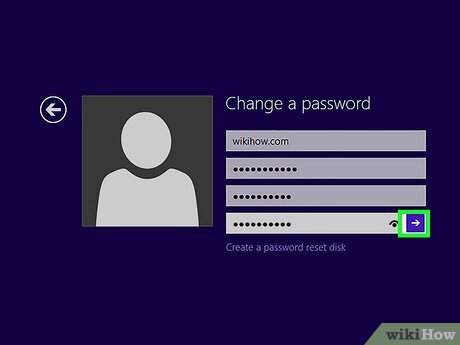
Choose a strong, unique password that you haven't used before. Confirm the new password and save your changes. You may be asked to sign in again on your devices.
Reset your Microsoft account password
If you’ve forgotten your Microsoft account password, the recovery process relies on verifying your identity through a secondary email address or phone number. This security code step ensures that only you can access the account, even if someone else knows your old password.
Follow the steps below to initiate the reset and set a new password.
Navigate to the Microsoft account sign-in page. Enter your email address, phone number, or Skype name associated with the account you cannot access. Instead of entering a password, click the Forgot password? link located directly below the password field.

Microsoft will ask you to confirm your identity. Enter the contact information for your recovery email or phone number if prompted. Check that inbox or voicemail for a security code sent by Microsoft. Enter this code into the verification field on the website to prove you own the account.
Once your identity is verified, you will be prompted to set a new password. Choose a strong password that you haven’t used before for this account. Re-enter the new password to confirm it, then click Next. Your Microsoft account password is now reset.
Secure your account after recovery
Resetting the password is only half the battle. If you don’t lock down the rest of your account, an attacker might still have access through active sessions or weak secondary verification.
1. Invalidate all active sessions
Most platforms offer a "Sign out of all devices" option. This forces every logged-in browser, phone, and tablet to re-authenticate with the new password. Without this step, an attacker who stole your old session cookie can keep watching your activity even after you change your password.
2. Enable two-factor authentication (2FA)
A strong password is no longer enough. Enable 2FA using an authenticator app or hardware key. Avoid SMS-based codes if possible, as they are vulnerable to SIM swapping. This adds a second layer of defense that blocks access even if your password is compromised.
3. Review connected apps and recovery methods
Check your account settings for third-party apps with access to your data. Revoke access for anything you no longer use. Also, verify that your recovery email and phone number are current. If an attacker changes these, they can bypass your new password entirely.
Post-reset security checklist
-
Changed password on Google, Apple, and Windows accounts
-
Signed out of all other devices and sessions
-
Enabled two-factor authentication (2FA)
-
Updated recovery email and phone number
-
Revoked access for unused third-party apps
Common questions about password recovery
When you lose access to your Google, Apple, or Windows account, the recovery process can feel like a maze of security checks. The goal is to prove you are the account owner without giving attackers an opening.
Below are the most frequent blockers and how to clear them quickly.
If these steps don’t resolve the issue, contact the specific provider’s support team with any proof of ownership you have.
No comments yet. Be the first to share your thoughts!