

Start with your router
Before touching individual smart bulbs, plugs, or hubs, address the network itself. Your router is the gatekeeper for every device in your home. When you change the Wi-Fi password to secure your network, you break the connection for all smart devices. They can no longer authenticate, leaving them offline and unresponsive. Resetting the router password is the foundational step in any smart home security overhaul.
Think of your router as the main key to your house. If you change the lock on the front door, every room inside becomes inaccessible until you re-key the interior doors. Similarly, updating your Wi-Fi credentials requires you to reconnect each smart device to the new network. Skipping this step means your security update is incomplete, leaving your smart home vulnerable or simply non-functional.
Locate the reset button
Most routers have a small, recessed button on the back or bottom panel labeled "Reset." It often requires a paperclip or pin to press. Holding this button for 10-15 seconds restores the router to factory settings, wiping the current Wi-Fi name and password. This is the nuclear option. Use it only if you have forgotten the current admin password or need to clear a corrupted configuration. If you know the current password, you can change it through the web interface without losing your network settings.
Update the Wi-Fi credentials
Access your router’s admin panel by typing its IP address (usually 192.168.1.1 or 192.168.0.1) into a browser. Log in with the admin credentials, then navigate to the Wireless or Wi-Fi settings. Change the SSID (network name) and the password. Choose a strong, unique password that you haven’t used elsewhere. Save the settings. The router will reboot, and all connected devices will disconnect.
Reconnect your smart devices
This is the most time-consuming part. You must go through each smart device—smart plugs, cameras, speakers, and hubs—and reconnect them to the new Wi-Fi network. For devices with companion apps, this often means forgetting the old network in the app and setting up the device again as if it were new. Some newer devices support WPS (Wi-Fi Protected Setup) for easier reconnection, but this is becoming less common. Plan for 15-30 minutes to get everything back online.
Resetting passwords for cloud hubs
Resetting passwords for smart home devices works best as a sequence, not a scramble through settings. Do the minimum first: confirm compatibility, connect the core hardware, update only when needed, and test the result before adding optional features. That order keeps the task understandable and makes failures easier to isolate. After each step, pause long enough for the interface to finish syncing. Many setup problems are timing problems disguised as configuration problems. If the same step fails twice, record the exact error, restart the smallest affected piece, and retry before moving deeper.
Handling AI device logins
Resetting passwords for standalone AI assistants like Amazon Alexa, Google Nest, or Sonos differs from standard smart plugs or lights. These devices are not just endpoints; they are gateways to your personal account. A device-level reset often won’t work because the authentication happens in the cloud, not on the hardware.
Think of these devices as digital front doors. If you lose the key, you don’t change the lock on the door itself; you ask the house manager (the cloud provider) to issue a new key. This means you must use the associated mobile app or web portal to regain access.
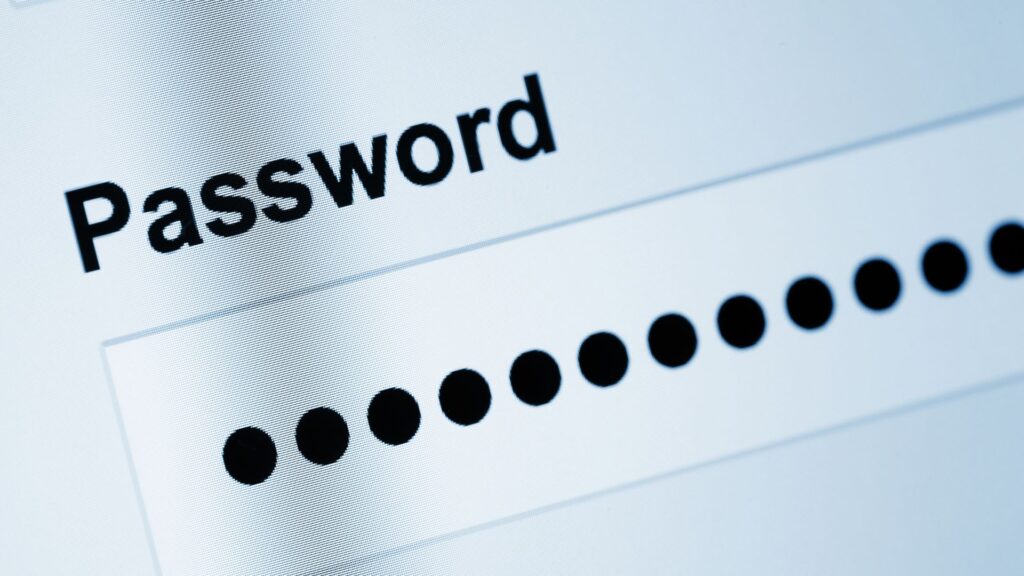
For Amazon Alexa, you must visit the Amazon account page to reset your login credentials. Once updated, the Alexa app on your phone will prompt you to re-enter the new password. Your Echo devices will reconnect automatically, but you may need to re-verify voice ID if you use that feature.
Google Nest users should navigate to myaccount.google.com. After resetting your Google password, open the Google Home app. You will likely be signed out and prompted to log in again with the new credentials. This ensures all your smart home routines and linked services remain secure.
Sonos devices are tied to your Sonos account. If you forget your password, use the "Forgot Password" link on the Sonos app login screen. After resetting via email, sign back into the app. Your speakers will sync with the new account session, restoring control over your audio zones.
Always invalidate existing sessions after a reset. This ensures that if someone else had access to your old session, they are immediately locked out. Most major platforms handle this automatically upon password change, but it is a critical security step for your entire smart home ecosystem.
Fixing common reset errors
Even with the right button sequence, smart home resets can stall. Most failures come down to timing or network hiccups rather than broken hardware. When a device won’t accept a new password, it is usually because the reset token expired or the hub lost its connection to the router during the handshake.
Expired reset tokens
Smart devices generate temporary codes that expire quickly—often within two minutes. If you are slow to enter the code or the app refreshes before submission, the token becomes invalid. The fix is simple: start the reset process again and enter the code immediately. Do not navigate away from the setup screen while the code is active.
Network timeouts
A password reset requires the device to talk to the cloud and the local router simultaneously. If your Wi-Fi drops for even a second, the connection fails. Ensure your phone is on the same 2.4GHz band as the device, not 5GHz, which often has shorter range. If the reset still fails, restart your router and try again. This clears temporary network congestion that blocks the device from registering the new credentials.
Verify your new connection
Once the reset is complete, the final step is confirming that every device has successfully rejoined your network. A password change can sometimes leave a device in a "connected but offline" state, where the Wi-Fi link is established but communication with the hub or cloud service is broken. Treat this verification phase like a system diagnostic; you need to ensure the handshake between your router, your smart home hub, and each individual device is clean.
Start by checking your primary router or Wi-Fi hub. Ensure the network name (SSID) matches the one you just updated and that the status indicator shows a stable connection. If you have a dedicated smart home hub (like Samsung SmartThings, Hubitat, or Apple HomeKit), open its companion app. Most hubs will display a "syncing" or "connecting" status for devices that have just been re-paired. Wait for these indicators to turn solid green or blue, signaling that the device is fully online and responsive.
Next, test the functionality of your most critical devices. Don't just look at the app icons; interact with them. Turn a smart light on and off, unlock a smart lock, or check the temperature on a smart thermostat. If a device fails to respond, it likely didn't receive the new credentials correctly. In these cases, you may need to manually remove the device from the app and re-add it using the new password. This final check ensures your security upgrade didn't compromise your daily convenience.
Questions about resetting passwords
Smart home hubs, security cameras, and Wi-Fi routers operate on a different security layer than your computer. When you forget a password, the recovery path usually involves a physical button on the device rather than an email link. This section covers the most common hurdles you’ll face when trying to regain access to your connected devices.
No comments yet. Be the first to share your thoughts!