

Vision pro password basics
Forgetting a password is a common headache. On the Apple Vision Pro, you might need a reset because of a lost code, a security scare, or a glitch after an update. Like an iPhone, the headset is tied directly to your Apple ID.
A compromised password isn’t just inconvenient; it’s a security risk. Someone gaining access to your Apple ID gives them access to your personal information, apps, and potentially even your financial data. That’s why using a strong, unique password—and keeping it that way—is so important. This guide will walk you through the various methods for regaining access to your Apple Vision Pro when you’ve forgotten your password, or suspect something is wrong.
These methods reflect Apple's 2026 procedures. Steps often change slightly with visionOS updates, but the recovery logic stays the same.
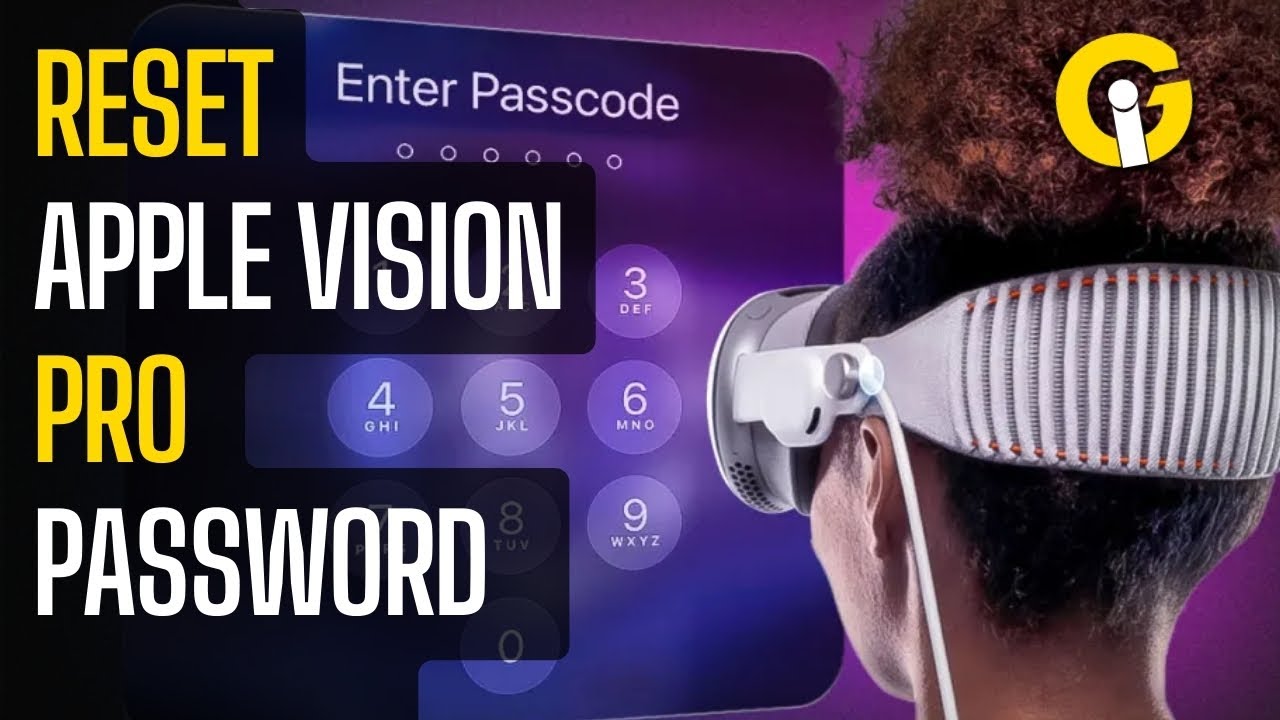
Resetting your Apple ID
The first, and generally easiest, route to regaining access to your Apple Vision Pro is resetting your Apple ID password. This is because the Vision Pro is intrinsically linked to your Apple ID – it's the key that unlocks most of its functionality. You can initiate this process on a variety of devices, including your iPhone, iPad, or Mac, or directly through a web browser.
To reset via a trusted iOS or macOS device, navigate to Settings (on iOS/macOS) and tap on your name at the top. Then select 'Password & Security' and choose 'Change Password'. You’ll be prompted to enter your current password (if known) and then create a new, secure one. If you've enabled two-factor authentication, you'll receive a verification code on your trusted devices.
If you don't have another Apple device handy, use the official Apple recovery site. You'll need to answer security questions or provide account details. Use a home network rather than public Wi-Fi to avoid security flags.
If you lose your 2FA device and your phone number, the recovery process takes several days. Apple uses this delay to make sure a hacker isn't trying to brute-force their way into your account. You'll likely need to provide ID or answer specific account history questions.
- Go to Settings > Your Name > Password & Security > Change Password (on iOS/macOS).
- Follow the on-screen instructions, entering your current password (if known) and creating a new one.
- If prompted, enter the verification code sent to your trusted devices.
- Visit the Apple ID recovery page if you lack a trusted device.
Passcode vs. Apple ID password
It’s easy to confuse your Apple ID password with the Vision Pro device passcode. They serve different purposes. Your Apple ID password unlocks access to Apple services like the App Store, iCloud, and Apple Pay. The Vision Pro passcode, on the other hand, is a local security measure that protects the headset itself from unauthorized physical access.
If you forget only the Vision Pro passcode, you can typically reset it directly on the device without needing your Apple ID. However, this often involves a factory reset, which erases all data on the headset. We’ll cover that process in the next section. If you forget your Apple ID password, the Vision Pro will be largely unusable until you regain access to your account.
Wiping the device to reset a passcode
Resetting the Vision Pro passcode directly generally requires a factory reset of the device. This is a drastic step, as it will erase all personal data, settings, and downloaded content. Make sure you have a recent backup of your Vision Pro data to iCloud or a computer before proceeding. You can initiate a factory reset through the Vision Pro settings menu, but if you’re locked out, the process is a bit more involved.
According to Apple's support documentation (support.apple.com/en-us/HT214338), the process for a passcode reset without the Apple ID involves a specific button combination, though the exact method can change with software updates. As of late 2026, the procedure typically involves simultaneously pressing and holding the side button and the volume down button until the Apple logo appears, then following the on-screen instructions. Be patient, as this process can take several minutes.
Important warning: A factory reset is irreversible. Once initiated, you cannot recover your data without a backup. After the reset, you’ll need to go through the initial setup process again, including signing in with your Apple ID. If you encounter issues during the reset process, or if the Vision Pro becomes unresponsive, you may need to contact Apple Support for assistance. They may require proof of purchase and other verification to assist you.
- Ensure you have a recent backup of your Vision Pro data.
- Simultaneously press and hold the side button and the volume down button.
- Continue holding until the Apple logo appears.
- Follow the on-screen instructions to complete the factory reset.
Account recovery
If you’re unable to reset your Apple ID password using your trusted devices, Apple’s Account Recovery process is your next best option. This process is designed to help you regain access to your account even if you’ve lost access to your usual recovery methods.
Account Recovery involves answering a series of security questions, providing a trusted phone number or email address, and potentially submitting proof of identity, such as a government-issued ID. Apple uses this information to verify that you are the legitimate owner of the account. Be prepared to answer questions about your purchase history, Apple services you use, and other details related to your account.
The Account Recovery process can take several days, or even weeks, to complete. Apple needs time to thoroughly verify your identity and ensure the security of your account. During this time, your Apple ID will be temporarily locked. It's a frustrating process, but it’s a necessary step to prevent unauthorized access.
If you have no recovery options
In the unfortunate situation where you’ve lost access to your Apple ID and have no available recovery options—no trusted devices, no recovery phone number, and no answers to security questions—contacting Apple Support is your last resort. This is a complex process, and there’s no guarantee of success.
When you contact Apple Support, be prepared to provide as much information as possible to verify your ownership of the account. This may include proof of purchase for Apple devices associated with the account, previous passwords, and any other relevant details. Apple Support will likely ask a series of detailed questions to confirm your identity.
It’s important to be realistic. Apple prioritizes account security, and they may not be able to restore access if they cannot verify your ownership with a high degree of certainty. They will explain their policies and the limitations of their assistance. The process can be lengthy and require multiple interactions with Apple Support representatives.
How to avoid future lockouts
The best way to avoid the hassle of resetting your Apple Vision Pro password is to take proactive steps to protect your account. I strongly recommend using a reputable password manager to generate and store strong, unique passwords for all your online accounts, including your Apple ID.
Enable two-factor authentication for your Apple ID. This adds an extra layer of security by requiring a verification code from your trusted devices in addition to your password. Regularly update your security questions and answers, and consider setting up a trusted contact who can assist with account recovery if needed. iCloud Keychain is also a great option for securely storing your passwords across all your Apple devices.



No comments yet. Be the first to share your thoughts!