

Vision Pro password reset steps
Getting locked out of an Apple Vision Pro is a headache. Since the headset relies on your Apple ID for almost every app and feature, a forgotten password effectively bricks the device until you can verify your identity.
Your Apple ID is the email address used for iCloud and the App Store. If you lose access, you aren't just locked out of your headset; you're cut off from your synced data and purchases.
The good news is Apple provides several ways to reset your password and regain access to your device. While the process can take some time, especially if you don’t have immediate access to a trusted device, it’s almost always possible to recover your account. We’ll cover those methods in detail, starting with the easiest and most common.
Resetting with an iPhone or iPad
If you have a trusted iPhone or iPad signed in with the same Apple ID, resetting your password is usually the quickest way to get back into your Vision Pro. This method leverages the security and convenience of two-factor authentication. Begin by opening the "Settings" app on your iPhone or iPad.
Scroll down and tap on your name at the very top of the screen. This will open your Apple ID settings. Next, select "Password & Security’. You’ll find this option about halfway down the page. Tap on ‘Change Password’ and you"ll be prompted to enter your device passcode (the one you use to unlock your iPhone or iPad).
After entering your device passcode, you’ll be asked to verify your identity using two-factor authentication. This usually involves receiving a verification code via text message or email on your trusted devices. Enter the code when prompted. You’ll then be able to create a new, secure password for your Apple ID. Remember to choose a strong password that you don’t use for other accounts.
However, this method relies on having access to a trusted device. If you’ve recently replaced your iPhone or iPad, or if you don’t have one readily available, you’ll need to explore the account recovery options outlined in the next section.
Account recovery without a trusted device
If you don’t have access to a trusted iPhone or iPad, you can still reset your Apple ID password through the account recovery process. This process is designed to verify your identity through alternative means, but it can take longer – potentially several days – than resetting via a trusted device. Start by going to the Apple account recovery website:
You’ll be asked to enter your Apple ID – the email address associated with your account. Apple will then present you with a series of options to verify your identity. These options may include answering security questions you set up when you created your account, providing a trusted phone number where Apple can send a verification code, or using email verification to a recovery email address.
Answer the security questions as accurately as you can. Be careful with any emails or calls you receive during this time; Apple won't ask for your password over the phone. Only enter details on the official recovery site.
If you’re unable to verify your identity through the automated process, you can request Apple Support assistance. This usually involves completing a form and providing documentation to prove your ownership of the account. This is the slowest option, and it requires patience, but it's available if other methods fail. Keep in mind that Apple prioritizes the security of your account and will take steps to ensure you are who you say you are.
Device lockouts and tracking errors
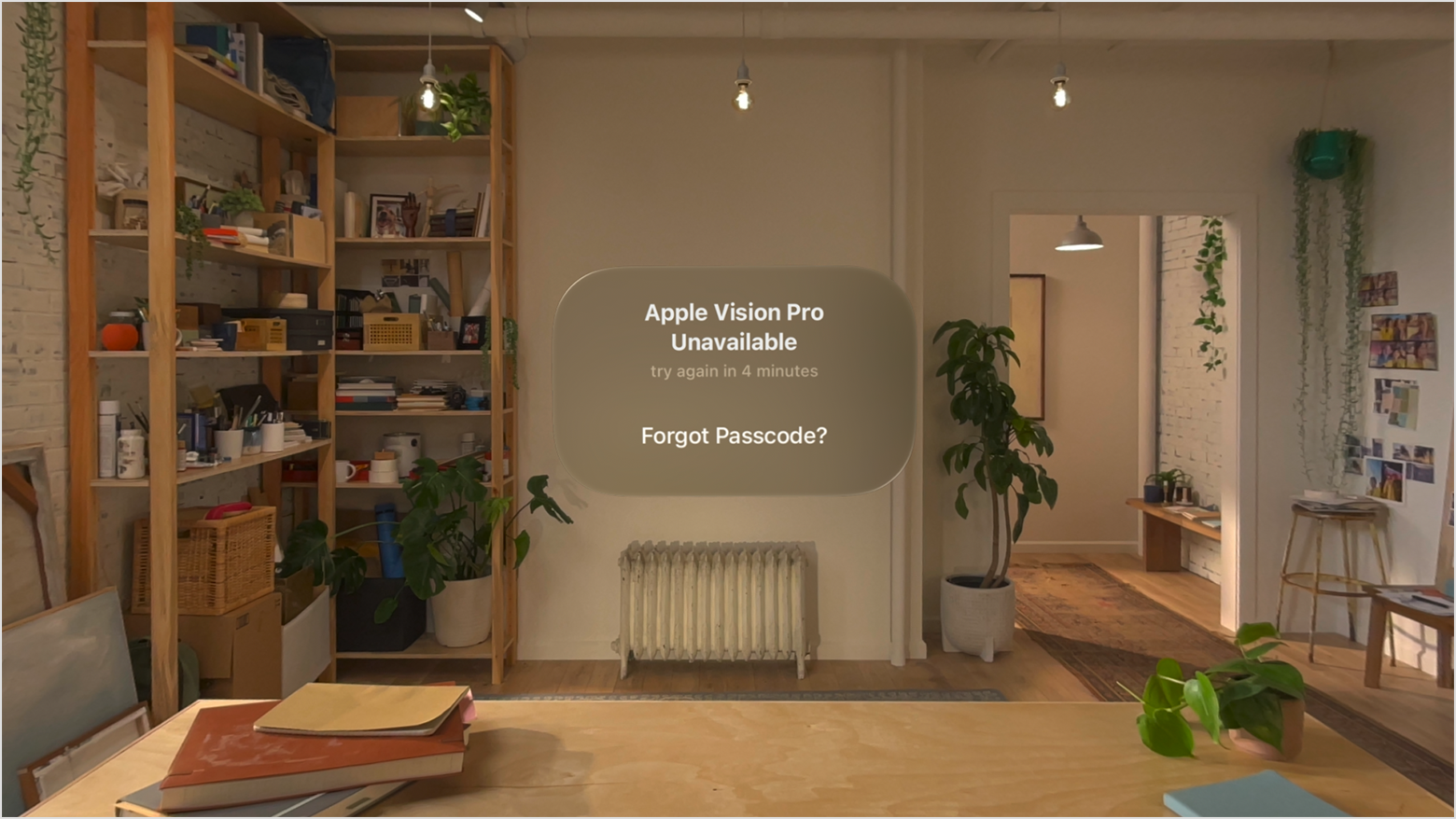
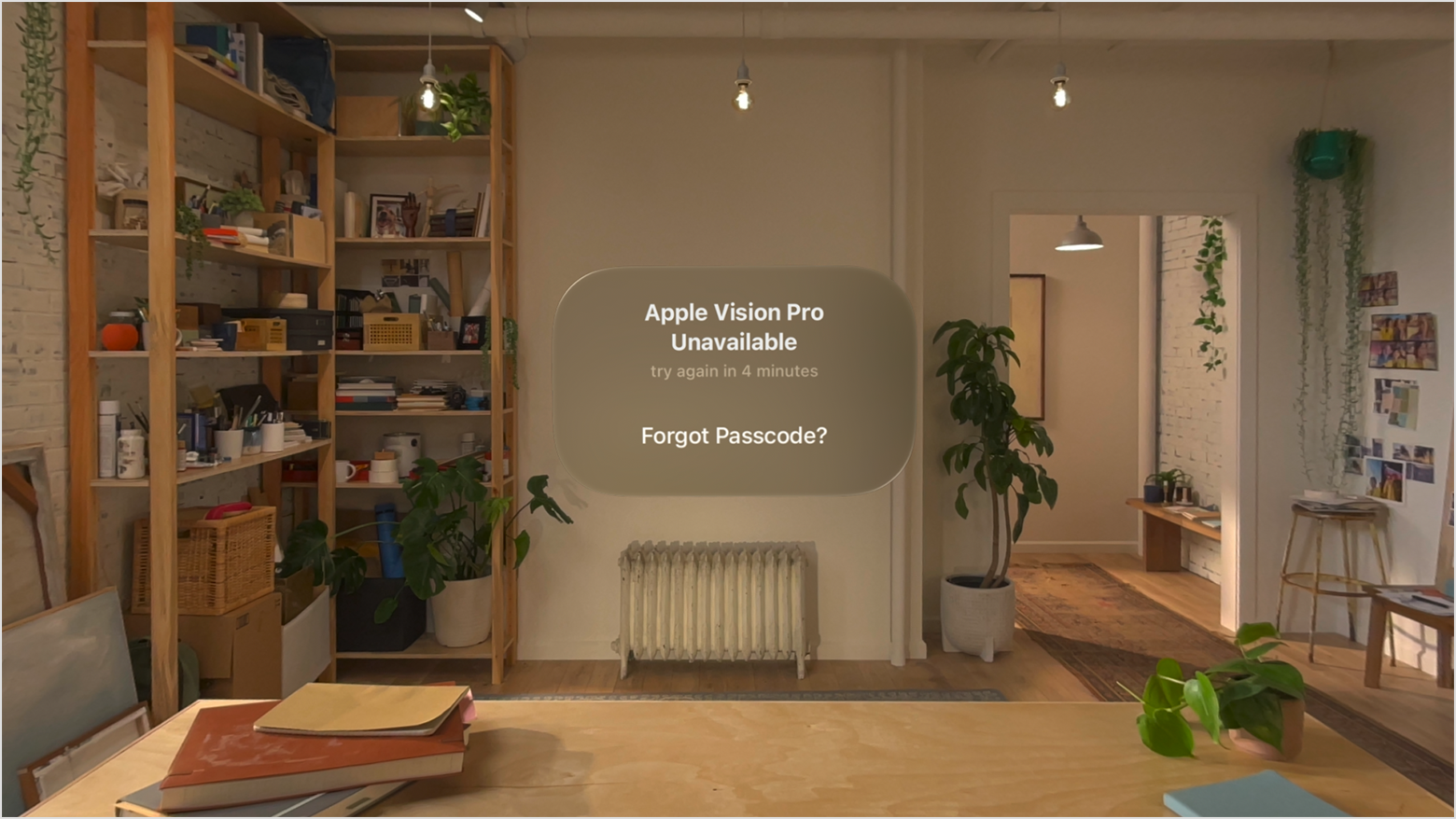
The Apple Vision Pro presents some unique lockout scenarios beyond a forgotten Apple ID password. It's important to understand the difference between the Apple ID password and the device passcode you use to unlock the Vision Pro itself. The Apple ID password grants access to your account and Apple services, while the device passcode protects the data on your headset.
If you forget the device passcode, you can’t simply enter your Apple ID password to unlock it. You’ll need to perform a force restart. The method for doing this varies depending on the situation. If the Vision Pro is responsive but locked, try pressing and holding the side button and the Digital Crown simultaneously for about 10 seconds until the Apple logo appears. If the device is completely frozen, you may need to try a different button combination—consult Apple’s support documentation for the most up-to-date instructions.
Another common issue is trouble with the eye or hand tracking, which prevents you from entering the passcode. Ensure your hands are clean and properly positioned, and that the sensors aren’t obstructed. If eye tracking is failing, try recalibrating it in the Settings app. If these steps don’t work, a force restart might be necessary. According to MacRumors, Apple's support documentation specifically addresses these types of scenarios.
Finally, remember that repeatedly entering an incorrect passcode can temporarily disable the device for security reasons. If this happens, you’ll need to wait a specified period before attempting to enter the passcode again. The duration of this lockout increases with each failed attempt.
Troubleshooting Vision Pro Login Issues
Beyond password resets, several other issues can prevent you from logging into your Vision Pro. One common problem is difficulty with Face ID or Optic ID, Apple's biometric authentication methods. Ensure your face is clearly visible and well-lit. If you've recently made significant changes to your appearance (e.g., growing a beard), you may need to reset Face ID or Optic ID.
Hand tracking issues can also interfere with passcode entry. Make sure your hands are clean and dry, and that the ambient lighting is adequate. Bluetooth connectivity problems can prevent proper pairing and login. Try restarting your Vision Pro and re-pairing any connected accessories. Software glitches can sometimes cause login loops – where the device continuously restarts without successfully logging you in.
A simple, yet often effective, solution is to check for software updates. Apple regularly releases updates that address bugs and improve performance. To check for updates, go to Settings > General > Software Update. If an update is available, download and install it. Restarting the Vision Pro after an update is also recommended.
If you continue to experience login issues, try resetting the Vision Pro to factory settings as a last resort. Be warned: this will erase all data on your device, so be sure to back up any important information beforehand. This option is available in the Settings app under General > Transfer or Reset Vision Pro.
What to Do if Your Apple Account is Compromised
If you suspect your Apple ID has been hacked, immediate action is crucial. The first step is to change your password immediately using a trusted device or the account recovery process described earlier. Choose a strong, unique password that you don’t use for any other accounts.
Next, review your trusted devices in your Apple ID settings. Remove any devices you don’t recognize or no longer use. Also, check your recent account activity to identify any unauthorized purchases or logins. If you find anything suspicious, report it to Apple Support.
Enabling two-factor authentication is one of the most effective ways to protect your Apple ID. This adds an extra layer of security by requiring a verification code in addition to your password. A compromised Apple ID can lead to data theft, unauthorized purchases, and even identity theft, so taking these steps is vital.
Apple provides resources on its support website to help you secure your account and report a compromised Apple ID. Don’t hesitate to contact Apple Support directly for assistance. They can guide you through the process of securing your account and investigating any fraudulent activity.
Vision Pro Support Resources
- Apple Support Website - The primary resource for documentation, troubleshooting guides, and support articles related to the Apple Vision Pro.
- Apple Vision Pro Support Phone Number - Direct contact with Apple support specialists for personalized assistance. Check the Apple Support website for the most up-to-date number.
- Apple Account Recovery - Utilize Apple’s account recovery process if you are unable to access your Apple ID, which is crucial for Vision Pro setup and services.
- Apple Security Page - Review Apple's security recommendations and information regarding password best practices and account protection for your Vision Pro.
- visionOS System Updates - Regularly install the latest visionOS updates as they often include bug fixes, performance improvements, and security patches that can resolve common issues.
- Digital Legacy Contact - Designate a trusted contact in your Apple account to access your data in case of an emergency or inability to manage your account.
- Resetting Passcode (if remembered) - If you remember your Vision Pro passcode, you can reset it through the Settings app, similar to other Apple devices.


No comments yet. Be the first to share your thoughts!