

Start with the sign-in screen
The most common mistake people make when they forget their password is trying to fix it from inside the app or a settings menu. You cannot reset a password if you are already logged in, and you cannot access settings if you are locked out. The recovery process for Google, Microsoft, and Apple all begins at the same place: the entry point where you normally type your credentials.
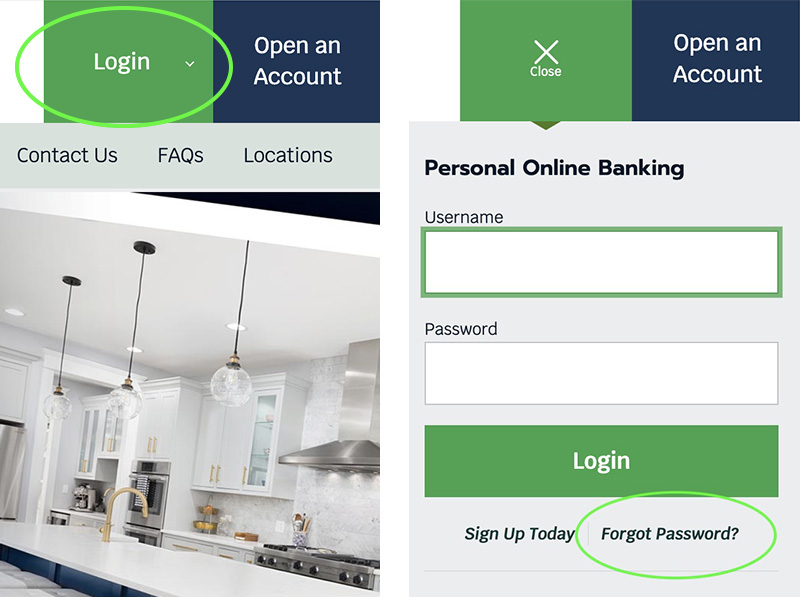
Look for the link labeled Forgot password? or Trouble signing in? on the login screen. This is the only official entry point for the recovery flow. Clicking this link directs you to a secure verification page where the provider can confirm your identity before allowing a new password to be created.
Note: Most recovery flows begin when you click 'Forgot password?' or 'Trouble signing in?' on the login screen.
Whether you are using a phone, tablet, or computer, the interface may look slightly different, but the logic is identical. Google, Microsoft, and Apple all require you to start at the sign-in prompt to initiate the security check. Skipping this step or searching for a "reset" button in a secondary menu will not work because the system needs to verify that you are trying to recover an account, not change one you already control.

Finding the correct link is the first step in password recovery. Once you click it, the provider will ask for your email address, phone number, or username. This triggers the next phase of verification, which typically involves sending a code to your trusted device or phone number. Start here, and the rest of the process will follow.
Recover a Google account
When you forget your password, Google asks you to prove you own the account before letting you reset it. The process relies on the contact methods you added during setup, such as a recovery phone number or secondary email address. If you haven’t added these details, the system will ask additional security questions or check for recent activity on your device.
Navigate to accounts.google.com/signin/recovery. This is the official portal for account recovery. If you are already signed in, sign out first to ensure the system treats this as a new login attempt.
Type the Google Account email address or phone number associated with the account. If you have multiple accounts, Google may display a list. Select the one you are trying to recover.
Google will present the recovery options on file. Select the phone number ending in the last four digits or the recovery email address you prefer. If neither is available, click "Try another way" to see alternative verification steps.
Check your phone for an SMS or your recovery email for a message containing a six-digit code. Enter this code into the field on the recovery screen. The code expires quickly, so enter it as soon as you receive it.
Once verified, you will be prompted to create a new password. Choose a strong, unique password that you do not use on other sites. Google may suggest a password generator; you can use this or create your own.
After setting your new password, Google will sign you out of other devices for security. You will need to sign back in on your phone, tablet, or computer using the new credentials. If you use the same password elsewhere, update those accounts to prevent future lockouts.
Reset a Microsoft account password
Recovering a Microsoft account requires proving your identity through a secondary contact method. Microsoft uses this verification step to ensure that only the legitimate account owner can access the password reset flow. This process is straightforward if you have access to the phone number or alternate email address linked to your account.
Start by visiting the official Microsoft account recovery page at account.live.com/password/reset. This is the secure, official portal for password recovery. Enter your email address, phone number, or Skype name associated with the account you are trying to access. If you are unsure which account you used, try your most likely email addresses one by one.
Navigate to the Microsoft account recovery page and enter the email, phone, or Skype name linked to your account. Click "Next" to proceed to the verification stage. If you cannot remember the exact email, try variations you might have used in the past.
Microsoft will present a list of security options you previously set up. These typically include a secondary email address or a mobile phone number. Select the method you can currently access. If you no longer have access to these methods, you will need to follow the "I don't have any of these" troubleshooting flow, which is more complex.

Check your phone for an SMS or your secondary email for a message from Microsoft. Enter the six-digit security code exactly as shown. The code usually expires within 10 to 20 minutes, so act quickly. If the code does not arrive, check your spam folder or request a new one.

Once verified, you will be prompted to create a new password. Choose a strong, unique password that you do not use on other sites. Confirm the new password, and you will be logged into your Microsoft account immediately.
If you encounter issues, such as not receiving the code or being locked out, Microsoft provides additional troubleshooting steps on their support page. These may involve answering security questions or providing personal information to verify your identity. Always ensure you are on the official Microsoft domain to avoid phishing scams.
Fix an Apple ID password
Apple locks your account if you forget your credentials, but the recovery path is straightforward if you have access to your trusted devices or phone numbers. The process relies on two-factor authentication to verify your identity before allowing a password reset.
Open a browser and go to iforgot.apple.com. This is the official portal for handling account security issues. Enter your Apple ID email address and click Continue to start the verification process.
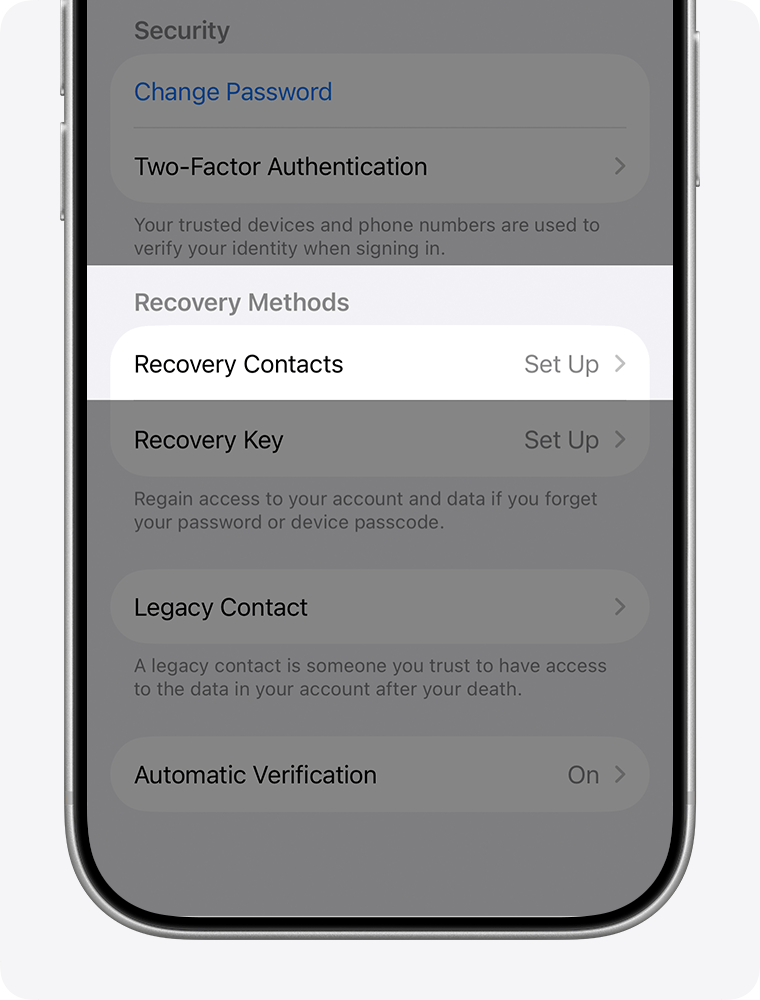
Apple will prompt you to verify your identity using a trusted device or phone number. If you have an iPhone, iPad, or Mac signed in with the same Apple ID, a notification will appear asking you to allow the password reset. Enter the six-digit code displayed on that device.
If you don’t have a trusted device handy, choose to receive a verification code via text message or phone call to your trusted phone number. Enter the code when prompted.
Once verified, you will be asked to create a new password. It must be at least eight characters long and include a mix of uppercase letters, lowercase letters, and numbers. Avoid using personal information or common words to keep your account secure.
After setting the new password, sign in to your Apple ID on all your devices. You may need to re-enter the new password on iCloud.com, the App Store, and other Apple services. If you have two-factor authentication enabled, you might also need to authorize the new device if you are signing in from a computer that hasn’t been used before.
If you cannot access any trusted devices or phone numbers, you may need to use an account recovery request. This process can take several days or weeks as Apple verifies your identity through additional security checks. For more details, visit the Apple Support page on account recovery.
Check for compromised credentials
Password recovery isn't complete until you verify that your account wasn't part of a larger breach. If a hacker stole your password from another site, they likely tried it on your Google, Microsoft, or Apple account during the login attempt. You need to confirm your account is clean and update your defenses before moving on.
Start by checking if your password has appeared in known data leaks. Google offers a free tool at passwords.google.com that scans your saved passwords against public breach databases. If your password shows up, change it immediately across all sites where you used it. Microsoft and Apple have similar built-in security checks in their account settings; look for "Security" or "Privacy" sections to find breach notifications.
Next, review your recent login activity. Look for sign-ins from devices or locations you don't recognize. If you see suspicious entries, sign out of all sessions and force a password reset. This ensures that even if someone has your old password, they can't stay logged in.
Finally, update your recovery options. A compromised account often leads to a locked-out user. Make sure your recovery email and phone number are current. If you use a password manager, check if it flagged any reused passwords during the recovery process. Replace any weak or repeated passwords with unique, strong alternatives to prevent future breaches.
-
Enable two-factor authentication on all accounts
-
Review recent login activity for unknown devices
-
Update recovery email and phone number
-
Check password manager for reused or weak passwords
Fix Common Password Recovery Errors
Even with the right steps, password recovery can hit snags. These are the most frequent failure points and how to resolve them quickly.
"Too many attempts" lockout Security systems temporarily block requests after several wrong guesses. This protects your account from brute-force attacks. Wait 24 hours before trying again. Do not refresh the page repeatedly, as this resets the timer. Use this time to verify your secondary email or phone number is accessible.
"Code not received" delays Recovery codes often land in spam or junk folders. Check these folders first. If you use a work email, your IT department may have blocked the message. Try requesting the code via SMS instead. Ensure your mobile number is current in your account settings before starting the process.
Incorrect secondary contact If your backup email or phone is outdated, you cannot receive the verification link. Update these details using a trusted device where you are already logged in. If you cannot access any trusted device, you must start the recovery process from scratch with accurate information.
Frequently asked questions about password recovery
How long does Google password recovery take?
Google’s password recovery process is generally immediate if you can verify your identity using a trusted device or phone number. If the system requires additional verification, such as answering security questions or waiting for a code sent to a secondary email, the process can take up to 24 hours. For accounts with suspicious activity, Google may place a temporary hold, extending the timeline while they review the request for security reasons.
Can I reset a password without a phone?
Yes, but it depends on your account settings. If you previously added a recovery email address, you can use it to receive a verification code. Microsoft and Apple also allow recovery via alternate email addresses or security questions if those were set up during account creation. However, if a phone number was the only verification method linked to the account, you will not be able to complete the reset without access to that device.
What if I lost access to my recovery email?
Losing access to your recovery email significantly complicates password recovery, as it removes a primary verification channel. In this case, you must rely on other methods, such as a secondary phone number, trusted devices, or security questions. If no other verification methods are available, recovery is often impossible for security reasons. You may need to create a new account and migrate data manually, as support teams typically cannot bypass these identity checks.
No comments yet. Be the first to share your thoughts!