
Find the recovery link
Every account recovery process starts in the same place: the login screen. Look for the link to recover your account, which usually sits just below the password field or near the sign-in button. Clicking this link is the universal entry point that shifts your workflow from authentication to verification.
This link initiates the secure handoff to the identity provider. It signals that you cannot access the account with your current credentials and requests a temporary method to prove your identity. Once clicked, the system will typically ask for your email address, phone number, or username to locate your account.
If you do not see the link immediately, try entering an incorrect password once. Many modern applications and browsers hide the recovery option until they detect a failed login attempt, at which point the option appears to offer a solution. This is a standard security feature to prevent automated bots from probing for account existence.
After clicking the link, follow the on-screen prompts to verify your identity. This usually involves checking your email or SMS for a one-time code. Once verified, you will be directed to a secure page to set a new password. Keep this new password in a secure location to avoid repeating the process.

Navigate to the website or app where you need to reset your password. Look for the recovery link below the input fields.
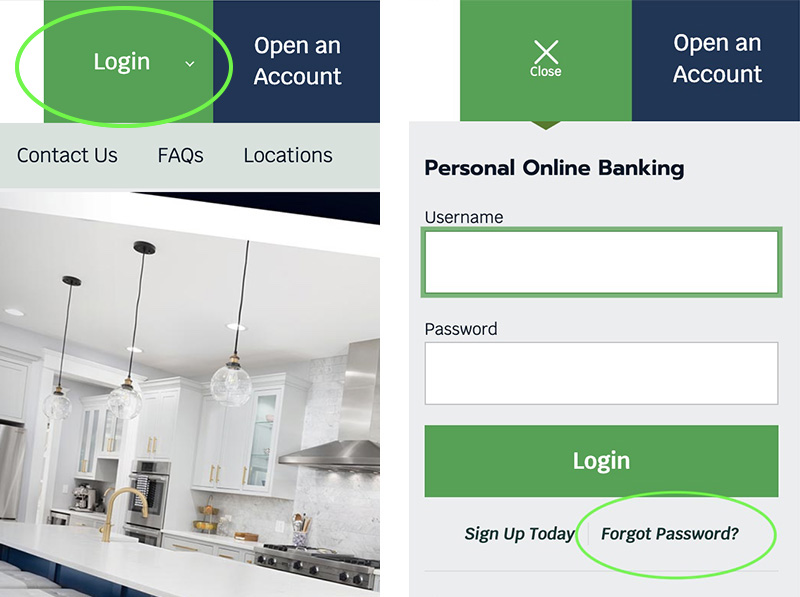
Select the recovery link. If it is not visible, enter an incorrect password and click sign in to reveal the option.
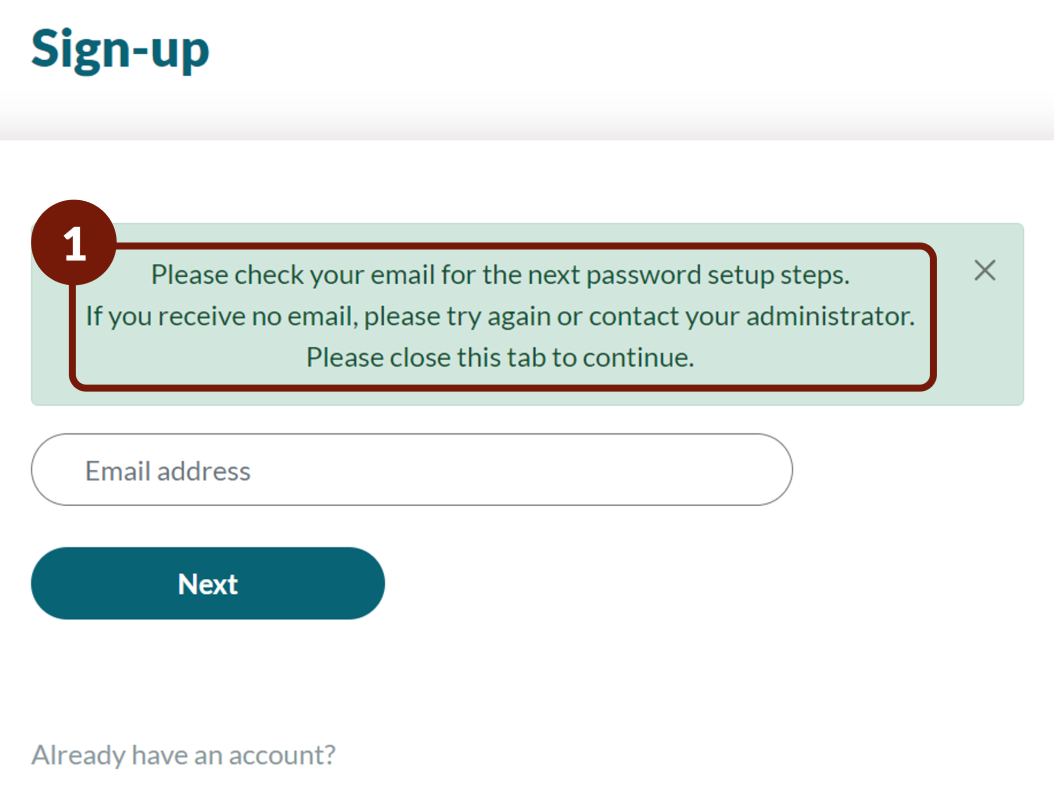
Enter your email address or phone number as requested. Check your inbox or messages for a verification code sent by the service.
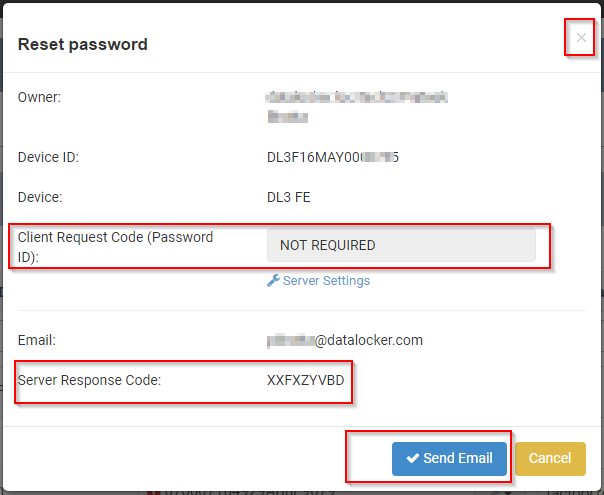
Once verified, enter a strong, unique password. Save it in a password manager to avoid future resets.
Verify your identity securely
Before you can set a new password, the system must confirm it is actually you. This step prevents unauthorized access even if someone else knows your old password. Most platforms offer three verification paths: SMS text, email link, or an authenticator app.
Check your email or phone
The most common method involves a one-time code sent to a secondary channel. Look for an email from the service provider with a subject line like "Password Reset" or "Security Alert." If you opted for SMS, check your text messages.
Be wary of phishing attempts. Legitimate reset emails will never ask you to reply with your password or click a link that looks slightly off. Verify the sender's address matches the official domain of the service you are trying to access. If you do not receive the code within two minutes, check your spam folder or request a new one.
Use an authenticator app
For higher security, use an authenticator app like Google Authenticator or Authy. These apps generate time-sensitive codes that refresh every 30 seconds. This method is more secure than SMS because it does not rely on your phone number, which can be intercepted via SIM swapping.
To use this, open your authenticator app and look for the entry corresponding to the account you are resetting. Enter the six-digit code displayed on the screen into the verification field on the website or app. This step requires no internet connection on your phone, making it reliable even in areas with poor signal.
Handle verification failures
If you no longer have access to your phone or email, you may need to use backup codes. These are one-time use codes provided when you first enabled two-factor authentication. If you did not save them, you might need to contact customer support to verify your identity through alternative means, such as answering security questions or providing identification documents.
Once verified, you will be prompted to set a new password. Ensure it is strong and unique, combining uppercase and lowercase letters, numbers, and symbols. Avoid using personal information or previous passwords.
Create a strong new password
Stop trying to memorize random strings of characters. Modern security advice has shifted away from complex, nonsensical passwords like X9#m2!qL toward passphrases. A passphrase is a sequence of random words that is long enough to be hard for computers to crack but easy for you to remember.
Think of a passphrase like a combination lock. A short, complex password is like a tiny lock with many possible settings—it looks tough but can be picked quickly by brute-force software. A long passphrase is like a heavy vault door. Even if the mechanism is simple, the sheer length makes it statistically impossible to guess in a reasonable timeframe.
To build one, pick four or five unrelated words. You can use a word generator or simply look around your room and name objects you see, but ensure they are not connected by a logical story. For example, correct horse battery staple is a classic example of this method. It is easy to type and type out loud, yet it contains significantly more entropy than a shorter, complex string.
Avoid common phrases, song lyrics, or personal information like birthdays or pet names. Attackers use dictionaries of common phrases first. If you want to add complexity, you can insert a number or symbol between the words, but do not rely on it as your only defense. The length is what makes the password strong.
Reset passwords on smart devices
Smart home hubs, security cameras, and IoT sensors rarely use the standard web login flows you encounter on laptops or phones. Instead, they rely on companion apps or physical hardware interactions to verify identity. Resetting these passwords often requires a different approach than managing your computer accounts.
If your device is linked to a central app, check the manufacturer’s support page for specific steps. For enterprise-managed devices, such as Android tablets in a corporate environment, you may need to use the admin console to reset the password remotely.

For devices without an app interface, look for a physical reset button. This is often a small, recessed hole on the back or bottom of the unit. Press and hold it for 10–15 seconds until the LED flashes, which restores factory settings and clears the old password.
Check if the reset worked
A password reset is only successful when you can actually log in. Before you consider the task complete, verify the new credentials across every device that accesses your account. If one device fails, the others likely will too.
Start with the device you used to perform the reset. Enter your new password carefully. If the system accepts it, move immediately to your phone and computer. Many users find that their mobile apps or desktop browsers still hold onto the old session, causing confusion. Sign out of all active sessions if possible, then sign back in with the new password on each device.
Once logged in, check your saved passwords. Modern browsers and operating systems often prompt you to update the stored credential. Accept this update so future logins are seamless. If you use a password manager, ensure it syncs the new password to the cloud. This prevents you from having to manually update every saved entry later.
-
Log in on the device used for the reset
-
Log in on your phone
-
Log in on your computer
-
Update browser autofill or password manager
Common questions about password recovery
When you get locked out, the exact button or path changes depending on your device. Use these specific fixes to get back in quickly.
How to reset password from settings?
On Android, open your Settings app and tap your Google profile name. Select Security & sign-in, then tap Password under "How you sign in." Enter your new password and confirm. You may need to sign in again to verify your identity.
What button do I press to change my password?
On Windows, press Ctrl+Alt+Delete simultaneously. Select Change a password from the menu that appears. Enter your old password, then type and confirm your new password. This works for most local and domain accounts.
How do I reset a forgotten Microsoft account password?
Go to the Microsoft sign-in page and click Forgot password?. Enter your email or phone number, then follow the verification steps sent to your device. Once verified, set a new password and sign in. Reset a forgotten Microsoft account password
No comments yet. Be the first to share your thoughts!