
Start with the right sign-in page
Resetting passwords begins at the source. Before you attempt any recovery steps, navigate directly to the official account provider’s login screen. This simple verification prevents phishing risks and ensures you are using the correct recovery channel for your specific device or service.
Whether you are using an iPhone, Android, or Windows PC, the account is managed by a central provider—Google, Apple, or Microsoft. Going to a third-party site or clicking a link in an unsolicited email is the most common way users accidentally hand over credentials to scammers. Always type the URL manually or use a trusted bookmark.

Once on the correct page, look for the "Forgot password?" or "Sign in" link. Do not attempt to reset your password through your device’s general settings if you are locked out of the account itself; the account provider’s web portal is the authoritative source for credential changes. This direct path is the foundation of a secure reset.
Reset a Google account password
Resetting passwords for a Google account is the most common recovery task across Android and web platforms. The process relies on verifying your identity through a recovery email or phone number linked to the account. Follow these steps to regain access securely.
Navigate to accounts.google.com/signin. Enter your email address and click Next. On the password screen, select "Forgot password?" to begin the recovery flow.

Google will ask you to verify you own the account. Enter the last password you remember, or choose "Try another way." You will receive a verification code via SMS to your phone or an email to your recovery address. Enter the code on the screen.
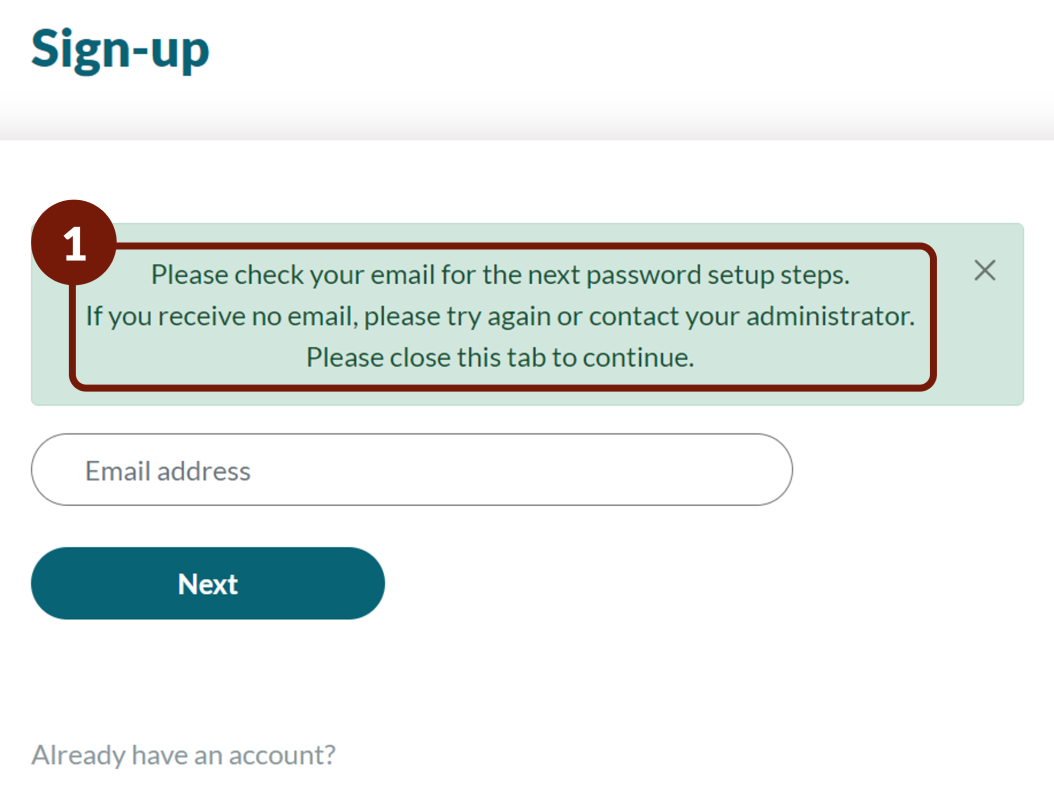
Once verified, you can set a new password. Choose a strong, unique password that you haven't used before. Tap "Change Password" to save it. This step updates your credentials across all devices linked to this Google Account.
If you have two-factor authentication enabled, you may need to approve the sign-in from a trusted device. This adds an extra layer of security during the password reset process. Always ensure your recovery phone number and email are up to date to prevent future lockouts.
Reset a Microsoft account password
If you can’t sign in to your Microsoft account, you can reset the password from any device with internet access. This process verifies your identity to protect your data before allowing a new password.
Navigate to account.live.com/password/reset. If you are already signed into another account, sign out first to ensure you reach the correct reset portal.

Type the email address, phone number, or Skype name associated with the account. Microsoft will use this to locate your profile and determine how to verify your identity.
Choose a verification method from the options provided. Microsoft typically sends a security code via email or text message to your trusted contact info. Enter the code exactly as received.
Once verified, enter a new password twice to confirm it. Choose a strong password that you haven’t used before, then select Next to complete the process.
Resetting passwords when already logged in
If you are currently signed into your Microsoft account on a Windows device but want to change the password, you don’t need to go through the recovery flow. Instead, open Settings and navigate to Accounts > Sign-in options. Select Password and click Change. You will be prompted to enter your current password first, followed by your new one. This method is faster if you have access to your device but simply want to update your credentials.
For detailed instructions from Microsoft, visit their official support page.
Reset an Apple ID password on iPhone
If you still have access to your iPhone, you can change your Apple ID password directly from the Settings app. This method is the fastest way to regain control of your account, provided you know your device passcode. The device passcode acts as the verification key, proving you are the owner before allowing a password change.
Launch the Settings app on your iPhone. At the very top of the menu, tap your name or the Apple ID banner to access your account details. This screen displays your personal information, payment methods, and connected services.
Scroll down within your Apple ID profile and select Password & Security. This section manages the security credentials for your Apple ID, including two-factor authentication settings and trusted devices.
Tap the Change Password option. You will be prompted to enter your current iPhone passcode. This step verifies your identity locally on the device before proceeding with the account change.
After entering your passcode, two fields will appear for the new password. Type your new, strong Apple ID password twice to confirm. Once saved, you will need to use this new password for all future iCloud and App Store logins on this and other devices.
If you cannot access the Settings app or do not know your device passcode, you must reset the password via the web. Visit iforgot.apple.com on any browser. Enter your Apple ID and follow the prompts to verify your identity using a trusted phone number or another trusted device. This method is essential when your primary device is locked or unavailable.
Fix common reset errors
Even with the right steps, resetting passwords often hits snags like wrong verification codes, locked accounts, or missing recovery emails. These roadblocks are usually simple to clear if you know where to look.
Incorrect verification codes
If the code isn’t arriving, check your spam folder first. Ensure your phone number or email in the account settings is current. For mobile devices, wait 60 seconds and request a new code; SMS delays are common during peak times.
Locked accounts
Too many failed attempts trigger temporary locks. Wait the suggested cooldown period (usually 15–30 minutes) before trying again. This prevents automated bots from guessing your password. If the lock persists, you may need to verify your identity through a secondary method.
Forgotten recovery emails
If you can’t access your recovery email, look for the "Try another way" option on the verification screen. This often reveals alternative methods like using a trusted device, answering security questions, or receiving a code via SMS.
For Windows users already logged in, you can change your password directly through Settings > Accounts > Sign-in options. This bypasses the reset flow entirely if you know your old password.
Secure your account after resetting
Resetting passwords is only half the battle. If you don’t lock down the rest of your digital life, attackers can still access your accounts through old sessions or weak secondary authentication. Follow this sequence to ensure your new credentials are protected.
Turn on two-factor authentication immediately. This adds a second layer of security, meaning a stolen password alone isn’t enough to breach your account. The OWASP cheat sheet recommends MFA as a primary defense against credential stuffing attacks.
Your new password needs to sync across all your gadgets. Log in to your keychain or password manager on your phone, tablet, and other computers to update the stored credentials. This prevents sync errors and ensures every device uses the strongest version of your password.
Check your account settings for active login sessions. Sign out of any devices you don’t recognize or haven’t used recently. This kicks out any lingering access an attacker might have gained before you changed your password.
No comments yet. Be the first to share your thoughts!