

how a reset works
A factory reset wipes your S26 clean. It removes your photos, apps, and accounts, returning the software to its original state. I usually do this when a phone feels sluggish or if I'm getting ready to sell it.
Think of it as a clean slate. Everything—photos, videos, contacts, messages, apps, and even customized settings—is deleted. The phone's software is reinstalled, essentially giving it a fresh start. Samsung includes this feature for a couple of key reasons: to prepare a device for sale or trade-in, ensuring your personal information isn't left behind, and as a last resort for resolving severe software problems.
It’s easy to underestimate the extent of data loss. Many people assume only files in the "gallery’ or ‘downloads" are affected. But a reset impacts everything associated with your account on the phone. This includes data synced with your Samsung account, Google account, and any other accounts you've connected. Don’t treat this like simply deleting a few apps; it’s a complete system overhaul.
reasons to wipe your phone
A factory reset shouldn’t be your first troubleshooting step, but it's a powerful solution for certain issues. If your Samsung Galaxy S26 is experiencing significant performance problems – consistently slow operation, frequent freezing, or apps crashing repeatedly – a reset can often resolve them. These slowdowns can stem from accumulated junk files, corrupted system caches, or conflicts between apps.
Persistent software glitches are another good indicator. I’m talking about issues that don’t seem to have a clear cause and continue to happen even after restarting the phone. For example, if the camera app consistently freezes or the Wi-Fi connection drops randomly, a reset might help. However, if the glitch is tied to a specific app, try uninstalling and reinstalling that app first.
If you have malware that won't budge, a reset is the nuclear option. It clears out the malicious code along with your files. You also need to do this before trading the phone in so the next owner doesn't have access to your banking apps or private messages.
- The phone feels slow or freezes during basic tasks.
- Frequent app crashes
- Persistent software glitches
- Suspected malware infection
- Preparing the phone for sale or trade-in
back up your data first
Before even thinking about a factory reset, you absolutely must back up your data. A reset will erase everything, and recovery is often impossible without a recent backup. Fortunately, the Samsung Galaxy S26 offers several backup options, each with its own strengths and weaknesses.
Samsung Cloud provides a convenient way to back up your photos, videos, contacts, calendar events, and even some app data. However, Samsung offers limited free storage—typically 15GB—and you may need to purchase additional storage if you have a lot of data. Google Drive is another excellent option, particularly for contacts, calendar, and photos (through Google Photos). It also offers 15GB of free storage, shared across Google services.
Smart Switch, Samsung’s dedicated backup and restore tool, allows you to create a full backup of your phone to a computer (PC or Mac). This is often the fastest and most comprehensive option, as it backs up everything, including app data that might not be backed up by Samsung Cloud or Google Drive. Don’t forget to specifically back up WhatsApp chats – these aren’t always included in standard backups and require a separate process within the WhatsApp app itself.
To back up using Smart Switch, connect your S26 to your computer via USB cable, launch Smart Switch on your computer, and follow the on-screen instructions. For Samsung Cloud and Google Drive, navigate to Settings > Accounts and backup > Backup data. Ensure you’ve selected all the data types you want to back up before starting the process.
resetting through the settings menu
If your Samsung Galaxy S26 is functioning well enough to navigate the settings, this is the preferred method for performing a factory reset. It's the simplest and most straightforward approach. Begin by opening the Settings app on your phone.
Scroll down and tap on General Management. Then, select Reset. You’ll see several reset options, including "Reset settings’, ‘Reset network settings’, and ‘Factory data reset". Choose Factory data reset. This action will present you with a detailed warning about the data loss—read it carefully.
After reviewing the warning, tap on Reset again to confirm your decision. You may be prompted to enter your PIN, pattern, or password for security verification. Finally, a final confirmation screen will appear. This is your last chance to cancel the reset. Tap on Delete all to proceed. The phone will then restart and begin the reset process, which can take several minutes.
using buttons for a hard reset
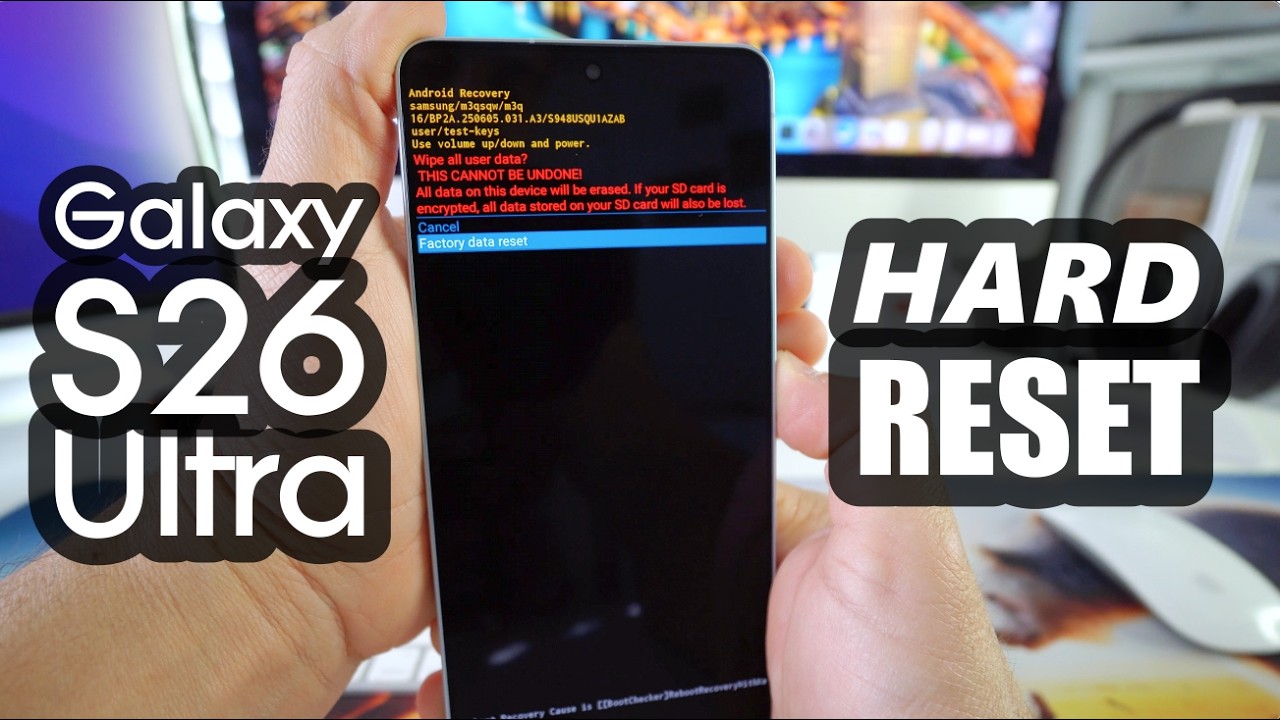
If your Samsung Galaxy S26’s touchscreen is completely unresponsive, preventing you from accessing the Settings menu, you can perform a "hard reset" using a combination of buttons. This method forces the phone into recovery mode, allowing you to initiate a factory reset. Be warned: this is a more technical process and carries a slightly higher risk of issues.
The button combination for the Galaxy S26 is typically Power + Volume Up. Press and hold both buttons simultaneously until the Samsung logo appears. Then, release the buttons and the phone will enter recovery mode. Use the Volume Up and Volume Down buttons to navigate the menu options.
Scroll down to wipe data/factory reset using the Volume Down button and press the Power button to select it. Confirm your choice by selecting Factory data reset on the next screen. The phone will begin the reset process. Once complete, select Reboot system now to restart your phone. This method is best reserved as a last resort when the standard reset option isn’t accessible.
Post-Reset Setup: Getting Started Again
After the factory reset is complete, your Samsung Galaxy S26 will restart and guide you through the initial setup process. This is similar to setting up a new phone. You’ll be prompted to select your language, connect to a Wi-Fi network, and sign in to your Google account.
When prompted, choose to restore from a backup. You can select from the backups you created earlier using Samsung Cloud, Google Drive, or Smart Switch. Follow the on-screen instructions to restore your data. Keep in mind that restoring a large backup can take a significant amount of time.
Once the restore process is complete, sign back into any other accounts you use on your phone (Samsung account, email accounts, social media apps, etc.). Finally, it’s a good idea to check for software updates in Settings > Software update to ensure your phone is running the latest version of Android.
Samsung Galaxy S26 Troubleshooting: When to Consider a Factory Reset
| Problem | Possible Cause | Solution | Samsung Support Link |
|---|---|---|---|
| Boot Loop | Software glitch after update or app installation | Perform a Factory Reset via Recovery Mode. | https://www.samsung.com/us/support/answer/ANS00088861/ |
| Backup and Restore Failure | Corrupted backup files or insufficient storage | Factory Reset to clear existing data, then attempt a fresh backup and restore. | https://www.samsung.com/us/support/answer/ANS00078594/ |
| Slow Performance | Accumulation of cache, app conflicts, or full storage | Factory Reset to restore device to original state and improve speed. | https://www.samsung.com/us/support/answer/ANS00078594/ |
| App Crashing/Freezing | Software incompatibility or corrupted app data | Factory Reset can resolve issues caused by problematic applications. | https://www.samsung.com/us/support/answer/ANS00088861/ |
| Forgotten Screen Lock | User forgets PIN, pattern, or password | Factory Reset is often the only option to regain access (data loss will occur). | https://www.samsung.com/us/support/answer/ANS00088861/ |
| Virus or Malware Suspected | Unusual device behavior or security alerts | Factory Reset can remove malicious software, but prevention is key. | https://www.samsung.com/us/support/answer/ANS00088861/ |
Qualitative comparison based on the article research brief. Confirm current product details in the official docs before making implementation choices.




No comments yet. Be the first to share your thoughts!