

Tesla Model Y screen frozen?
If your 2026 Model Y screen stops responding, you lose access to everything from the speedometer to the climate controls. While the hardware is newer, software hangs still happen. Most of these glitches clear up with a quick reboot using the steering wheel buttons.
This guide will cover different reset options for your Tesla Model Y’s infotainment system. While these resets generally shouldn’t erase your saved profiles or personalized settings, it's always wise to be prepared for the possibility. Before attempting any of these resets, the most important thing is to ensure your vehicle is completely stopped and in Park. Safety first!
A frozen screen can stem from a temporary software hiccup, a background process gone awry, or even just an overload of information. Don't panic—most of the time, a straightforward reset will get things back on track. We’ll start with the easiest fix and move towards more comprehensive solutions if needed.
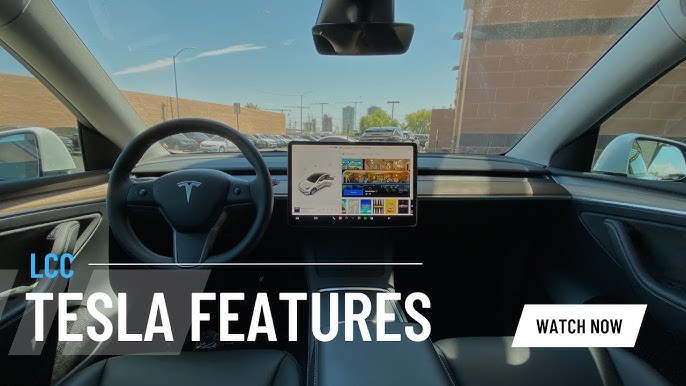
The scroll wheel soft reset
The scroll wheel reboot is the fastest fix. Put the car in park, then press and hold both scroll wheels on the steering wheel until the screen turns black.
You’ll know it’s working when the touchscreen goes black and the Tesla logo appears. This indicates the system is restarting. The whole process typically takes between 30 and 60 seconds, though it can sometimes feel longer. Be patient and avoid interrupting the process.
Sometimes, a soft reset doesn’t take hold on the first attempt. If the screen remains frozen after a minute or two, try repeating the process. It’s not uncommon for it to require a couple of tries to fully reboot the system.
Power cycling through the menu
If the soft reset doesn't do the trick, you can try initiating a power cycle through the touchscreen itself. Navigate to the "Safety’ menu, and then select ‘Power Off". This method is a slightly more thorough reset than using the scroll wheels.
The screen goes dark immediately, but the car stays awake. You might hear the contactors clicking or the cooling fans running while the computer cycles.
There's a key distinction between "Power Off’ and ‘Reboot’ within the Tesla interface. ‘Power Off’ initiates a controlled shutdown, while ‘Reboot’ is a more aggressive reset, similar to the scroll wheel method. Use ‘Power Off" as the next step if the soft reset fails.
The brake pedal hard reset
For more persistent issues, a deep reset might be necessary. This is the most thorough reset option and is designed to address more stubborn problems. To perform a deep reset, you’ll need to hold down both scroll wheels and the brake pedal simultaneously.
As with the other resets, ensure your vehicle is completely stopped and in Park before attempting this. Holding the brake pedal adds an extra layer of safety to the process. This process takes significantly longer than a soft reset, often several minutes. The screen will cycle through multiple restarts during this time.
Be patient during the deep reset. The system is performing a more comprehensive reboot, and it may take a while for all features to fully re-initialize afterward. You might notice some temporary delays in features like navigation or media playback. Don’t interrupt the process, even if it seems like nothing is happening.
Troubleshooting beyond the reboot
Sometimes, despite your best efforts, a reset simply doesn’t resolve the issue. If you’ve tried all the methods above and your Tesla Model Y’s screen remains frozen, there are a few potential underlying causes. These could include a more serious software glitch, overheating of the system, or, in rarer cases, a hardware problem.
First, check for software updates. Navigate to "Settings’ > ‘Software’ to see if any updates are available. Installing the latest software can often fix bugs and improve system stability. If an update is available, allow it to download and install completely. Also, try switching to a different user profile within the car"s settings.
If none of these steps work, it’s time to contact Tesla support. It’s important to be honest with yourself – sometimes a service visit is necessary. Don’t hesitate to seek professional help if the problem persists.
Common error messages
Along with a frozen screen, you might encounter specific error messages. Understanding these messages can help you pinpoint the problem and find a solution. A common one is "System is Busy", which often indicates the system is overloaded with tasks. Try closing unnecessary apps or waiting a few minutes for it to clear.
"Connectivity Issues’ is another frequent message. This typically means the car is having trouble connecting to the internet. Check your Wi-Fi connection (if applicable) and ensure mobile data is enabled in the car"s settings. Restarting the Tesla mobile app on your phone can also help re-establish the connection.
Other error messages may relate to specific features, like navigation or autopilot. Consult the Tesla owner’s manual or search the Tesla support website for specific troubleshooting steps related to that feature. User forums can also be a valuable resource for finding solutions to common issues.
Preventing Future Freezes
Most screen freezes are fixed in subsequent OTA updates. I've found that keeping the car on the 'Advanced' software update toggle helps get these stability patches sooner.
If you use third-party apps with your Tesla, be mindful of their impact on system resources. Excessive use of these apps can sometimes contribute to freezes. Manage background processes and close any apps you’re not actively using. Maintaining a regulated cabin temperature can also help. Extreme heat or cold can sometimes cause system instability.
It’s important to remember that even with preventative measures, freezes can still occur. These suggestions can minimize the risk, but complex systems are prone to occasional glitches. Regular maintenance and proactive software updates are your best defenses.
Reset Options
- Soft Reset (Reboot) - This restarts the infotainment system without affecting user data or settings. Hold both scroll wheels on the steering wheel until the touchscreen goes black and the Tesla logo appears.
- Power Off via Touchscreen - Navigate to Controls > Safety & Security > Power Off. This performs a more complete shutdown than a soft reset.
- Factory Reset (Master Reset) - This restores the system to its original factory settings, erasing all user data. Access this through Controls > Service > Reset. *Note: This requires Tesla account credentials.*
- Check for Software Updates - Outdated software can cause instability. Ensure your vehicle has the latest software via Controls > Software.
- USB Drive Reset (Recovery Mode) - In rare cases, a recovery mode reset via USB may be necessary. Consult Tesla Support for the correct procedure and software.
- Check Cabin Overheat Protection - If the screen is unresponsive, Cabin Overheat Protection may be active. Ensure it is disabled in Controls > Safety & Security.
- Tesla Support - If none of the above steps resolve the issue, contact Tesla Support for assistance.




No comments yet. Be the first to share your thoughts!