

Back up your data first
Resetting your S26 wipes everything. It's the nuclear option for fixing software bugs, so you need to save your data first. If you don't back up your photos and contacts now, they're gone for good.
Samsung Cloud handles your call logs and basic settings automatically. For a full copy of your messages, photos, and apps, use Smart Switch on a PC or Mac. It's more reliable than cloud syncing for large video libraries.
You can also perform a manual backup, copying photos, videos, and documents to a computer via USB cable or to an external storage device. Don't forget about files stored directly on your SD card, if your S26 has one. Those aren’t typically erased during a factory reset, but it’s good to verify. Keep in mind that some app data might not be backed up, depending on how the app is designed.
Beyond backups, double-check your Samsung account status. Ensure you know the email address and password associated with it. This is important for account recovery after the reset and for utilizing features like "Find My Mobile’. A factory reset wipes local data, but it doesn"t necessarily remove your account associations with Samsung services.
Reset through the settings menu
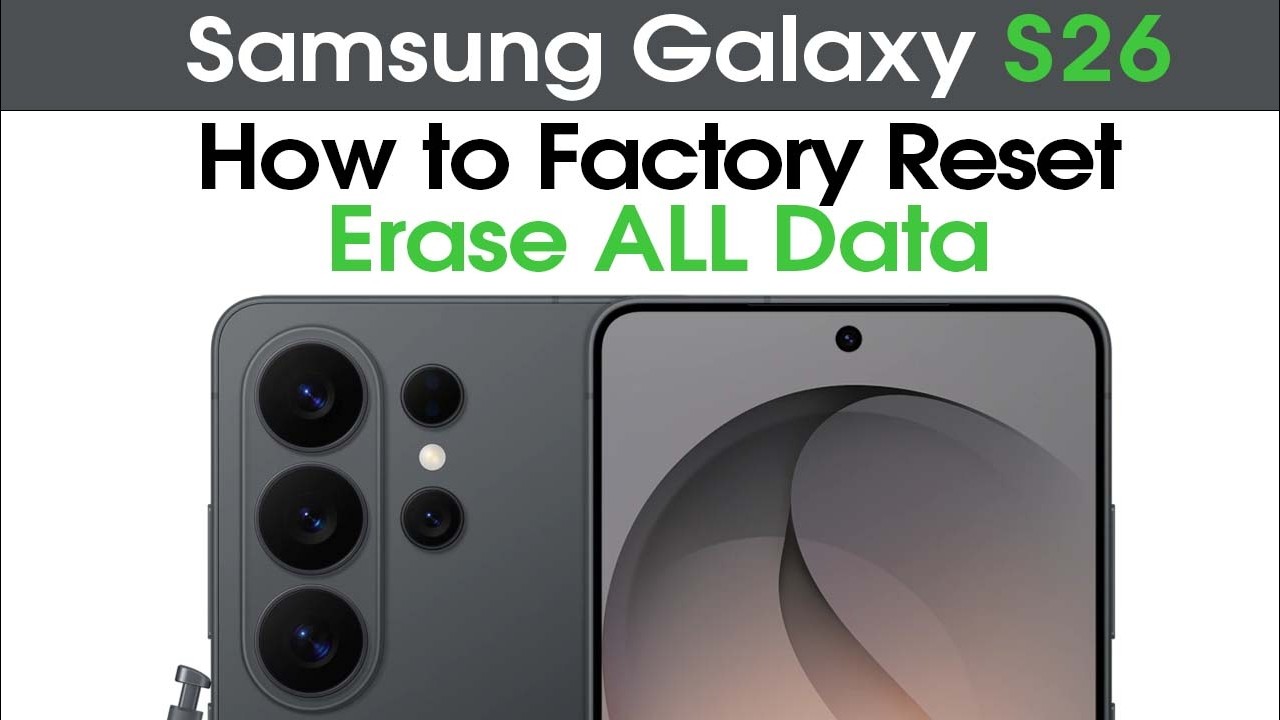
If your Samsung Galaxy S26 is functioning, even with a frustrating password issue, resetting through the Settings menu is the easiest approach. Navigate to General Management. The exact wording may vary slightly based on the One UI version, but it's generally found within the main Settings app. From there, select Reset, and then Factory Data Reset.
You’ll be presented with a summary of what will be erased: accounts, settings, apps, and all your personal data. Read this carefully. You’ll then need to confirm your decision, which usually involves entering your PIN, password, or pattern. Multiple confirmation prompts are in place to prevent accidental resets. Samsung wants to be sure you really want to do this.
The reset process itself takes several minutes. The phone will reboot multiple times, and you’ll see a progress bar. Do not interrupt this process. Powering off the phone during the reset can lead to serious software issues, potentially bricking your device. If the reset appears to be stuck for an extended period – say, over 30 minutes – a forced restart might be necessary, though this carries some risk.
A forced restart is typically done by holding the Power button and Volume Down button simultaneously for about 10-20 seconds. However, be aware that a corrupted reset can sometimes leave the phone in a boot loop, requiring a reset through Recovery Mode (detailed in the next section).
Use recovery mode for frozen screens
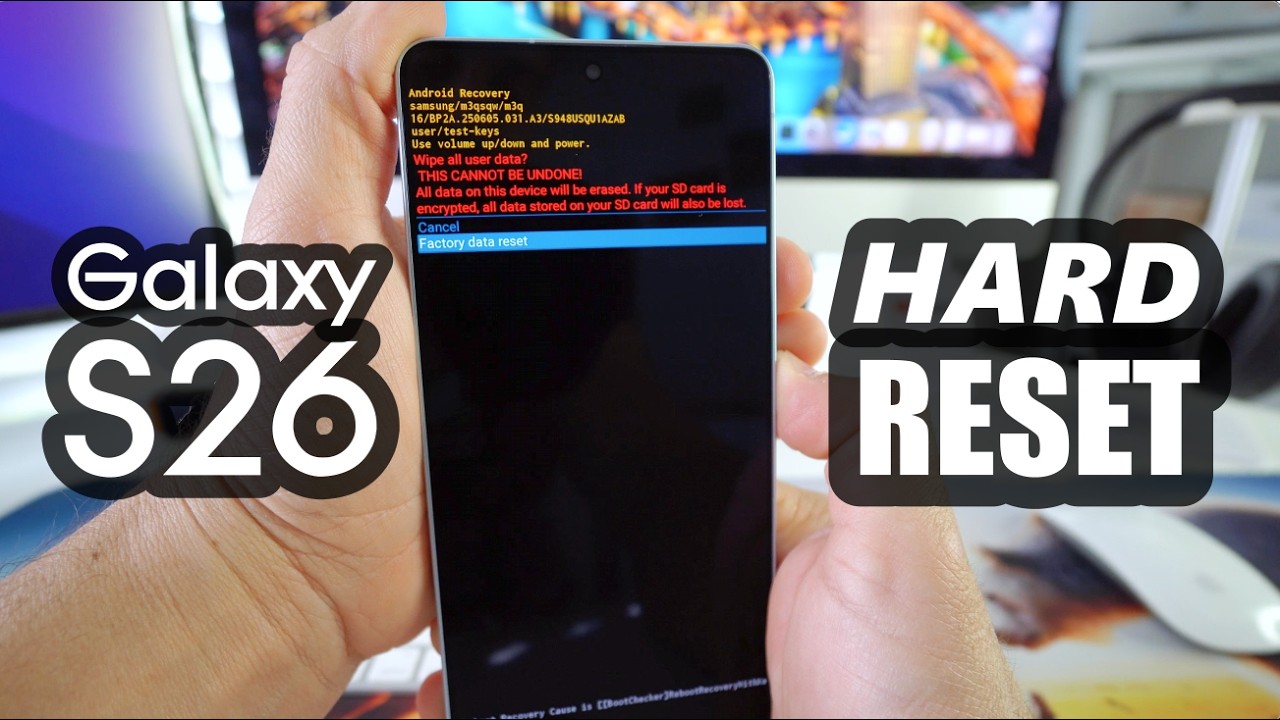
When your Samsung Galaxy S26 won’t boot normally – perhaps the screen is cracked, or the software is completely frozen – you’ll need to perform a factory reset through Recovery Mode. This is a more technical process, but it’s often the only way to recover a non-responsive device. The button combination for entering Recovery Mode can vary, but it’s usually Power + Volume Up.
Power off the phone completely. Then, press and hold the Power button and Volume Up button simultaneously. Continue holding them until you see the Samsung logo appear, then release the buttons. This should boot the phone into Recovery Mode. If your S26 has a Bixby button, you might need to include that in the button combination – experiment if Power + Volume Up doesn’t work.
The Recovery Mode menu is text-based and navigated using the Volume Up and Volume Down buttons to move the selection cursor. The Power button is used to select an option. Scroll down to "Wipe data/factory reset’ and press the Power button to select it. You"ll be asked to confirm your decision. Understand that this action is irreversible.
Selecting "Yes’ will initiate the factory reset. Once complete, you’ll be returned to the main Recovery Mode menu. Select ‘Reboot system now’ to restart your Galaxy S26. The first boot after a Recovery Mode reset will take longer than usual. Be patient. This method completely erases all data and settings. It"s a last resort, but often effective.
- Turn off the phone.
- Press and hold Power + Volume Up.
- Release when the Samsung logo appears.
- Navigate Recovery Mode with Volume buttons.
- Select with the Power button.
Samsung’s ‘Find My Mobile’ Remote Wipe
Samsung’s "Find My Mobile’ service provides a way to remotely wipe your Galaxy S26 if it’s lost or stolen, or if you simply can’t access the device physically. This requires that you’ve previously enabled ‘Find My Mobile’ and linked your Samsung account to the phone. It"s a valuable security feature, but it relies on pre-emptive setup.
Log into the Samsung Find My Mobile site with your account details. Pick your S26 from the device list. If it has a signal, click 'Erase data' to wipe it remotely.
Selecting "Erase data’ will remotely wipe all data from your phone. Be aware that this action is permanent and cannot be undone. It also disables ‘Find My Mobile" functionality on the device. This method is useful when you don't have physical access to the phone, but it's less effective if the phone is offline or the battery is dead. It also won’t erase data on any SD card installed.
Recover your passwords
Before resorting to a full factory reset, explore password recovery options. If you’ve forgotten your Samsung account password, visit the Samsung account recovery page (). You'll be guided through a process that may involve email verification, security questions, or using a linked recovery phone number.
If your Galaxy S26 is locked with a Google account password, you’ll need to recover that password. Go to the Google Account Recovery page (). Google will ask you a series of questions to verify your identity. This often involves answering security questions, receiving a verification code via email or SMS, or providing details about your recent Google activity.
Many Samsung phones now utilize two-factor authentication (2FA) for added security. If you’ve enabled 2FA on your Samsung or Google account, you’ll need access to your second factor – typically a code generated by an authenticator app or sent to your recovery phone number – to regain access. Losing access to your second factor can significantly complicate the recovery process.
Password & Security Tips
- Use a Password Manager: Consider a reputable password manager like LastPass, 1Password, or Bitwarden to generate and securely store complex passwords.
- Create Strong Passwords: Aim for passwords at least 12 characters long, combining uppercase and lowercase letters, numbers, and symbols.
- Avoid Personal Information: Do not use easily guessable information like birthdays, names of pets, or addresses in your passwords.
- Enable Two-Factor Authentication (2FA) on your Samsung Account: Add an extra layer of security to your Samsung account by requiring a code from a trusted device or app in addition to your password. This is managed through your Samsung account settings.
- Enable Two-Factor Authentication (2FA) on your Google Account: Protect your Google account – and access to your Samsung Galaxy S26 – by enabling 2FA through your Google account settings. Google offers multiple 2FA methods, including Google Prompt and authenticator apps.
- Regularly Update Passwords: Change your passwords periodically, especially for critical accounts like your Samsung and Google accounts.
- Use Unique Passwords: Avoid reusing the same password across multiple accounts. If one account is compromised, others remain secure.
Post-Reset Setup: First Steps & Account Restoration
After the factory reset completes, your Samsung Galaxy S26 will boot up as if it were brand new. You’ll be guided through the initial setup wizard, which includes selecting your language, connecting to a Wi-Fi network, and agreeing to the terms and conditions. Take your time and follow the on-screen instructions.
The setup wizard will prompt you to sign in to your Google and Samsung accounts. This is where having your account credentials readily available is crucial. Signing in to your Samsung account will automatically restore some of your settings and data from Samsung Cloud, if you previously enabled backups. You’ll also be given the option to restore data from a Smart Switch backup.
Restoring from a Smart Switch backup is generally faster and more comprehensive than restoring from Samsung Cloud. However, it requires access to the computer or external storage device where the backup is stored. Keep an eye out for potential issues during the restoration process, such as app compatibility problems or data corruption. If you encounter errors, try restoring from a different backup or reinstalling the affected apps.
Did you encounter any issues during or after factory resetting your Samsung Galaxy S26?
We want to hear about your experience. Your feedback helps us improve our guides and provide better troubleshooting steps for the How Reset community. Vote below!

No comments yet. Be the first to share your thoughts!