

Resetting a locked Galaxy S26
Forgetting your password or getting stuck with a used device happens. You can still reset a Galaxy S26 without the code, but you'll lose everything on the phone. Unless you have a cloud backup, this process wipes the slate clean.
The difficulty of these methods varies. Some, like using Samsung’s "Find My Mobile’ service, are relatively straightforward, but require prior setup. Others, like using the Android Debug Bridge (ADB), are more technical and require you to have enabled developer options beforehand. We"ll cover each option in detail, outlining the prerequisites, steps, and potential drawbacks. It's good to know your options, but be realistic about your comfort level with each.
Before we begin, a serious warning: a factory reset is a last resort. It’s a destructive process, and you’ll lose everything not backed up to a Samsung account or other cloud service. If you have photos, contacts, or other data you absolutely can’t lose, explore all other recovery options before proceeding. This article assumes you have exhausted those options and understand the risks involved.
Using Samsung Find My Mobile
Samsung's "Find My Mobile’ service is arguably the easiest way to remotely wipe your S26 if you’ve already set it up. This service allows you to locate, lock, and erase your device from a web browser. The catch? You must have a Samsung account registered on the phone and have enabled ‘Remote unlock’ before you got locked out. It"s a classic case of preparing for a problem before it happens.
To set up "Find My Mobile’ (if you haven’t already), go to Settings > Biometrics and security > Find My Mobile. Ensure the service is toggled on, and importantly, enable ‘Remote unlock’. You’ll likely be prompted to verify your Samsung account password. This step is vital; without it, the remote wipe feature won’t work. Take a moment to familiarize yourself with the other settings available within ‘Find My Mobile" as well, like 'Send last location' which can be incredibly useful if your phone is lost.
Log into the Samsung Find My Mobile website and sign in with your account. If the phone has a connection, you can select 'Erase data' from the menu. The phone will begin wiping itself immediately.
However, there are limitations. The phone must be connected to a Wi-Fi or mobile data network to receive the wipe command. The "Remote unlock’ feature isn’t available in all regions or on all carrier-locked devices. Also, Samsung has security measures in place to prevent unauthorized remote access, so the service might not work if it detects suspicious activity. It"s also worth noting that some older Samsung accounts may not have access to this feature.
Security is a concern with any remote access tool. Make sure your Samsung account is protected with a strong, unique password, and enable two-factor authentication for an extra layer of security. Regularly review the devices linked to your Samsung account and remove any that you no longer use or recognize. The convenience of "Find My Mobile’ is excellent, but it"s crucial to prioritize account security.
- Go to Settings > Biometrics and security > Find My Mobile.
- Toggle "Find My Mobile" on.
- Enable "Remote unlock".
- Log into findmymobile.samsung.com
- Select "Erase data".
ADB command line reset
The Android Debug Bridge (ADB) is a tool for sending commands from a computer to your phone. You can use it to trigger a reset, but only if you turned on USB Debugging in the settings before you were locked out.
Before you even think about using ADB, you need to install it on your computer. Download the Android SDK Platform Tools from the official Android Developers website (https://developer.android.com/studio/releases/platform-tools). Extract the downloaded ZIP file to a convenient location on your computer. You’ll also need to download and install the correct USB drivers for your Samsung Galaxy S26. These are usually available on Samsung’s website.
The critical prerequisite is USB debugging. This must have been enabled in the phone’s Developer Options before it was locked. To check if it was enabled, connect your phone to your computer. Open a command prompt or terminal window on your computer, navigate to the directory where you extracted the Platform Tools, and type `adb devices`. If your device is listed with the status "device’, USB debugging is enabled. If it shows ‘unauthorized’, you’re out of luck – it requires interaction from the phone itself, which you can"t do without unlocking it.
If USB debugging is enabled, the command to factory reset your phone is `adb shell recovery --wipe_data`. Type this command into the command prompt/terminal and press Enter. The phone will reboot and begin the factory reset process. This process will take several minutes. Be patient and do not interrupt it.
Using ADB incorrectly can potentially cause problems with your phone. If you’re not comfortable with command-line interfaces, or if you’re unsure about any of the steps, it’s best to avoid this method. Incorrect commands could, in rare cases, lead to a bricked device. This method is also unlikely to work on newer Samsung devices with stricter security measures.
- Download and install the Android SDK Platform Tools.
- Install the correct USB drivers for your S26.
- Enable USB debugging (must have been done before locking the phone).
- Connect your phone to your computer.
- Open a command prompt/terminal and type `adb devices` to verify connection.
- Type `adb shell recovery --wipe_data` and press Enter.
Method 4: ADB Command Line Factory Reset
For users comfortable with command-line tools, Android Debug Bridge (ADB) provides a direct method to factory reset your Samsung Galaxy device. This method requires USB debugging to be enabled beforehand and ADB tools installed on your computer. Connect your device to your computer via USB cable and ensure it's recognized by ADB.
adb shell recovery --wipe_dataWARNING: Using ADB commands incorrectly can permanently damage your device (brick it) and void your warranty. This command will completely erase all data on your device without any confirmation prompts. Only proceed if you understand the risks and have exhausted other reset options. Make sure your device has sufficient battery charge and maintain a stable USB connection throughout the process.
Safe mode reset
Booting your Samsung Galaxy S26 into Safe Mode can sometimes allow you to perform a factory reset, even with a screen lock in place. Safe Mode starts the phone with only essential system apps running, bypassing some security restrictions. However, this method isn't foolproof, and its effectiveness depends on the strength of your screen lock and any security features enabled.
To enter Safe Mode, power off your phone completely. Then, press and hold the power button until the Samsung logo appears. Release the power button, and immediately press and hold the volume down button. Continue holding the volume down button until the phone finishes restarting. You’ll see "Safe Mode" displayed in the bottom-left corner of the screen.
Once in Safe Mode, navigate to Settings > General management > Reset > Factory data reset. Follow the on-screen prompts to confirm the reset. Keep in mind that navigating the settings in Safe Mode can be tricky, especially if you’re unfamiliar with the interface or have vision impairments. It will ask you to enter your PIN or password, but should allow you to proceed without it in some cases.
If you can’t access the Reset menu directly from Safe Mode, try booting into Recovery Mode from within Safe Mode. This usually involves pressing a combination of power, volume up, and Bixby buttons (if your S26 has one) while in Safe Mode. The exact button combination can vary depending on the specific S26 model, so you may need to consult your phone’s manual or search online for instructions specific to your device.
The success of this method depends on several factors. A strong screen lock (PIN, password, or pattern) might still prevent you from proceeding, and some security features, like Samsung Knox, could interfere with the reset process. It’s worth trying, but don’t rely on it as a guaranteed solution.
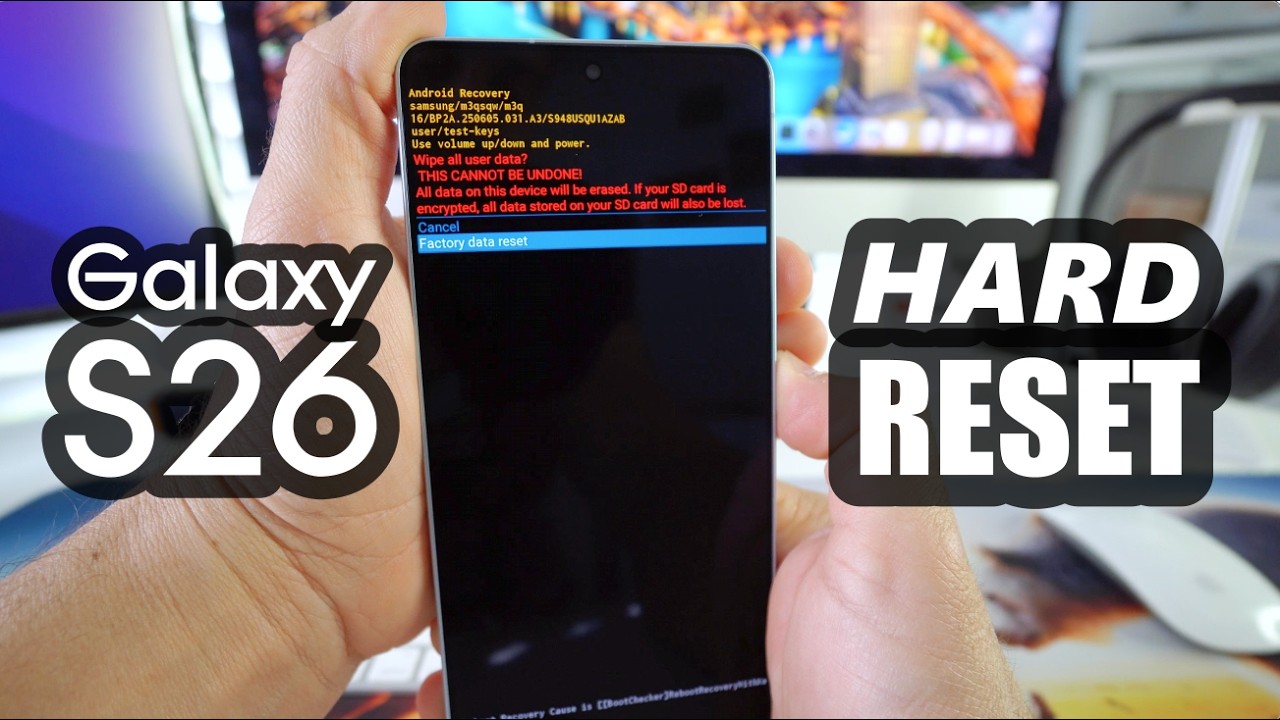
Recovery Mode: The Hard Reset Route
Booting into Recovery Mode is often the most reliable way to perform a hard reset on a Samsung Galaxy S26, even without knowing the password. However, it’s also the most potentially dangerous, as making the wrong choices in Recovery Mode can brick your device. Proceed with caution.
The button combination to enter Recovery Mode varies depending on the specific S26 model. Common combinations include pressing and holding the power button and volume up button simultaneously, or pressing and holding the power button, volume up button, and Bixby button (if applicable). You’ll need to experiment to find the correct combination for your device. Search online for instructions specific to your S26 model if you're unsure.
Once in Recovery Mode, you’ll see a text-based menu. Use the volume up and volume down buttons to navigate the menu, and the power button to select an option. Navigate to "wipe data/factory reset’. Use the power button to select this option. You’ll be prompted to confirm your decision. Select ‘Yes – delete all user data" to proceed.
After the factory reset is complete, select "reboot system now’ from the Recovery Mode menu. The phone will restart, and you"ll be greeted with the initial setup screen. Be aware that the entire process will erase all data on your phone.
Within the Recovery Mode menu, you might also see an option called "apply update from ADB". This allows you to flash updates or custom ROMs onto your device using the ADB tool. However, this is an advanced feature and should only be attempted by experienced users. Incorrectly flashing updates can easily brick your phone. Don't select this option unless you know what you're doing.
- Power off your phone.
- Press and hold the appropriate button combination to enter Recovery Mode (varies by model).
- Navigate to "wipe data/factory reset" using the volume buttons.
- Select "wipe data/factory reset" with the power button.
- Confirm by selecting "Yes – delete all user data".
- Select "reboot system now".
Third-Party Tools: Use With Caution
Numerous third-party Android unlocking tools claim to be able to bypass screen locks and factory reset your phone. Examples include Dr.Fone and Tenorshare 4uKey. However, using these tools is extremely risky. Many of them are filled with malware, can steal your data, or brick your device. Even legitimate tools may void your warranty or violate your phone’s security features.
The risks associated with these tools are significant. They could install viruses or spyware on your computer, steal your personal information, or render your phone completely unusable. Some tools require you to root your phone, which further compromises its security. It's also possible that the software is a scam designed to simply take your money without providing a working solution.
If you’re considering using a third-party unlocking tool, exercise extreme caution. Research the tool thoroughly, read reviews from trusted sources, and ensure it comes from a reputable vendor. Even then, proceed at your own risk. We strongly advise against using these tools unless you are absolutely certain of their safety and trustworthiness. A professional repair is almost always the safer option.
Disclaimer: This article acknowledges the existence of third-party unlocking tools but does not endorse or recommend their use. Using such tools is at your own risk, and we are not responsible for any damages or data loss that may occur.

No comments yet. Be the first to share your thoughts!