

Why you're locked out
Getting locked out of a Vision Pro is a unique headache because the security relies on more than just a string of characters. Apple uses Optic ID and hand tracking for authentication, which means a smudge on the internal lenses or poor lighting can lock you out just as easily as a forgotten password.
This guide is designed to walk you through everything you need to know to regain access to your Apple Vision Pro. We’ll cover common scenarios, from straightforward password resets to more involved troubleshooting steps. Expect to find solutions applicable whether you’re facing a forgotten Apple ID password, issues with two-factor authentication, or a completely unresponsive device. We’ll aim to get you back into your digital world as quickly as possible.
The Vision Pro’s security is built around multiple layers – your Apple ID password, two-factor authentication, and the biometric authentication via your eyes and hands. While robust, these layers can become obstacles when you’re locked out. Don't panic; most issues are solvable with a little patience and the right information. Let’s start with the most common scenario: a forgotten password.
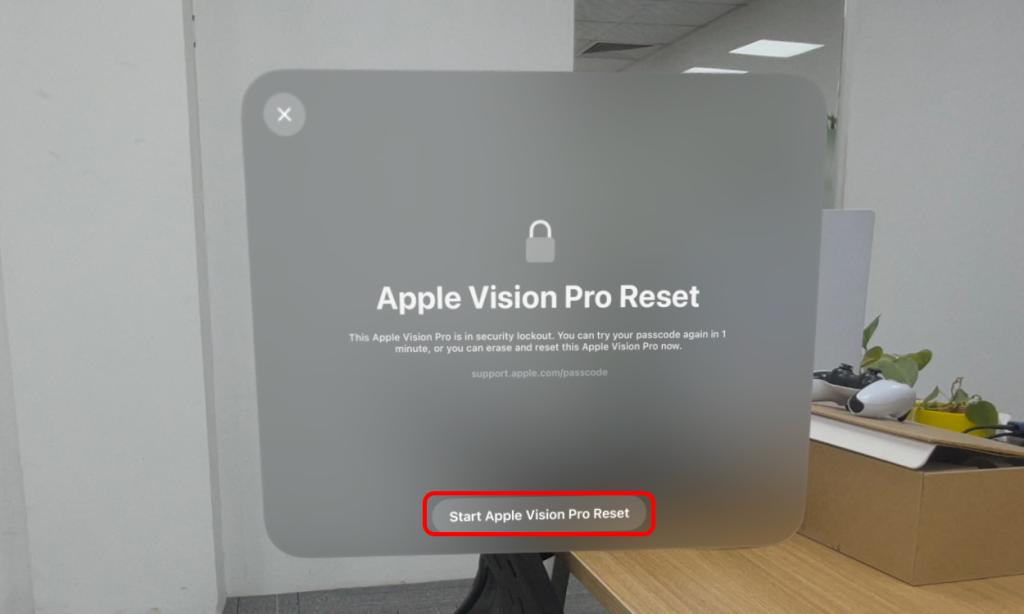
Resetting your password with other devices
The easiest way to reset your Apple Vision Pro password is through the standard Apple ID recovery process. If you’ve used your Apple ID on an iPhone, iPad, or Mac, you’re in luck. Simply navigate to Settings, tap your name, and select "Password & Security". From there, you can choose to change your password.
Two-factor authentication is almost certainly enabled on your account, and this is a good thing. It adds an extra layer of security, but it also means you’ll need access to a trusted device or phone number to receive a verification code during the reset process. If you’re prompted for a verification code, check the devices signed in to your Apple ID and the phone number associated with your account. Keep in mind that the user interface for these settings may evolve by 2026, but the core functionality should remain consistent.
If you don't have another iPhone or Mac handy, use Apple's account recovery site at iforgot.apple.com. You'll need to answer security questions or provide the credit card on file. This isn't an instant fix; it usually takes a few days for Apple to verify your identity and send a reset link.
Apple’s online tool is designed to be secure, but it’s also thorough. They need to be absolutely certain you are the rightful owner of the account before granting access. It’s a tradeoff between convenience and security. Remember to keep your recovery options up-to-date – a current phone number and email address can save you a lot of trouble down the road.
Using the settings menu
If you can access the Vision Pro interface, even partially, you may be able to reset your password directly within the settings menu. Navigate to Settings > General > Passwords. This assumes hand tracking is functioning adequately. You’ll be prompted to enter your current password (if known) and then set a new one. This is the quickest and easiest solution, assuming you have some level of access.
However, what if hand tracking isn’t working correctly? The Vision Pro offers alternative navigation options. You can use voice control to navigate the settings menu. Say "Open Settings" and then use voice commands to navigate to the Passwords section. Alternatively, if you have a paired Bluetooth keyboard and mouse, you can use those for navigation.
Don't confuse a password reset with 'Erase All Content and Settings.' The latter is a factory reset that wipes every photo, app, and setting on the headset. Only do this if you've already tried every other recovery method and have a recent iCloud backup.
A password reset only changes your Apple ID password; it doesn’t affect the data stored on your Vision Pro. A factory reset, on the other hand, erases everything. Choose wisely. Before initiating a factory reset, consider backing up your data to iCloud, if possible, although the Vision Pro’s backup capabilities are still evolving as of late 2026.
When you have to wipe the headset
A factory reset should be considered a last resort, as it will erase all data from your Apple Vision Pro. Apple Support provides detailed instructions on how to initiate a factory reset, typically involving a combination of button presses and on-screen prompts. The exact steps may vary slightly depending on the software version, but the core process remains the same.
If your Vision Pro is unresponsive and you can’t access the settings menu, you may need to perform a forced factory reset. This usually involves holding down the power button and the volume down button simultaneously for an extended period. Be aware that this method may not always work, and it could potentially brick your device.
A factory reset does not remove Activation Lock. If your Vision Pro is linked to an Apple ID with Activation Lock enabled, the device will still be locked to that account even after the reset. You’ll need the Apple ID and password to reactivate the device. Data recovery after a factory reset is extremely difficult, and in most cases, it’s impossible. Always back up your data before performing a factory reset.
Troubleshooting Login Failures
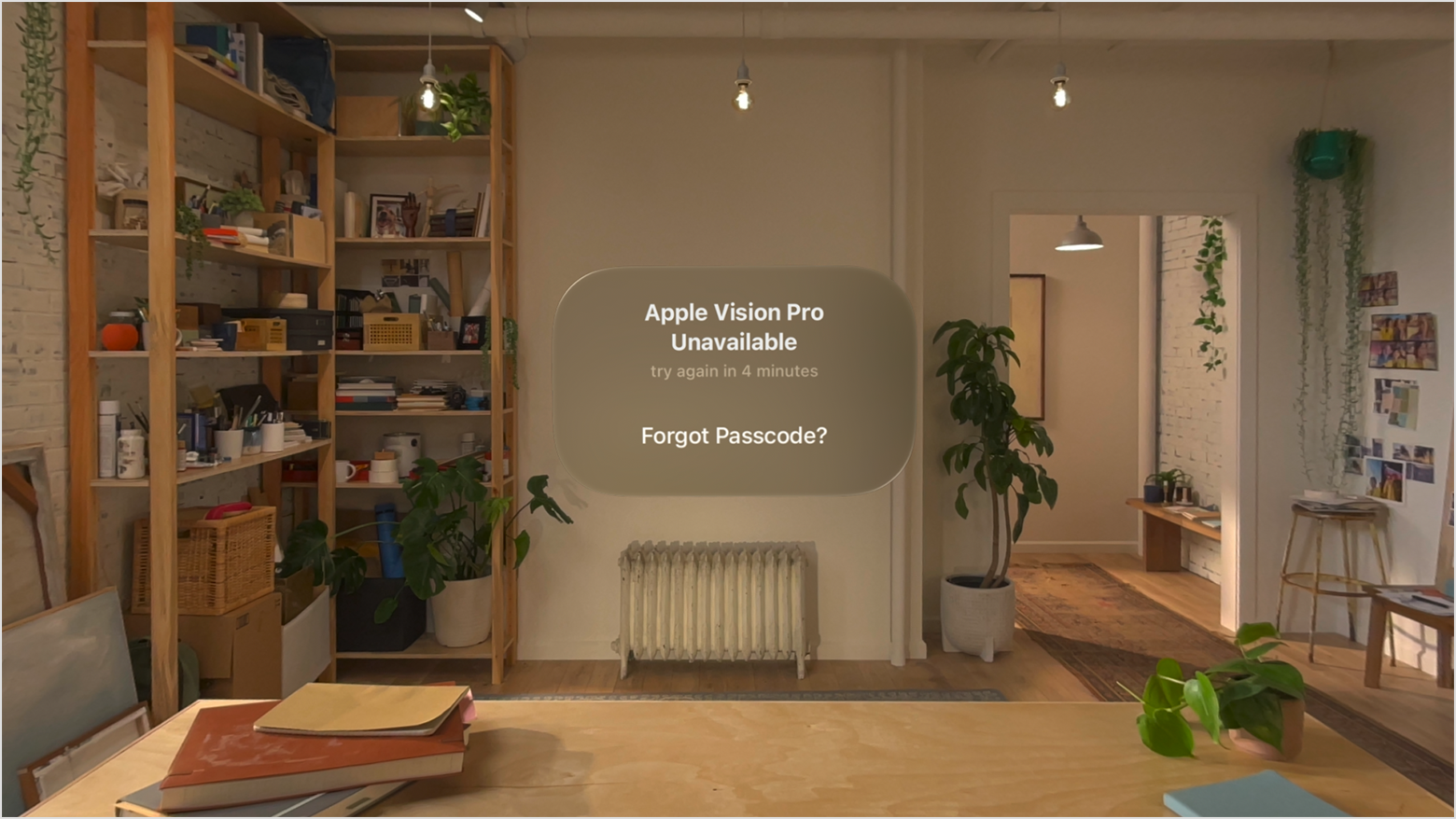
You’ve entered your password, but you’re still getting an “Incorrect Password” message. This could be due to a simple typo – capitalization errors are common. Double-check that Caps Lock isn’t enabled, and try entering your password slowly and carefully. It’s also possible that your Apple ID has been temporarily locked due to too many incorrect login attempts. Wait a few minutes and try again.
If you see an “Account Locked” message, it means Apple has detected suspicious activity on your account and has temporarily locked it to protect your security. You’ll need to follow the account recovery process to regain access. Check Apple’s System Status page (https://www.apple.com/support/systemstatus) to see if there are any known outages or server issues that might be affecting login.
Eye and hand tracking login failures can be frustrating. Ensure your hands are clean and dry, and that the lighting conditions are optimal. Obstructions in front of the cameras can also interfere with tracking. Recalibrate the eye and hand tracking sensors in the Settings menu if you’re experiencing persistent issues. If the problem persists, a software update may be needed.
When to Contact Apple Support
Sometimes, self-troubleshooting isn’t enough. If you’ve tried all the steps outlined above and you’re still unable to access your Apple Vision Pro, it’s time to contact Apple Support. You can find the Vision Pro support page on Apple’s website. They offer various support options, including online chat, phone support, and in-store appointments at Apple Stores or authorized service providers.
When contacting support, be prepared to provide your Apple ID, serial number of your Vision Pro, and a detailed description of the problem you’re experiencing. Having this information ready will speed up the troubleshooting process. Typical wait times for support can vary depending on demand, but online chat is often the quickest option. Apple may be able to assist with data recovery in some cases, but there are no guarantees.


No comments yet. Be the first to share your thoughts!