
Start with your main hub
Most smart home devices do not operate as standalone accounts. Instead, they are linked to a central ecosystem that acts as the primary entry point for your digital life. Whether you use Google Home, Amazon Alexa, Apple HomeKit, or Samsung SmartThings, the password for your main hub controls access to nearly every connected light, lock, and sensor. If you need to reset your smart home passwords, you must begin here.
Think of your main hub as the front door to your digital house. Changing the lock on the front door is far more effective than trying to replace the locks on every individual window and back door. By securing the hub, you secure the entire network. This approach simplifies the process significantly, as you only need to manage one strong password rather than dozens of scattered credentials.
The reset process varies slightly depending on which ecosystem you have chosen, but the underlying logic remains the same. You will need to access the account settings for your primary provider. For Google users, this means visiting the Google Account security page to initiate a password change. Microsoft account holders follow a similar path through the Microsoft account recovery portal. Apple and Amazon users will find their reset options within their respective device settings or app dashboards.
Once you have updated the hub password, you will likely need to re-authenticate your devices. This is a necessary step to ensure that your smart home continues to function correctly. The system needs to verify that you are still the authorized user. While this may require a few minutes of reconnection time, it is a one-time effort that pays off in long-term security.
Determine which platform serves as the brain of your smart home. Check your most-used app or the device that controls the majority of your lights and appliances. This is the account that requires immediate attention.
Log into your main hub app or website. Look for the profile icon or settings menu, then find the "Security" or "Account" section. This is where password management tools are located.
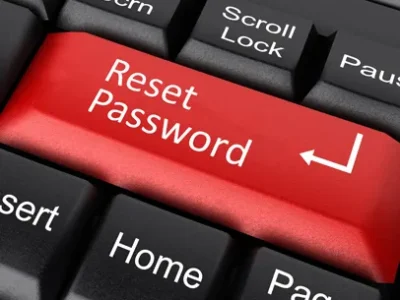
Select the option to change or reset your password. You will likely need to verify your identity through a code sent to your email or phone. Follow the prompts to create a new, strong password.
After updating the hub password, open your smart home apps. You may be prompted to log in again. Enter your new credentials to restore connection to your devices.
Reset the account password
Most smart home devices link to a central ecosystem account—Google, Microsoft, or Apple. When you lose access to your device, the first step is usually to reset this primary account password. This action refreshes your authentication token across all connected services.
Follow these general steps to reset your password. The exact interface varies slightly by provider, but the core logic remains the same.
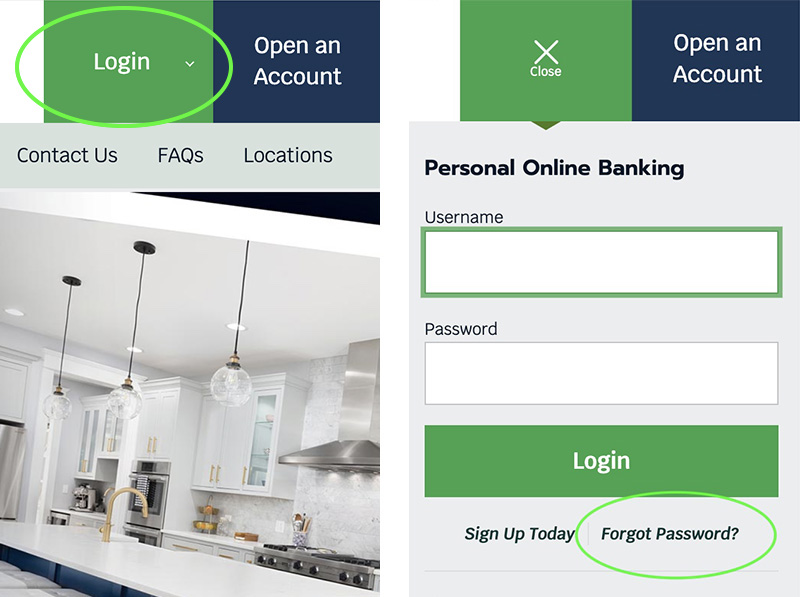
Go to the sign-in page for your account provider. Look for the "Forgot password?" or "Can't access your account?" link, usually located below the password field. Click it to start the recovery process.
The system will ask you to prove you own the account. This typically involves entering a verification code sent to your recovery email, phone number, or authenticator app. Complete this step to proceed.
Once verified, you will be prompted to create a new password. Choose a strong, unique password that you haven't used before. Make sure to save it in a secure password manager.
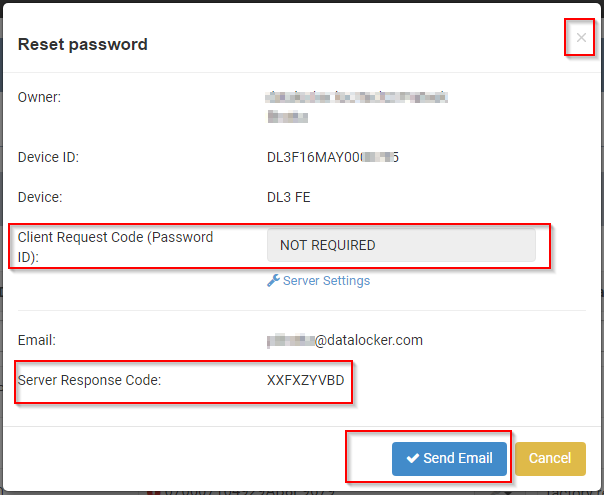
After resetting, your smart home devices may need to reconnect to the cloud. Open your device app and follow the prompts to re-authenticate with your new credentials. This usually restores full control.
After resetting, check that your smart home hub or assistant app is still logged in. Some devices cache credentials and may require a manual logout and login to recognize the new password.
Fix device-specific logins
Changing your hub password often leaves individual devices stuck in a loop. Cameras, locks, and thermostats frequently maintain their own separate credentials or require manual re-authentication after a central password change. If a device won't connect, the issue is usually a lingering session or a mismatched local password.
Start by checking the manufacturer's app for that specific device. Look for a "Reconnect" or "Sync" button. If the device still fails, a full reset is often necessary. This clears the old session data and forces the device to accept the new hub credentials.
Compare reset methods
Different brands handle password resets in distinct ways. Some require a physical button press, while others rely entirely on the app. Use this table to find the right path for your device.
| Brand | Reset Method | App Required? |
|---|---|---|
| Ring | Sync Button | Yes |
| Nest | App Re-auth | Yes |
| Philips Hue | Bridge Button | No |
| August | App Reset | Yes |
Check for session conflicts
Even after a reset, your phone might try to use the old password. Clear the app cache or uninstall and reinstall the device app. This ensures the device starts fresh with the new hub password.
Check for stuck sessions
If your new password isn't working, the smart home hub or app is likely holding onto an old, cached login token. The device accepts the old credentials because it hasn't been told to forget them yet.
To fix this, you need to force a fresh login. Most smart home apps have a "Log Out of All Devices" or "Clear Cache" option in the security settings. Use it. This action invalidates existing sessions, ensuring the device accepts the new password immediately.
After clearing the cache, restart the app and your hub. This step ensures the device reconnects with the new credentials. If you skip this, you might face repeated login failures or delayed commands.
Verify two-factor authentication
Resetting your smart home password is only half the battle. If your two-factor authentication (2FA) methods are outdated or inaccessible, you risk locking yourself out of your entire network. Before you proceed, ensure you can still access every recovery channel linked to your accounts.
Check that your phone number is current and that you can receive SMS codes or voice calls. If you use an authenticator app, verify that the device holding the app is charged and in your possession. For email-based 2FA, confirm you can log into that inbox without issues. These methods act as spare keys; if the primary door is jammed, you need the spare to get back in.
If you have lost access to a phone or email, update those details now. Many smart home platforms allow you to add backup 2FA methods even if you are logged in. Adding a secondary authenticator app or a backup email address creates a safety net. This step prevents the frustration of a reset request that bounces back because your recovery channels are dead ends.
Once you have confirmed all channels are active, you are ready to reset your password with confidence. You will receive the verification code exactly where you expect it, ensuring a smooth transition to your new login credentials.
Smart home password checklist
Secure your entire ecosystem by verifying every connection. Use this checklist to confirm that passwords are updated and sessions are cleared across all devices.
-
Update the primary account password (Google, Microsoft, or Apple ID).
-
Reset the Wi-Fi router admin password and network passphrase.
-
Change passwords for all individual smart devices (cameras, locks, hubs).
-
Log out of all active sessions on each device and app.
-
Re-enable two-factor authentication on every account.
-
Verify device connectivity by testing one action per device.
Common smart home login: what to check next
Recovering access to your smart home ecosystem often means resetting the master account password rather than individual device credentials. Most smart hubs and voice assistants rely on a single cloud-based account for authentication.
How do I reset my smart home account password?
Start by visiting your provider’s official account security page. For Google Home users, this is the Google Account password settings. Microsoft account holders should use the Microsoft password reset tool. Follow the identity verification steps to generate a new password.
Why can’t I log in to my smart home app?
Login failures usually stem from cached credentials or two-factor authentication (2FA) delays. Clear your app’s cache or reinstall the mobile application to refresh the session. If 2FA is enabled, check your authenticator app or SMS inbox for the latest code, as old codes expire quickly.
Do I need a separate password for each device?
No. Smart home devices typically do not have independent login screens. They authenticate through the central hub or app you used during setup. Resetting your primary account password will update access for all linked devices automatically.
No comments yet. Be the first to share your thoughts!