

Vision Pro login issues
Imagine this: you're excited to jump back into a spatial computing experience on your Apple Vision Pro, but the login screen just…stares back at you. You’ve entered your password, or what you think is your password, multiple times. It’s a frustrating situation, and one that’s likely to happen to someone exploring this new technology. The Apple Vision Pro, while revolutionary, isn’t immune to the common pitfalls of password issues.
These problems usually stem from a few key sources. You might have simply forgotten your Apple ID password, or perhaps your account has been temporarily disabled due to too many incorrect login attempts. System glitches, though less common, can also lock you out. Because the Vision Pro is still relatively new – launching in early 2024 – it's possible you’re encountering an unusual issue stemming from a software quirk or an unfamiliarity with Apple’s security protocols.
You need your Apple ID to access apps and saved content. If you're stuck, here is how to get back in.
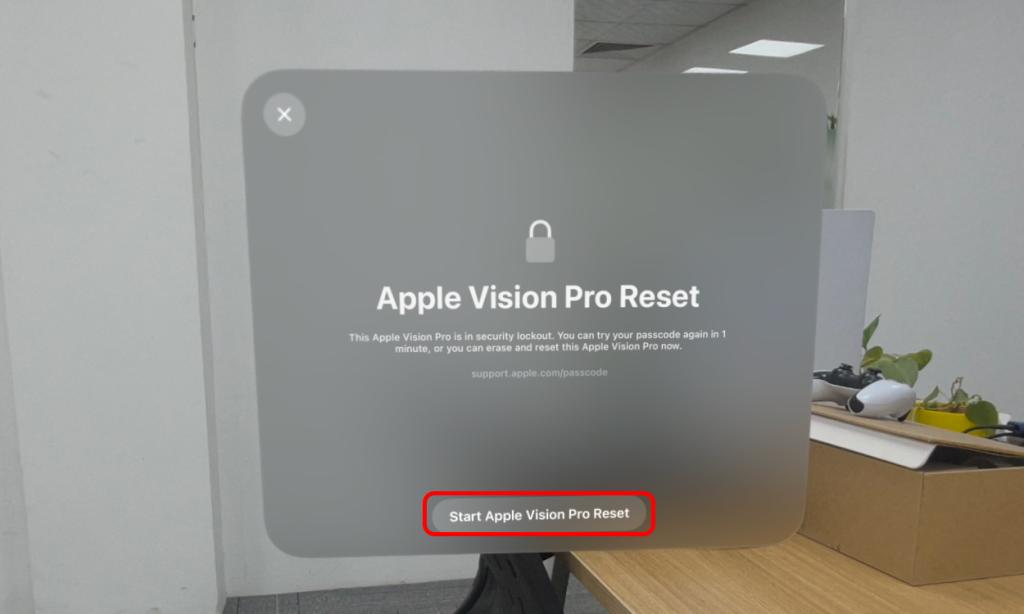
Resetting your Apple ID password
The primary way to reset your Apple Vision Pro password is through your Apple ID. This process is largely the same as resetting the password for any other Apple device. If you have an iPhone, iPad, or Mac readily available, that's your best bet. On your iPhone or iPad, open the Settings app, tap your name at the top, then select 'Password & Security'. From there, choose 'Change Password'.
On a Mac, go to System Settings (previously System Preferences), click on your name, then select 'Password & Security' and 'Change Password'. You’ll be prompted to enter your current Apple ID password (if you remember it) and then create a new, secure password. The process relies heavily on two-factor authentication (2FA), so be prepared for that.
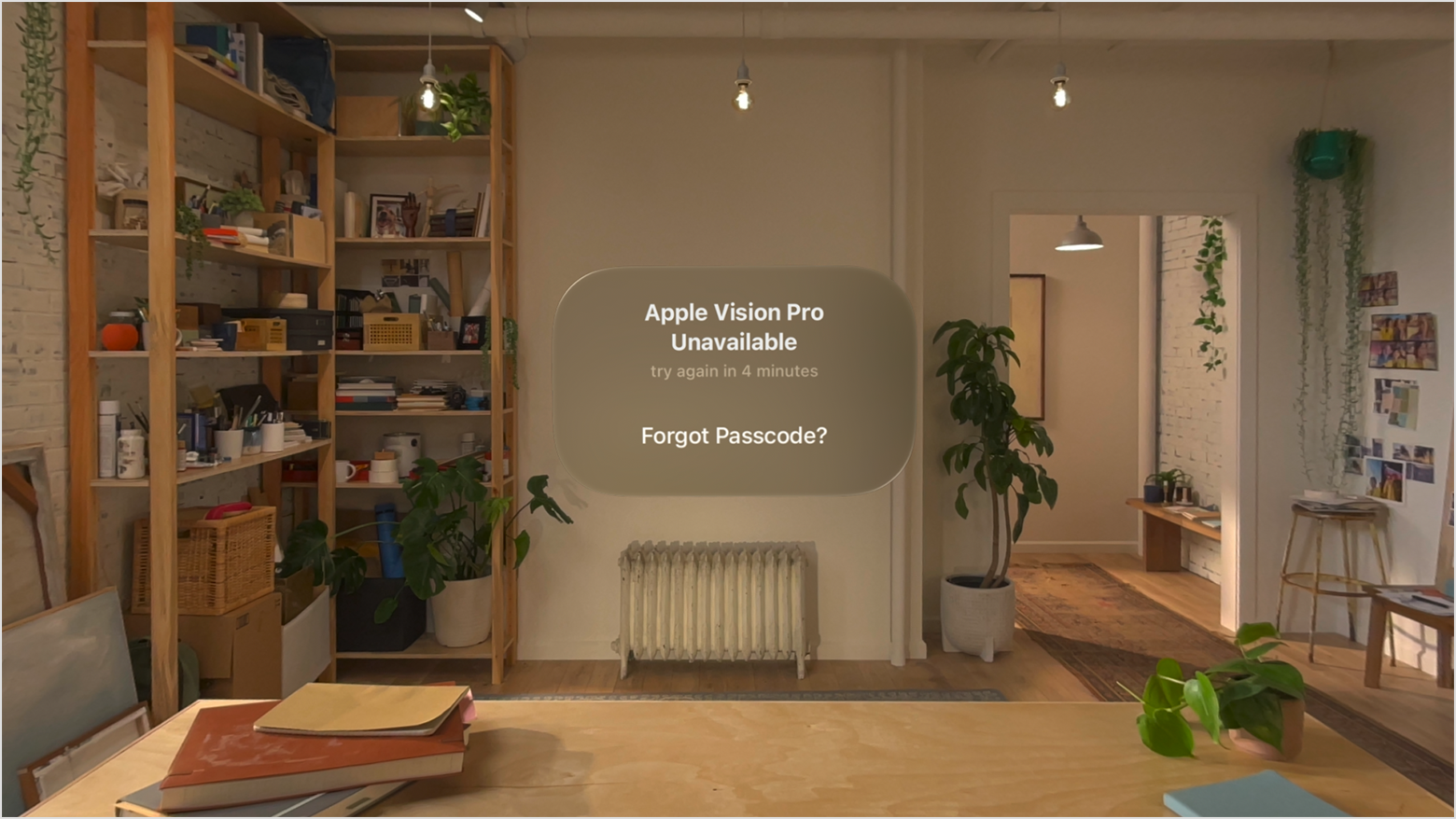
The Vision Pro doesn't let you reset a password directly from the lock screen for security reasons. If you fail the login enough times, the headset usually displays a recovery link. Otherwise, use a secondary device to start the reset.
Two-factor authentication adds an extra layer of security. When you reset your password, Apple will send a verification code to your trusted devices. If you don’t have access to any trusted devices, the process becomes more complex, which we’ll cover in the next section.
If you lost your trusted devices
Losing access to your iPhone or iPad – the devices you use for two-factor authentication – can dramatically complicate a password reset. Apple's account recovery process is designed to protect your data, but it also means a waiting period and a thorough verification of your identity. According to Apple’s support documentation, you’ll generally need to wait several days before you can initiate account recovery.
During this waiting period, Apple wants to be sure the lockout isn't a result of a malicious actor attempting to gain access. Once the waiting period is over, you’ll be prompted to verify your identity. This involves answering security questions, providing a trusted phone number associated with your Apple ID, and potentially submitting identification documents. The more information you can provide, the faster the process will likely be.
Having a trusted phone number linked to your Apple ID is crucial in these situations. Apple can send a verification code to that number to help confirm your identity. If you’ve never added a recovery phone number, or if that number is no longer active, the recovery process becomes significantly more challenging. Apple Support will ultimately be involved in manually verifying your identity, so be prepared to answer detailed questions and provide supporting documentation. You can start the account recovery process here:
Vision Pro Specific Lockout Scenarios
Beyond the standard password issues, the Apple Vision Pro introduces some unique lockout scenarios. For example, if the device runs out of battery during the authentication process, it’s unclear exactly how the system will respond. It’s possible the device will revert to a locked state, requiring a full password reset. This is an area where Apple’s documentation is currently lacking detail.
Another potential issue revolves around the Vision Pro’s hand and eye tracking. If the system is unable to accurately track your gaze or hand movements, it might prevent you from completing the login process. This could be due to lighting conditions, obstructions, or a software glitch. A forced restart – if Apple implements one – might resolve temporary tracking issues, but as of now, a standard hold-down power button restart isn’t available.
Software glitches can happen. If the screen freezes during login, contact Apple Support. Since the hardware is still evolving, some bugs don't have a DIY fix yet.
Common login error messages
When attempting to log in, you might encounter specific error messages. “Authentication Failed” is a common one, usually indicating an incorrect password. “Account Locked” suggests too many failed login attempts, triggering a temporary security measure. “Unable to Connect to Apple Servers” points to a network issue, either on your end or with Apple’s services.
For “Authentication Failed”, double-check your password, ensuring Caps Lock isn’t enabled. For “Account Locked,” wait a period of time (usually 24 hours) and try again. If the issue persists, you’ll need to initiate the account recovery process. If you see “Unable to Connect to Apple Servers”, first verify your internet connection. Then, check Apple’s System Status page: to see if there are any known outages.
Restarting the Vision Pro – if a restart option becomes available in future software updates – could resolve temporary glitches. Checking for software updates is also important. Outdated software can sometimes cause compatibility issues. If you receive an error code, note it down, as it can provide Apple Support with valuable information. Apple’s support website might also have specific troubleshooting steps for common error codes.
Contacting Apple Support
If you’ve exhausted all self-help options, contacting Apple Support is your next step. You can reach them through the Apple Support website (), by phone, or through the Apple Support app on your iPhone or iPad. The app often provides the quickest and most convenient support experience.
Apple offers various support options, including chat, phone calls, and in-person appointments at an Apple Store. Chat support is a good option for less urgent issues, while phone support is better for complex problems. An in-person appointment allows a technician to directly examine your Vision Pro.
Before contacting support, gather relevant information: your Vision Pro’s serial number, your Apple ID, and any error messages you’ve encountered. Having this information readily available will speed up the troubleshooting process.


No comments yet. Be the first to share your thoughts!