

Initial setup and passwords
Setting up an Apple Vision Pro is straightforward. You'll create a passcode for the headset and sign in with your Apple ID. Your Apple ID is how Apple verifies who you are and connects the headset to your apps and data.
Apple strongly recommends using a strong, unique password for your Apple ID. This means avoiding easily guessable information like birthdays or pet names, and instead opting for a combination of uppercase and lowercase letters, numbers, and symbols. While the Vision Pro’s passcode provides a layer of local security, your Apple ID password is what truly secures your data and access to the broader Apple ecosystem.
It’s easy to underestimate the importance of the Apple ID connection. Without it, the Vision Pro is essentially a very expensive paperweight. Make sure you remember your Apple ID and password, and consider enabling two-factor authentication for an extra layer of protection. This will require a verification code from your trusted devices whenever you sign in on a new device or web browser. It's a small hassle that significantly increases your security.
Recovering a forgotten Apple ID
If you forget your Apple ID password, go to the Apple Account website and select the reset option. The process is usually quick if you have your recovery methods ready, but it gets harder if you've lost access to your secondary email or phone number.
Two-factor authentication plays a huge role here. If you have 2FA enabled – and you absolutely should – Apple will attempt to verify your identity through your trusted phone number or email address. You’ll receive a verification code, which you’ll need to enter to proceed with the password reset. If you’ve added recovery contacts, you can also request assistance from them.
What happens if you’ve lost access to all of these? This is where things get tricky. Apple has an 'account recovery' process, but it’s designed to be quite stringent to prevent unauthorized access. You’ll be asked a series of questions to verify your identity, and Apple may require proof of ownership, like a purchase receipt. This process can take several days, even weeks, to complete. It’s a safeguard, but it can be frustrating.
There’s no guarantee of success with account recovery. Apple prioritizes security above all else, and they’ll only restore access if they’re absolutely certain you’re the rightful owner. The timeframe for account recovery can vary, but realistically, you should expect it to take anywhere from 3 to 7 days, sometimes longer depending on the complexity of the verification.
Passcodes versus Apple ID passwords
A common point of confusion is the difference between the Vision Pro’s device passcode and your Apple ID password. The device passcode is a six-digit code you enter to unlock the Vision Pro itself – it’s a local security measure. Your Apple ID password, on the other hand, is what authenticates you to Apple’s services, including the App Store, iCloud, and Apple Pay.
If you forget the device passcode, you can usually reset it through the Apple ID password. This means you need to know your Apple ID password to regain access to the Vision Pro. However, forgetting your Apple ID password is a different beast altogether, and requires the recovery options we discussed earlier. A device passcode reset doesn't necessitate a full factory reset.
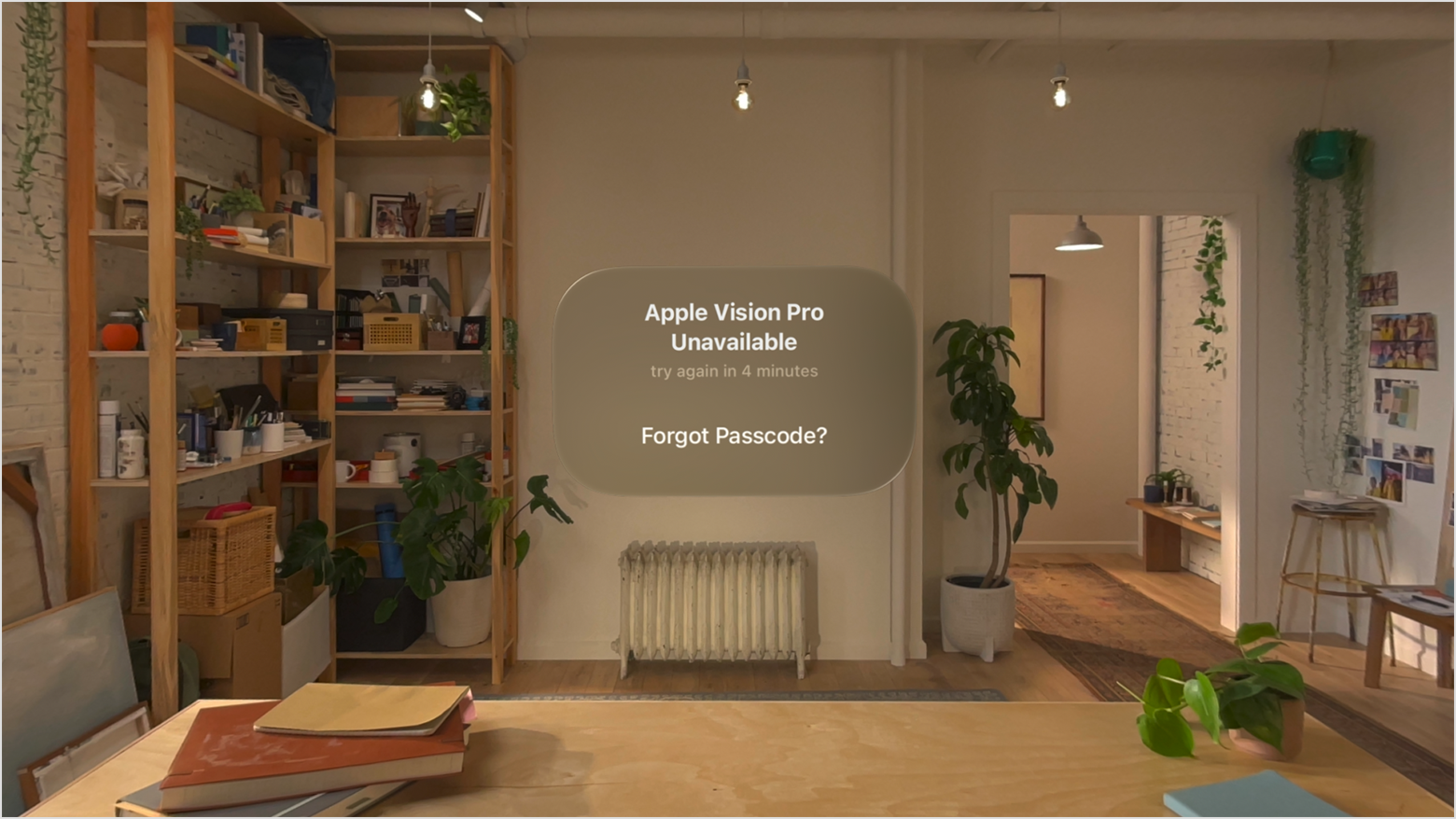
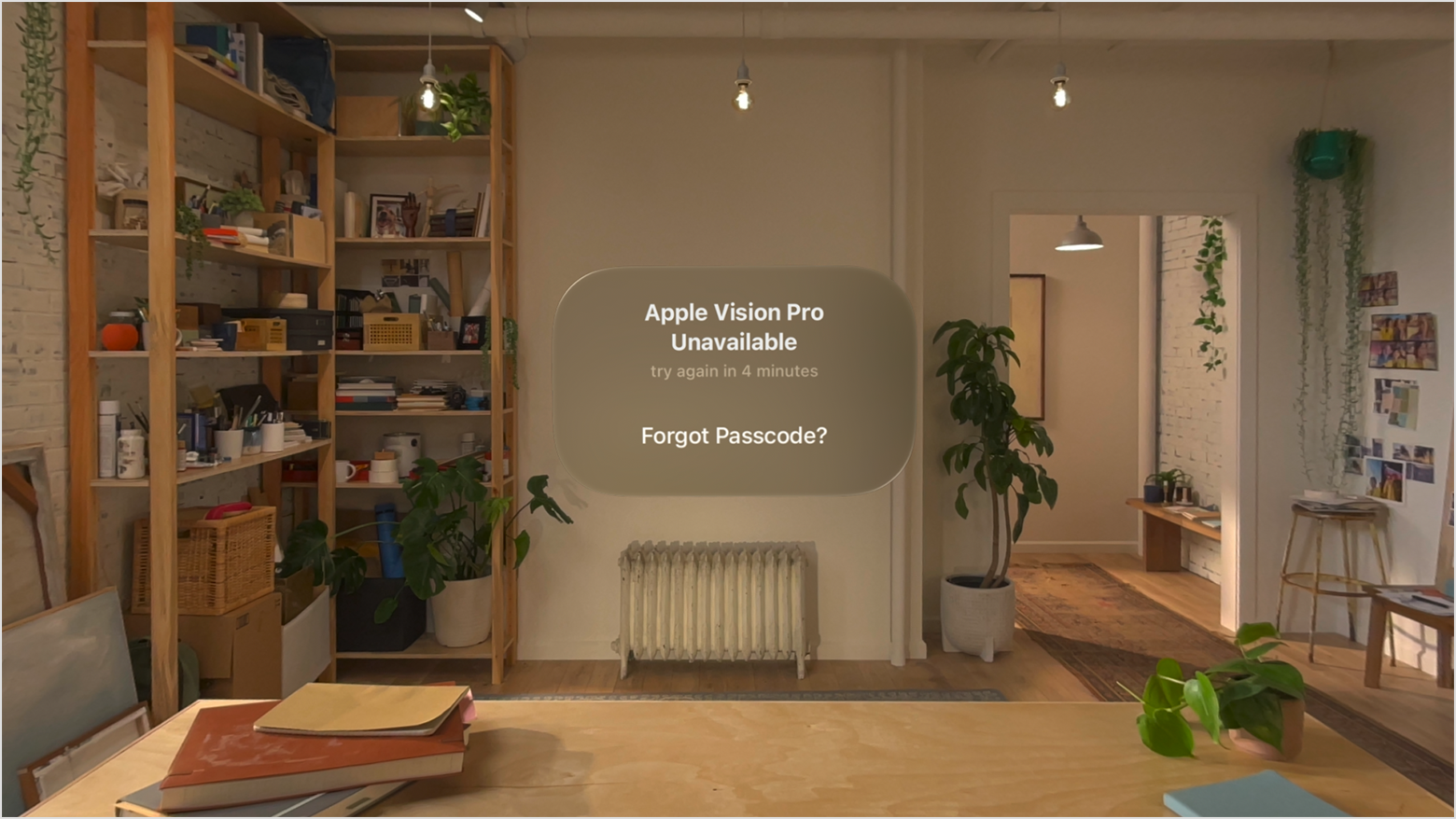
There are limitations. If the Vision Pro is locked due to too many incorrect passcode attempts, it will temporarily disable access. You’ll need to wait a period of time before you can try again. However, this is separate from the Apple ID lockout, which is triggered by repeated failed login attempts with the wrong Apple ID password. Apple will lock the account for security reasons.
Common login error messages
Encountering login issues with your Vision Pro can be incredibly frustrating. Here’s a breakdown of some common error messages and how to address them. "Incorrect Password’ is the most frequent, obviously. Double-check your capitalization and ensure Num Lock isn’t activated. If you"re certain the password is correct, initiate the Apple ID recovery process.
"Account Locked’ usually means Apple has detected suspicious activity and temporarily disabled your account. This often happens after multiple incorrect password attempts. You’ll need to follow the account recovery process to regain access. ‘Two-Factor Authentication Required" means Apple is requesting a verification code from your trusted device. Ensure your trusted device is online and accessible.
"Unable to Connect to Apple Servers’ suggests a network issue. Check your Wi-Fi connection and ensure Apple’s system status page (support.apple.com) isn"t reporting any outages. Sometimes, simply restarting your Vision Pro and your router can resolve this. A less common issue is the Vision Pro getting stuck on a loading screen during login. A forced restart (holding the power button and volume down button simultaneously for about 10 seconds) might help, but be aware this could lead to data loss if it interrupts a process.
Another message you might see is related to Apple ID verification. Apple may request you to re-verify your identity, even if you've recently done so. This is a security measure, and you should follow the on-screen prompts. If the issue persists, contacting Apple Support is the best course of action. Don't ignore warnings about security – they're there to protect you.
Factory Reset: Last Resort for Login Issues
A factory reset is the final option because it wipes everything on the headset. I recommend checking your iCloud backup status before you do this. You also need 'Find My' enabled to complete the wipe.
To initiate a factory reset, go to Settings > General > Transfer or Reset Vision Pro > Erase All Content and Settings. Follow the on-screen instructions carefully. You’ll likely be prompted to enter your Apple ID password to confirm the reset. If the Vision Pro is unresponsive and you can’t access the settings, things get more complicated.
Unfortunately, there aren’t many hardware reset options for the Vision Pro. Apple doesn’t provide a physical reset button. If the device is completely frozen, you might be able to force a restart by holding the power button and volume down button simultaneously for about 10 seconds, but this isn’t a guaranteed solution. If that fails, you’ll likely need to contact Apple Support for assistance.
It's crucial to understand the implications of a factory reset. It's not a reversible process, and you’ll lose all your personalized settings, apps, and data. Treat it as a final option when all other recovery methods have failed. Always prioritize data backup before proceeding.
What to do if your account is compromised
If you suspect your Apple ID has been compromised – perhaps you’ve received a suspicious email or noticed unauthorized purchases – act immediately. The first step is to change your Apple ID password to a strong, unique one. Then, review your trusted devices in your Apple ID account settings and remove any devices you don’t recognize.
Enable two-factor authentication if you haven’t already. This adds a critical layer of security. Also, review your security questions and answers to ensure they haven’t been altered. Report the issue to Apple Support as soon as possible. They can help you investigate the compromise and take further steps to secure your account.
Be vigilant against phishing attempts. Apple will never ask for your password or security details via email or phone. Always access Apple’s website directly by typing the address into your browser, rather than clicking on links in emails. The Vision Pro itself boasts several security features, including biometric authentication and data encryption, to help protect your information.
- Update your Apple ID password immediately.
- Review and remove unrecognized trusted devices.
- Enable two-factor authentication.
- Report the compromise to Apple Support.
Vision Pro Login Checklist
- Enable Two-Factor Authentication - Adding 2FA to your Apple ID significantly enhances security by requiring a verification code from a trusted device in addition to your password.
- Use a Strong, Unique Password - Create a password for your Apple ID that is at least 12 characters long and includes a combination of uppercase and lowercase letters, numbers, and symbols.
- Review Trusted Devices - Regularly check the list of devices signed in with your Apple ID and remove any that you no longer use or recognize within your Apple ID settings.
- Be Wary of Phishing Attempts - Be cautious of suspicious emails, messages, or phone calls asking for your Apple ID password or verification code. Apple will never ask for this information.
- Keep Your Software Updated - Ensure that your Apple Vision Pro and all associated Apple devices are running the latest version of visionOS and iOS/macOS to benefit from the latest security patches.
- Account Recovery Contacts - Designate trusted contacts in your Apple ID settings who can help you regain access to your account if you forget your password or lose access to your trusted devices.
- Check Apple System Status - Before troubleshooting, verify that Apple's system status page doesn't report any ongoing issues with Apple ID or related services. Interruptions can sometimes cause login problems.


No comments yet. Be the first to share your thoughts!