

cybertruck infotainment overview
The Cybertruck uses a 17-inch touchscreen that handles almost every vehicle function. Unlike the Model 3 or Y, this hardware is new and has a different interface for navigation and media. It is the only way to control the truck's settings.
While Tesla is known for its over-the-air software updates, the Cybertruck's system is still relatively new. This means we’re seeing more reports of glitches and unusual behavior compared to the more mature systems in the Model 3 or Model Y. These issues can range from minor annoyances to more serious problems affecting functionality. It’s a powerful system, but not without its quirks.
Given its complexity and the early adoption phase, knowing how to troubleshoot and reset the Cybertruck’s infotainment system is becoming increasingly important. A simple reset can often resolve many common issues, getting you back on the road with a fully functional system. This guide will walk you through the various reset options and provide troubleshooting tips.
how to perform a soft reset
If the screen freezes or apps lag, try a soft reset first. This is just a reboot. It won't wipe your profile, saved locations, or Spotify login.
Performing a soft reset on the Cybertruck is straightforward. According to a helpful video from I35 Equipment on YouTube (uploaded September 2, 2025), the process involves shifting the vehicle into Park. Then, you simultaneously hold down both scroll buttons located on the steering wheel. Keep holding them until the touchscreen goes completely black. The system will then reboot automatically.
This typically takes less than a minute. A soft reset is appropriate for issues like a temporarily frozen touchscreen, Bluetooth pairing problems, or if the system feels generally slow. It's a quick and easy solution that resolves many common, minor issues. If the problem persists after a soft reset, it's time to move on to more advanced troubleshooting steps.
- Shift the Cybertruck into Park.
- Hold both steering wheel scroll buttons until the screen turns black.
- Continue holding until the touchscreen turns black.
- Allow the system to reboot.
recovering your password
A forgotten Tesla account password can be surprisingly frustrating, especially when it locks you out of essential vehicle functions. The official Tesla account recovery process is handled through the Tesla app or the Tesla website. You’ll typically need to verify your identity through the email address or phone number associated with your account. Tesla's security measures are designed to protect your vehicle and data, so the recovery process can be a bit involved.
If your Cybertruck is linked to your Tesla account – and it almost certainly is for features like remote access and software updates – resetting your Tesla account password will impact access to those features. You’ll need to log back into the vehicle using your new credentials to regain full control. It's important to remember this link when you're managing your account security.
There's a distinction between your Tesla account password and any vehicle-specific PINs you might have set up, such as a PIN for Valet mode or to disable Drive Away. Resetting your Tesla account password won't affect these PINs. If you forget a vehicle PIN, there's a separate recovery process within the vehicle's touchscreen interface. If you're locked out of everything, starting with the Tesla account recovery is the first step.
Tesla provides detailed instructions on their support website for account recovery. They generally involve verifying your identity through multiple factors, including email, phone, and potentially security questions. Be prepared to provide documentation if requested, as Tesla prioritizes account security.
Hard Reset: When Soft Resets Fail
A hard reset, also known as a factory reset, is a more drastic measure than a soft reset. It essentially restores the infotainment system to its original factory settings. While it’s more likely to resolve stubborn issues, it also carries a slightly higher risk of losing personalized settings. It should be reserved for situations where a soft reset simply doesn't cut it.
The procedure, as detailed on the cybertruckownersclub.com forum, involves shifting into Park and then holding down both scroll buttons on the steering wheel for a longer duration than a soft reset. The key difference is continuing to hold the buttons even after the screen goes black, waiting for the Tesla logo to reappear, and then releasing. This process can take several minutes.
While a hard reset generally doesn’t erase user data like navigation history or saved locations, it will reset things like screen brightness, audio preferences, and connected device pairings. It’s a good idea to take a mental note of your important settings before performing a hard reset, if possible. This is more of an advanced procedure, and should be approached with caution.
Disclaimer: Performing a hard reset should be considered a last resort. While data loss is minimal, it’s always best to try less invasive solutions first. Backing up any custom settings is recommended, although the Cybertruck’s system doesn’t offer a straightforward backup feature at this time.
- Shift into Park.
- Hold down both scroll buttons on the steering wheel.
- Continue holding even after the touchscreen turns black.
- Wait for the Tesla logo to reappear.
- Release the buttons.
Troubleshooting Common Infotainment Issues
The Cybertruck’s new infotainment system is generating discussions on forums like cybertruckownersclub.com, with users reporting a variety of issues. One frequent complaint is the touchscreen freezing or becoming unresponsive. A soft reset is the first step here, but if that doesn't work, ensure the screen is clean and free of obstructions. Excessive heat or direct sunlight can also contribute to touchscreen issues.
Bluetooth connectivity problems are also common. Try deleting and re-pairing your device. Make sure your phone’s Bluetooth is discoverable and that no other devices are interfering with the connection. Sometimes, simply turning Bluetooth off and on again on both your phone and the Cybertruck can resolve the issue. If you're still having trouble, check for software updates, as these often include Bluetooth fixes.
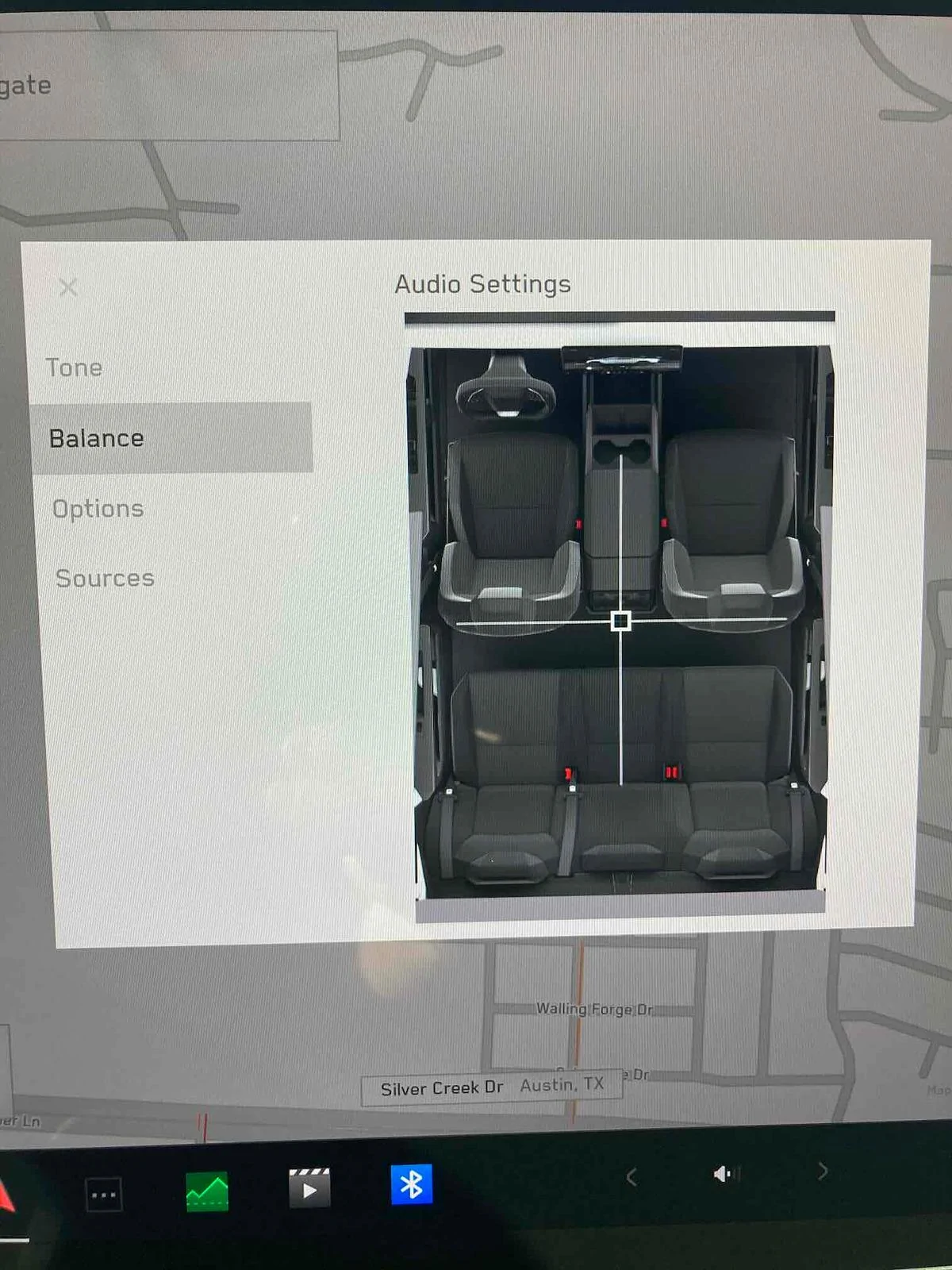
Navigation glitches, such as incorrect route guidance or slow map loading, can often be resolved with a soft reset or by ensuring you have a strong internet connection. A weak signal can disrupt map data downloads. Audio issues, like distorted sound or a complete lack of audio, can be addressed by checking the volume settings, audio source, and speaker balance. A system reboot is often helpful too.
Finally, software update failures are a concern. If an update gets stuck, avoid turning off the vehicle. Let it complete, even if it takes a long time. If it fails repeatedly, a soft reset after the update attempt might help. If the issue persists, contacting Tesla Support is recommended. They can remotely diagnose the problem and push the update again.
When to Contact Tesla Support
While resets can resolve many infotainment issues, there are situations where professional assistance is necessary. Do not attempt a reset if you suspect a hardware failure, such as a physically damaged touchscreen or a malfunctioning speaker. These issues require professional diagnosis and repair.
If you’ve tried multiple resets and are still experiencing persistent errors, or if the problem is affecting safety-critical systems (like Autopilot or braking), contact Tesla Support immediately. Don't risk your safety by attempting to troubleshoot these issues yourself. You can find their contact information and support resources on the official Tesla website:




No comments yet. Be the first to share your thoughts!