

2026 Model Y infotainment overview
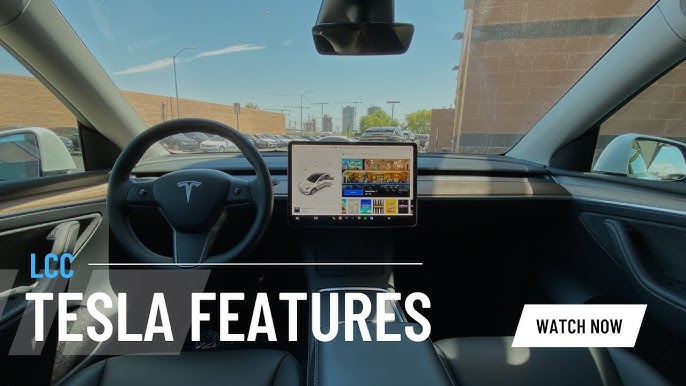
The 2026 Model Y runs almost entirely through its touchscreen. Navigation, climate, and music are all handled here rather than through physical buttons. While the interface is similar to older Teslas, the software is faster and the menus are slightly rearranged.
Tesla frequently pushes over-the-air software updates, meaning the system is in a constant state of evolution. Features can be added, modified, or even removed with these updates, so what's true today might not be tomorrow. This guide aims to provide a current snapshot of common reset and troubleshooting procedures as of late 2024, but be aware that Tesla’s approach can change.
These steps fix software glitches, frozen screens, and connection drops. If the screen is physically cracked or the computer won't turn on at all after a reset, you'll need to book a service appointment through the app.
How to restart the touchscreen
The quickest and easiest way to address minor glitches in the 2026 Model Y’s infotainment system is a simple touchscreen restart. This is akin to rebooting a computer or smartphone and often resolves temporary software hiccups. To initiate this, simultaneously press and hold both scroll wheels on the steering wheel. Keep holding them even as the screen goes black.
A normal reboot will display the Tesla logo and then cycle through several loading screens as the system restarts. This process usually takes between 15 and 30 seconds. Don’t interrupt the reboot process by pressing the scroll wheels or attempting to use the touchscreen – let it complete on its own. Interrupting it could lead to further instability.
Try this if an app freezes or the map looks glitchy. Restarting the screen is safe to do while driving because it doesn't affect the brakes, steering, or pedals. It is the first thing a Tesla technician will tell you to try.
- Hold both steering wheel scroll wheels until the screen turns black.
- Continue holding until the touchscreen goes black.
- Release the scroll wheels and allow the system to reboot (look for the Tesla logo).
- Wait for the system to fully load before attempting to use it.
Hard reset and power cycling
If a simple touchscreen restart doesn’t resolve the problem, you might need to power cycle the vehicle. This is a more complete system reset that goes beyond just the touchscreen and affects more of the car’s computer systems. It’s more disruptive than a simple restart but can be effective for more persistent issues.
To power cycle, first shift the vehicle into Park and firmly engage the parking brake. Then, turn off the air conditioning (or heating) system. Finally, double-tap the brake pedal. This sequence initiates a deep reset of the vehicle’s systems. The screen will go black, and the car will effectively "shut down" and then restart.
The key difference between a simple restart and a power cycle is the scope of the reset. A restart primarily focuses on the infotainment system, while a power cycle resets a larger portion of the vehicle's computer systems. A power cycle is appropriate after significant software updates, for more persistent glitches that a restart doesn’t fix, or if the touchscreen is completely frozen and unresponsive. However, avoid performing frequent power cycles, as it can potentially strain the system.
The car will fully shut down during a power cycle, so only do this while parked in a safe spot. Once the system comes back online, check your climate settings and driver profile to make sure they saved.
Fixing common error messages
The 2026 Model Y’s infotainment system can occasionally display error messages. While some are minor and resolve themselves, others might indicate a more serious problem. Understanding these messages and knowing when to attempt a reset is important. One common message is 'Connectivity Issues,' which can stem from a weak Wi-Fi signal, a problem with the car’s cellular connection, or a temporary server outage.
Another frequent error is 'Navigation Unavailable,' which can be caused by a loss of GPS signal, a software glitch, or outdated map data. A simple restart is often the first step to try in this situation. If the problem persists, check your internet connection and ensure your map data is up to date. 'Media Player Error' can arise from corrupted media files, a problem with the streaming service, or a software conflict. Clearing the cache of the media app or restarting the system can sometimes resolve this.
It’s important to remember that not all error messages can be resolved with a reset. Some errors indicate a hardware malfunction or a more complex software issue that requires professional attention. If you receive an error message that you can’t resolve with a restart or power cycle, or if the error is accompanied by other symptoms (like warning lights), contact Tesla service. Don't attempt to diagnose or repair the system yourself, as this could void your warranty.
Tesla's service documentation (service.tesla.com) often provides specific troubleshooting steps for common error codes. Consulting that resource can sometimes offer more targeted solutions than a general reset. However, it's often geared towards technicians, so the information can be technical.
Resetting Bluetooth Connections
Bluetooth connectivity issues are relatively common in modern cars, and the 2026 Model Y is no exception. Problems like devices not being recognized, frequent disconnects, or poor audio quality can often be resolved by resetting the Bluetooth connection. To do this, navigate to the 'Bluetooth' settings within the car’s infotainment system.
From there, you can delete previously paired devices. Once deleted, you’ll need to re-pair your phone or other device by putting it into pairing mode and selecting it from the list of available devices in the car. Ensure your phone’s Bluetooth is enabled and that it’s discoverable. Interference from other Bluetooth devices or Wi-Fi signals can also cause connection problems.
If you’re still having trouble, check the Bluetooth settings on both the car and your paired device. Make sure the correct audio profile is selected (e.g., A2DP for audio streaming). Troubleshooting can also vary slightly depending on whether you’re using an iOS or Android device. iOS users might need to 'forget' the car in their Bluetooth settings, while Android users may need to clear the Bluetooth cache.
Wi-Fi Reset and Updates
A stable Wi-Fi connection is crucial for receiving over-the-air software updates in the 2026 Model Y. If you’re experiencing issues with Wi-Fi connectivity, you might need to reset the connection. To do this, navigate to the "Wi-Fi’ settings in the car’s infotainment system and ‘forget" your current network.
Then, reconnect to the network by entering the password. Ensure you’re using the correct password and that the Wi-Fi signal strength is strong. If you’re still having trouble, try restarting your router. If a stable Wi-Fi connection isn't available, you can use a mobile hotspot as an alternative, but be mindful of data usage.
Regularly checking for software updates is essential for keeping the system running smoothly and accessing the latest features. You can manually check for updates in the "Software’ section of the infotainment system. The system will download and install the update automatically, which may take some time. It"s best to initiate the update when the car is parked and connected to a reliable power source.




No comments yet. Be the first to share your thoughts!